
Windows Event Logs accumulate fast. On a busy server, the Application and System logs can hold hundreds of thousands of entries within days. PowerShell gives you two tools for dealing with this: Get-WinEvent for reading and filtering events with precision, and Clear-EventLog or wevtutil for clearing logs safely — with an export step before wiping anything. This article focuses on the patterns that come up during real troubleshooting and maintenance, not on every parameter in the documentation.
If you need the CMD equivalent for the same operations, see the wevtutil command guide. This article focuses on the PowerShell side: structured output, time-based filtering, exporting to files, and clearing logs with a proper backup step.
Quick answer
Get the last 20 errors from the System log:
Get-WinEvent -FilterHashtable @{ LogName = 'System'; Level = 2 } -MaxEvents 20Export the Application log and clear it:
wevtutil epl Application C:\bat\Application-backup.evtx
Clear-EventLog -LogName Application
Two cmdlets, one use case each
PowerShell has two ways to read Event Logs: the older Get-EventLog and the newer Get-WinEvent. Use Get-WinEvent — it is faster, supports all log channels including operational logs, and handles large logs without performance issues. Get-EventLog is limited to classic logs and is significantly slower on large datasets.
| Cmdlet | Purpose | Use |
|---|---|---|
Get-WinEvent | Read and filter events from any log channel or .evtx file | Always prefer this |
Get-EventLog | Read classic logs only (System, Application, Security) | Avoid — legacy |
Clear-EventLog | Clear a classic log channel | Use with export first |
wevtutil epl | Export any log channel to .evtx before clearing | Always run before clear |
Practical examples
1. Get recent errors from a log channel
The problem: Something failed on a server — a service crashed, an application threw an error, a scheduled task did not run. You need to see what the Event Log recorded in the last hour without opening Event Viewer and clicking through filters manually.
The solution: Get-WinEvent with a filter hashtable is the fastest way to query a log channel with multiple conditions at once. The filter hashtable is more efficient than piping to Where-Object because the filtering happens before events are loaded into memory.
# Get errors (Level 2) from the System log in the last 2 hours
# Level 1 = Critical, Level 2 = Error, Level 3 = Warning
Get-WinEvent -FilterHashtable @{
    LogName   = 'System'
    Level     = 2
    StartTime = (Get-Date).AddHours(-2)
} | Select-Object TimeCreated, Id, Message
Example output:
TimeCreated          Id  Message
-----------          --  -------
4/20/2026 8:14:33   7034 The Print Spooler service terminated unexpectedly...
4/20/2026 7:58:11   7031 The Windows Update service terminated unexpectedly...
To include both errors and warnings, use an array for Level:
# Get both errors and warnings from the Application log in the last 24 hours
Get-WinEvent -FilterHashtable @{
    LogName   = 'Application'
    Level     = 2, 3
    StartTime = (Get-Date).AddHours(-24)
} | Select-Object TimeCreated, Id, LevelDisplayName, Message | Format-Table -AutoSize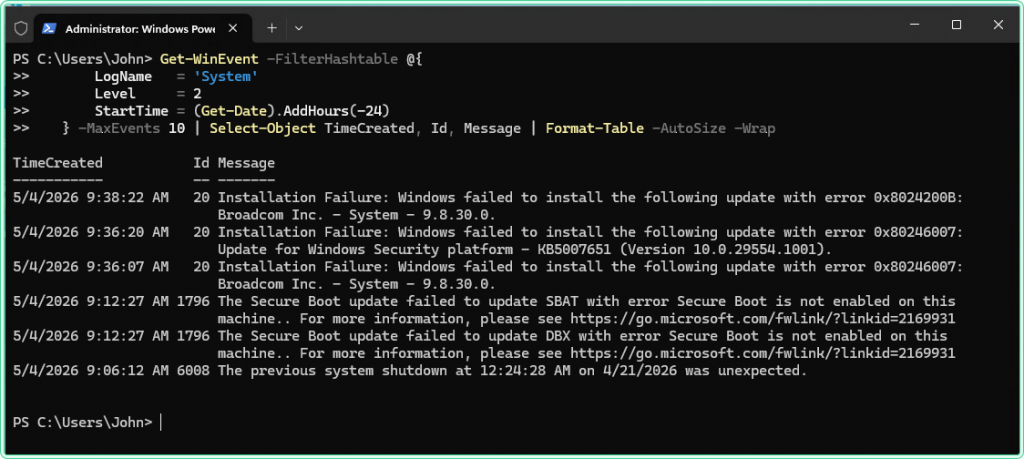
2. Filter events by Event ID
The problem: You know the specific Event ID you are looking for — failed logons (4625), account lockouts (4740), service crashes (7034), or a custom application event. You want only those events, not everything in the log.
The solution: Add Id to the filter hashtable. Multiple IDs can be passed as an array.
# Get failed logon events (4625) from the Security log — requires elevation
Get-WinEvent -FilterHashtable @{
    LogName = 'Security'
    Id      = 4625
} -MaxEvents 50 | Select-Object TimeCreated, Message
# Get both failed logon (4625) and account lockout (4740) events
Get-WinEvent -FilterHashtable @{
LogName = 'Security'
Id = 4625, 4740
} -MaxEvents 50 | Select-Object TimeCreated, Id, Message# Get service crash events (7034) from System log in the last week
Get-WinEvent -FilterHashtable @{
LogName = 'System'
Id = 7034
StartTime = (Get-Date).AddDays(-7)
} | Select-Object TimeCreated, Message-MaxEvents or a StartTime filter when querying it — without a limit, the query will run for several minutes and return an unmanageable amount of data.
3. Query events from a remote machine
The problem: A server in another location is generating errors and you need to check its Event Log without opening an RDP session or asking someone to physically access it.
The solution: Get-WinEvent accepts a -ComputerName parameter. The query runs against the remote machine’s Event Log service over the network. Requires admin rights on the remote machine and RPC connectivity.
# Query the System log on a remote machine for errors in the last hour
Get-WinEvent -ComputerName SRV-PROD-01 -FilterHashtable @{
    LogName   = 'System'
    Level     = 2
    StartTime = (Get-Date).AddHours(-1)
} | Select-Object TimeCreated, Id, Message
# Query with explicit credentials when the current session lacks remote admin rights
$cred = Get-Credential
Get-WinEvent -ComputerName SRV-PROD-01 -Credential $cred -FilterHashtable @{
LogName = 'System'
Level = 2
} -MaxEvents 20 | Select-Object TimeCreated, Id, MessageGet-Credential opens a secure prompt for username and password — credentials are never stored in the script or command history. This is the correct pattern for interactive remote queries.
4. Export events to a file for analysis or handoff
The problem: You need to share Event Log data with another admin, attach it to a ticket, or keep a record of what was in the log before making changes. Copying terminal output loses formatting and is hard to read.
The solution: Export to CSV for structured data that can be opened in Excel, or export as an .evtx file to preserve all event metadata and allow re-querying with Get-WinEvent or Event Viewer later.
# Export filtered events to CSV — easy to open in Excel or share via email
Get-WinEvent -FilterHashtable @{
    LogName   = 'System'
    Level     = 2
    StartTime = (Get-Date).AddDays(-7)
} | Select-Object TimeCreated, Id, LevelDisplayName, Message |
    Export-Csv -Path C:\bat\system-errors-last-7-days.csv -NoTypeInformation
# Export the entire Application log as .evtx — preserves all metadata
# wevtutil is faster and more reliable for full log exports than PowerShell
wevtutil epl Application C:\bat\Application-$(Get-Date -Format 'yyyy-MM-dd').evtx# Query events from a saved .evtx file — same syntax as a live channel
Get-WinEvent -Path C:\bat\Application-2026-04-20.evtx -FilterXPath "*[System[Level=2]]" |
Select-Object TimeCreated, Id, Message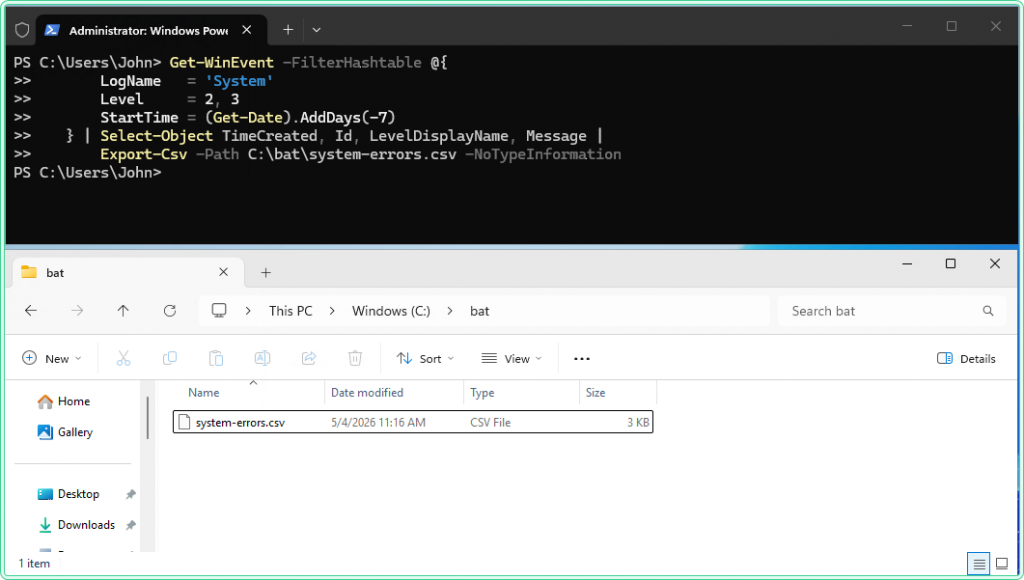
5. Export and clear a log safely
The problem: A log channel is full or filling up fast — older events are being overwritten before they can be reviewed, or disk space on a server is getting tight. You need to clear the log but cannot lose the data permanently.
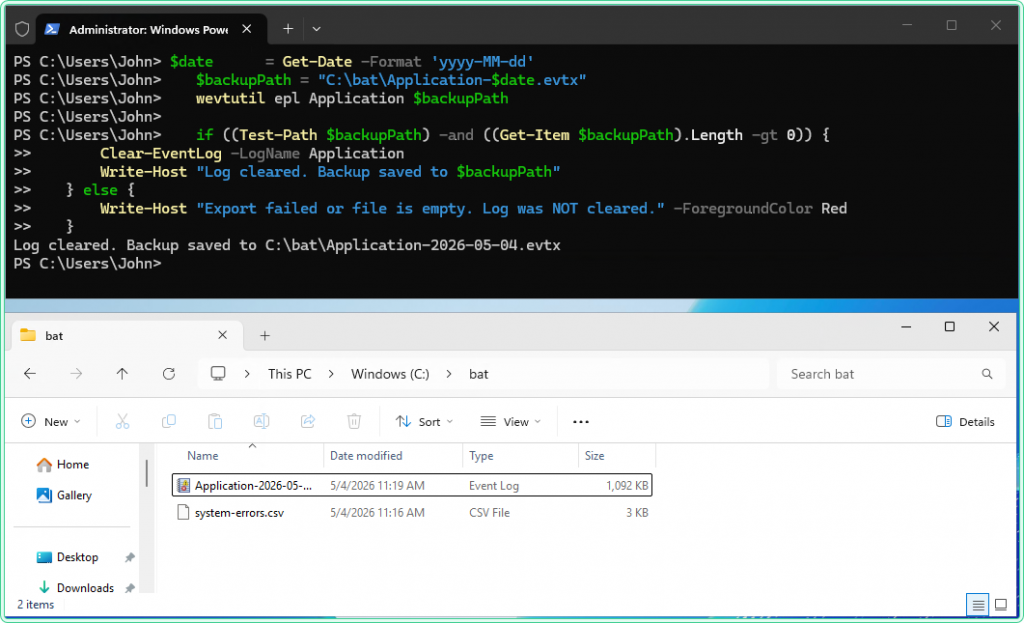
The solution: Always export first, verify the file, then clear. This two-step sequence is the correct procedure on any machine where log retention matters.
# Step 1 — export the log to a dated .evtx archive file
# wevtutil is used here because it is faster and more reliable for full exports
$date     = Get-Date -Format 'yyyy-MM-dd'
$backupPath = "C:\bat\Application-$date.evtx"
wevtutil epl Application $backupPath

# Step 2 — verify the export file exists and has a non-zero size before clearing
if ((Test-Path $backupPath) -and ((Get-Item $backupPath).Length -gt 0)) {
    # Step 3 — clear the log — requires elevated PowerShell
    Clear-EventLog -LogName Application
    Write-Host "Log cleared. Backup saved to $backupPath"
} else {
    Write-Host "Export failed or file is empty. Log was NOT cleared." -ForegroundColor Red
}Clear-EventLog permanently deletes all events from the log channel. The verification step in the script above is not optional — always confirm the export file exists and has content before running the clear. There is no undo.
Clear-EventLog -LogName Application, System. Clearing the Security log additionally requires the “Manage auditing and security log” privilege — on hardened servers, even a local administrator may not have this right by default.
Hidden gems
Get-WinEvent returns objects — pipe them anywhere
Unlike wevtutil which returns text, Get-WinEvent returns event objects with named properties. This means you can pipe results directly into Group-Object to count events by ID, Sort-Object to reorder them, or Where-Object for additional filtering that the hashtable does not support — such as filtering on the Message field content:
# Count how many times each Event ID appeared in the System log today
Get-WinEvent -FilterHashtable @{
    LogName   = 'System'
    StartTime = (Get-Date).Date
} | Group-Object Id | Sort-Object Count -Descending | Select-Object Count, Name
# Find all error events whose message contains a specific string
Get-WinEvent -FilterHashtable @{ LogName = 'Application'; Level = 2 } -MaxEvents 500 |
Where-Object { $_.Message -like '*connection timeout*' } |
Select-Object TimeCreated, Id, MessageList all available log channels
Windows has hundreds of Event Log channels beyond System, Application, and Security. Get-WinEvent -ListLog * shows all of them with their current record count and size. Filter by name to find logs for specific components:
# Find all log channels related to Group Policy
Get-WinEvent -ListLog * | Where-Object { $_.LogName -like '*GroupPolicy*' }

# Show all logs that currently have events in them, sorted by record count
Get-WinEvent -ListLog * |
    Where-Object { $_.RecordCount -gt 0 } |
    Sort-Object RecordCount -Descending |
    Select-Object LogName, RecordCount, FileSize | Format-Table -AutoSize
Suppress the error when no events match the filter
When Get-WinEvent finds no events matching the filter, it throws a terminating error instead of returning an empty result — which breaks scripts that expect a clean empty output. Use -ErrorAction SilentlyContinue to handle this gracefully:
# Return empty result instead of an error when no events match
$events = Get-WinEvent -FilterHashtable @{
    LogName   = 'System'
    Level     = 1
    StartTime = (Get-Date).AddHours(-1)
} -ErrorAction SilentlyContinue

if ($events) {
    $events | Select-Object TimeCreated, Id, Message
} else {
    Write-Host "No critical events found in the last hour."
}
Where this matters
Post-incident analysis — after an outage or unexpected reboot, querying the System and Application logs for errors in the hour before the incident is usually the first step in root cause analysis.
Log rotation on servers without a SIEM — smaller environments that do not forward logs to a central collector need a manual or scheduled process to archive and clear logs before they overflow. The export-and-clear script in Example 5 is that process.
Security event monitoring — querying for failed logon events (4625) and account lockouts (4740) on domain controllers or RDP-exposed servers is a basic indicator of brute-force activity that does not require a full SIEM to detect.
Scheduled maintenance reporting — running Get-WinEvent as part of a weekly maintenance script and exporting results to CSV gives a lightweight audit trail without additional tooling.
Kiosk and shared workstation cleanup — clearing logs on machines that accumulate events rapidly keeps disk usage predictable and makes the logs easier to review when something actually goes wrong.
Tips and limitations
- FilterHashtable is faster than Where-Object. Always apply as many filters as possible inside the hashtable — LogName, Level, Id, StartTime, EndTime — before piping to
Where-Object. The hashtable filters happen at the source before events are loaded into memory.Where-Objectfilters after all matching events are already loaded, which is significantly slower on large logs. - Get-WinEvent -ComputerName uses RPC, not WinRM. Unlike most PowerShell remoting which uses WinRM (port 5985/5986),
Get-WinEvent -ComputerNameuses RPC (port 135 + dynamic ports). If the remote machine is configured for WinRM but not RPC, useInvoke-Commandto run the query remotely instead. - Clear-EventLog only works on classic logs. For operational logs like
Microsoft-Windows-GroupPolicy/Operational, usewevtutil cl "LogName"instead —Clear-EventLogdoes not support non-classic channels. - Exported .evtx files are not text files. They are binary and must be opened in Event Viewer or queried with
Get-WinEvent -Path. Do not try to read them withGet-Content— the output will be unreadable binary data.
Official documentation
- Get-WinEvent — Microsoft Learn — full parameter reference and filter hashtable documentation
- Clear-EventLog — Microsoft Learn
Related tools
- Windows Event Log Analyzer — paste raw Event Log output and get an AI-powered summary of what went wrong and what to check next
Related guides
- wevtutil command in Windows — the CMD equivalent for querying, exporting, and clearing Event Logs without PowerShell
- gpresult command in Windows — cross-reference the Group Policy operational log when
gpresultshows a GPO applied but settings are not taking effect - Fix trust relationship between workstation and domain — Security log events that appear after a broken trust relationship
- Windows Command Line (CMD) Cheat Sheet — quick reference for CMD commands used alongside PowerShell in the same admin workflows
- Enter-PSSession and WinRM — the difference between a -ComputerName parameter that uses RPC and one that uses WinRM, and what to do when only one of them works.
Five cheat sheets, one PDF
Subnet masks, PowerShell, Linux commands, HTTP status codes and the ESXi command line - one page each, free to keep. Leave an address and it arrives in a minute.