
DISM - Deployment Image Servicing and Management - is the tool you reach for when sfc /scannow reports corrupted files it cannot fix. Where SFC checks and repairs individual system files, DISM works at a lower level: it validates and restores the Windows component store, which is the source SFC itself pulls from. If that store is damaged, SFC will keep failing no matter how many times you run it - and DISM is the correct next step.
This article covers the three operations you will actually use during troubleshooting: checking the image health, scanning for corruption, and restoring it. It also covers the offline repair path for machines that cannot reach Windows Update - which is where most guides stop too early. For the SFC side of this workflow, see the sfc /scannow command guide.
Quick answer
The standard repair sequence - run these in order, each in an elevated CMD or PowerShell:
DISM /Online /Cleanup-Image /CheckHealth
DISM /Online /Cleanup-Image /ScanHealth
DISM /Online /Cleanup-Image /RestoreHealth
After RestoreHealth completes, run SFC to repair any individual files the image restoration may have unlocked:
sfc /scannowWhat DISM does
DISM operates on the Windows component store - the directory at C:\Windows\WinSxS that holds the authoritative copies of every Windows component. SFC uses this store as its repair source. When the store itself is corrupted, SFC has nowhere to pull clean files from and reports "Windows Resource Protection found corrupt files but was unable to fix some of them."
DISM repairs the store by downloading replacement components from Windows Update or from a local source you specify. The three health-related operations work as a progression:
| Operation | What it does | Time |
|---|---|---|
/CheckHealth | Reads a flag in the component store - fast, no scan | Seconds |
/ScanHealth | Scans the full component store for corruption | 5-15 min |
/RestoreHealth | Scans and repairs - downloads from Windows Update | 15-45 min |
C:\Windows\Logs\DISM\dism.log - this is where to look when a command fails without a clear error message on screen.
Practical examples
1. Check image health before doing anything else
The problem: SFC reported an error, or Windows Update is failing, and you want to know quickly whether the component store is flagged as corrupted before committing to a longer scan.
The solution: /CheckHealth reads a flag that Windows sets internally when it detects component store issues. It does not scan - it only reads what is already recorded. Takes seconds.
DISM /Online /Cleanup-Image /CheckHealthExpected output when the store is healthy:
Deployment Image Servicing and Management tool
Version: 10.0.22621.1

Image Version: 10.0.22621.1

No component store corruption detected.
The operation completed successfully.
If the output says "The component store is repairable" - proceed to /ScanHealth and then /RestoreHealth.
/CheckHealth result does not guarantee the store is intact - it only means no corruption flag has been recorded. A store can be silently damaged without triggering the flag. If SFC is still failing after a clean CheckHealth, run /ScanHealth anyway.
2. Scan the component store for corruption
The problem: You need to know definitively whether the component store has corruption - not just whether a flag was set, but whether the actual content is damaged.
The solution: /ScanHealth performs a full scan of the component store. It takes longer than CheckHealth but gives you a reliable answer. It does not repair - it only reports.
DISM /Online /Cleanup-Image /ScanHealthThe scan typically runs for 5-15 minutes. The progress counter in the terminal may stall at certain percentages - this is normal, especially around 20% and 65%. Do not close the window.
/RestoreHealth. RestoreHealth includes a scan as part of its process, so running ScanHealth first just doubles the scan time without adding benefit.
3. Restore the Windows image (standard online repair)
The problem: SFC cannot fix corrupted files, or DISM ScanHealth reported corruption. You need to actually repair the component store, not just confirm the damage.
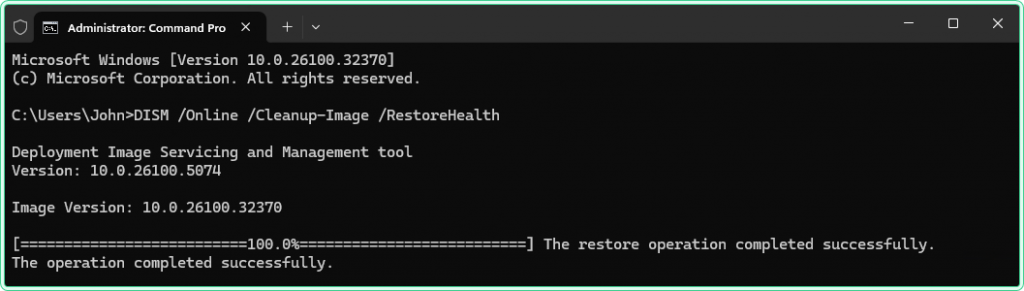
The solution: /RestoreHealth scans the store and downloads replacement components from Windows Update to fix any corruption it finds. This is the main repair operation.
DISM /Online /Cleanup-Image /RestoreHealthAfter RestoreHealth completes successfully, run SFC to catch any individual system files that the store repair may have unlocked for fixing:
sfc /scannowsfc /scannow should now either report no issues or successfully repair any remaining individual file corruption.
4. Repair offline using a Windows ISO (no internet required)
The problem: The machine cannot reach Windows Update - it is on an isolated network, Windows Update is blocked by policy, or RestoreHealth keeps failing with error 0x800f081f ("The source files could not be found"). You need to repair the image using a local source.
The solution: Mount a Windows ISO that matches the installed Windows version and build, then point DISM at the install.wim inside it using the /Source parameter.
First, mount the ISO. In Windows 10/11 you can double-click the ISO file to mount it - it will appear as a drive letter (for example E:). Then run:
DISM /Online /Cleanup-Image /RestoreHealth /Source:E:\sources\install.wim /LimitAccess/LimitAccess tells DISM to use only the specified source and not fall back to Windows Update. This is important when Windows Update is unavailable or when you need a fully offline repair. Without it, DISM will attempt Windows Update as a fallback even if you specified a local source.
If the ISO contains multiple Windows editions (Home, Pro, Enterprise), DISM may need the index number of the correct edition. To check which index matches your installed edition:
DISM /Get-WimInfo /WimFile:E:\sources\install.wim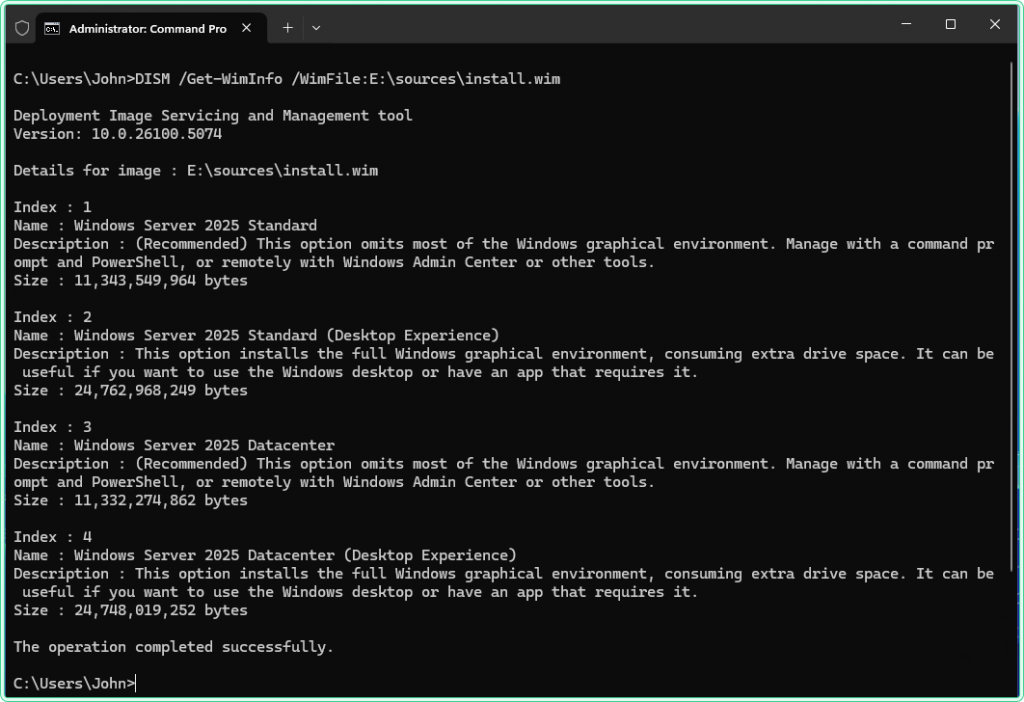
Then specify the index in the repair command:
DISM /Online /Cleanup-Image /RestoreHealth /Source:E:\sources\install.wim:2 /LimitAccess
5. Clean up the component store after a Windows upgrade
The problem: After a feature update or in-place upgrade, the WinSxS folder grows significantly because Windows keeps the previous version components for rollback. On smaller drives - common on older servers or thin clients - this can become a disk space issue.
The solution: /StartComponentCleanup with /ResetBase removes superseded components and resets the base, reclaiming disk space. This is irreversible - once run, you cannot roll back to the previous Windows version.
DISM /Online /Cleanup-Image /StartComponentCleanup /ResetBase/StartComponentCleanup /ResetBase immediately after a feature update removes the ability to uninstall that update. Only run this when you are confident the new version is stable and rollback is not needed. On production servers, wait at least 30 days after an upgrade before running this command.
Hidden gems
DISM works the same way from PowerShell
DISM is a command-line tool, not a CMD-specific one. You can run every DISM command from an elevated PowerShell prompt without any syntax changes. This matters when you are already in a PowerShell session during a troubleshooting workflow and do not want to switch windows. PowerShell also lets you capture DISM output to a variable or file more cleanly than CMD redirection.
The progress counter lies
/ScanHealth and /RestoreHealth both display a progress percentage that frequently stalls - most commonly at 20%, 40%, and 65%. This is not a hang. DISM is processing different phases of the component store, and some phases take significantly longer than others. The only reliable signal that something is genuinely stuck is if the progress does not move for more than 30 minutes and disk activity has stopped. In normal operation, let it run.
dism.log is more useful than the terminal output
The terminal shows only a summary. The full log at C:\Windows\Logs\DISM\dism.log contains every operation DISM performed, every file it checked, and the exact error code when something fails. When RestoreHealth reports a failure without a clear reason, the log is the first place to look - not search engines. Open it with Notepad or filter it with PowerShell:
Get-Content C:\Windows\Logs\DISM\dism.log | Select-String "Error"Error 0x800f0954 means Windows Update is blocked by policy
On domain-joined machines, RestoreHealth sometimes fails with error 0x800f0954. This typically means a Group Policy is redirecting Windows Update to a WSUS server, and that server does not have the repair components DISM needs. The fix is to use the /Source parameter with a local ISO (see Example 4) rather than trying to unblock Windows Update.
DISM from PowerShell
PowerShell includes a Repair-WindowsImage cmdlet that wraps DISM functionality. For the standard repair workflow, the CMD version is more commonly used and better documented, but the PowerShell cmdlet is useful when scripting or when you want structured output:
# Check health via PowerShell cmdlet
Repair-WindowsImage -Online -CheckHealth

# Scan health
Repair-WindowsImage -Online -ScanHealth

# Restore health (downloads from Windows Update)
Repair-WindowsImage -Online -RestoreHealthRepair-WindowsImage and DISM.exe perform the same underlying operations. Use whichever fits your workflow - there is no functional difference for the standard health operations.
Where this matters
After SFC reports unfixable corruption - the standard next step when sfc /scannow returns "Windows Resource Protection found corrupt files but was unable to fix some of them." DISM repairs the source store so SFC can complete its work.
Windows Update failures with error codes - errors like 0x80070002, 0x8007371b, and 0x800f0900 during Windows Update often have component store corruption as the root cause. Running the DISM repair sequence before re-attempting the update resolves many of these without further troubleshooting.
Post-malware cleanup - after removing malware, system files are sometimes left damaged or replaced. DISM RestoreHealth restores the component store to a known-good state before you run SFC to fix individual file damage.
Pre-upgrade preparation - running DISM ScanHealth before a major Windows feature update reduces the chance of the upgrade failing partway through due to pre-existing component store issues.
Disk space reclamation on small drives - after confirming a feature update is stable, /StartComponentCleanup /ResetBase recovers several gigabytes on drives where WinSxS has grown large over successive updates.
Tips and limitations
- Always run as Administrator. DISM silently does nothing if run without elevation - it will not display an access denied error, it will simply report success without actually scanning or repairing anything.
- Do not interrupt RestoreHealth. Cancelling a repair mid-process can leave the component store in a partially repaired state that is harder to recover from than the original corruption. If you need to stop, wait for the current phase to complete.
- ISO version must match exactly. When using
/Source, a Windows 11 ISO cannot repair a Windows 10 installation, and vice versa. The build number should be the same or newer than the installed OS. - DISM does not fix hardware problems. If the component store corruption is caused by failing storage (bad sectors, unreliable SSD), DISM will repair the store but corruption will return. Run
chkdsk /rif you suspect storage issues before or after running DISM. - /ResetBase cannot be undone. Once run, the previous Windows version components are permanently removed. Never run this on a machine that might need to roll back a recent update.
Official documentation
- DISM Image Management Command-Line Options - Microsoft Learn
- Repair a Windows Image - Microsoft Learn
Related tools
- Windows Event Log Analyzer - after running DISM, paste the CBS.log or DISM.log output to get an AI-powered summary of what was repaired and what to check next
Related guides
- chkdsk in Windows: what each switch does, and when not to run it: when the corruption is in the volume rather than in the component store.
- sfc /scannow in Windows - run SFC first; when it cannot fix corrupted files, DISM is the correct next step
- How to read CBS.log in Windows - understand what SFC and DISM actually did, and find the specific files that triggered the repair
- wevtutil command in Windows - query and export Windows Event Logs from CMD, including DISM-related operational logs
- How to read and clear Windows Event Logs with PowerShell - use Get-WinEvent to filter DISM and SFC-related events from the System log after a repair
- driverquery in Windows: the driver services view next to the driver store DISM reports on.
Five cheat sheets, one PDF
Subnet masks, PowerShell, Linux commands, HTTP status codes and the ESXi command line - one page each, free to keep. Leave an address and it arrives in a minute.