
When a Group Policy setting is not applying as expected — a drive mapping is missing, a software restriction is not enforced, a desktop lockdown is not working — the question is always the same: which GPOs actually applied to this machine and this user? gpresult answers that question directly. It shows the Resultant Set of Policy (RSoP) for any machine and user combination: which GPOs were applied, which were denied, which were filtered out by WMI or security, and what the last refresh time was.
This article covers the command-line output for fast triage, the HTML report for detailed analysis, remote machine queries, and the patterns that come up when GPOs are applied but settings still do not appear as expected.
Quick answer
Show applied GPOs for the current user and computer in the console:
gpresult /rGenerate a full HTML report saved to a file:
gpresult /H C:\bat\gpresult-report.html /FWhat it does
gpresult queries the local Group Policy engine and displays the Resultant Set of Policy — the combined outcome of all GPOs that have been evaluated for the current (or specified) user and computer. It does not trigger a policy refresh; it reads the cached result of the last refresh that already occurred.
Basic syntax:
gpresult [/S computer] [/U domain\user] [/P password] [/R] [/V] [/Z]
[/H filename] [/X filename] [/F] [/scope user|computer]| Flag | Purpose |
|---|---|
/R | Summary output — applied GPOs, last refresh time, site |
/V | Verbose — includes all applied policy settings |
/Z | Super verbose — maximum detail including all evaluated GPOs |
/H filename | Save full report as HTML file |
/X filename | Save full report as XML file |
/F | Force overwrite if output file already exists |
/S computer | Run against a remote computer |
/U domain\user | Run as a specific user (for remote queries) |
/scope user | Show only user policy results |
/scope computer | Show only computer policy results |
gpresult is available on all Windows versions from XP onward and on all Windows Server editions. Querying the computer scope or running against a remote machine requires administrator privileges.
Practical examples
1. Quick summary of applied GPOs
The problem: A user reports that a Group Policy setting is not working on their machine — a mapped drive is missing, a script did not run, or a restriction that should be in place is not. You need a fast overview of which GPOs actually applied at the last refresh before investigating further.
The solution: /R produces a compact summary: the site the machine is in, the last policy refresh time, the domain, and the list of applied GPOs for both computer and user scope.
rem Summary RSoP output for the currently logged-on user
rem Run from an elevated command prompt for full computer scope data
gpresult /R
Example output (abbreviated):
COMPUTER SETTINGS
-----------------
    Last time Group Policy was applied: 4/20/2026 at 8:45:02 AM
    Group Policy was applied from:      SRV-DC-01.domain.local
    Group Policy slow link threshold:   500 kbps
    Applied Group Policy Objects
        Default Domain Policy
        Workstation Security Baseline
        Software Deployment - Office

USER SETTINGS
-------------
    Last time Group Policy was applied: 4/20/2026 at 9:01:12 AM
    Group Policy was applied from:      SRV-DC-02.domain.local
    Applied Group Policy Objects
        Default Domain Policy
        Drive Mappings - Finance
    The following GPOs were not applied because they were filtered out
Block USB Storage Filtering: Denied (Security)2. Generate a full HTML report
The problem: The /R summary shows which GPOs applied, but you need to see the actual settings that came from each GPO — not just the names. This is necessary when a setting is applying from an unexpected GPO, or when you need to hand off a full policy snapshot to another admin or document it for a change record.
The solution: /H generates a structured HTML report with full detail: applied settings, denied GPOs, WMI filter results, security filtering, and component processing status. Use /F to overwrite the file if it already exists.
rem Generate full HTML report — save to C:\bat\gpresult-report.html
rem /H — HTML output format
rem /F — overwrite the file if it already exists

gpresult /H C:\bat\gpresult-report.html /F
Open the file in any browser to view the report:
rem Open the generated report directly from CMD
start C:\bat\gpresult-report.html
The HTML report is structured into collapsible sections — Summary, Computer Details, User Details, Applied GPOs, Denied GPOs, and WMI Filters:
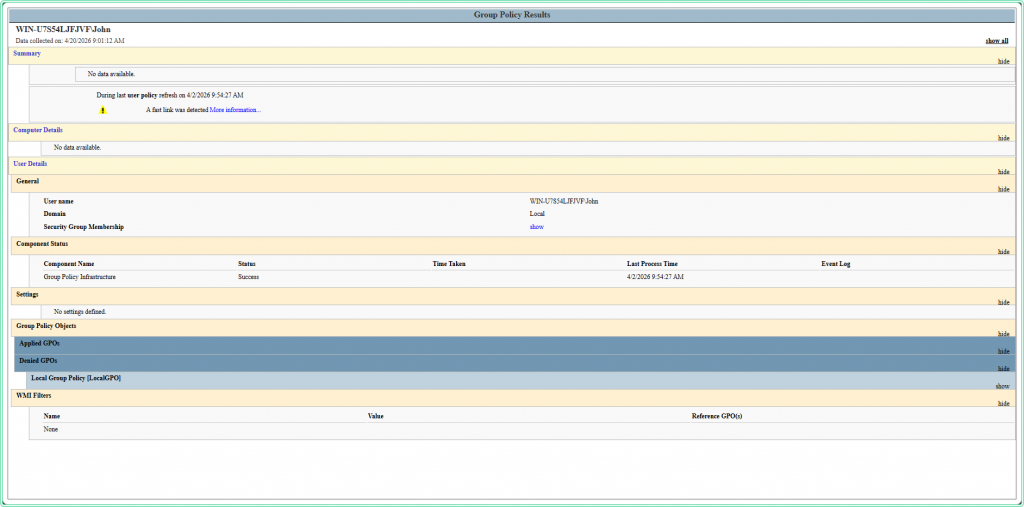
gpresult /H. On a domain-joined machine the Applied GPOs section shows all GPOs that processed successfully at last refresh. This example is from a standalone machine, so Applied GPOs is empty and Local Group Policy appears under Denied GPOs.3. Query policy results for a specific user
The problem: A specific user on a shared workstation is not getting a policy setting that other users receive on the same machine. You need to check what GPOs applied specifically for that user account — not for the currently logged-on session.
The solution: Use /user to target a specific domain account. The user must have logged on to the machine at least once for their policy data to be cached locally.
rem Show GPO summary for a specific domain user on the local machine
rem The user must have logged on to this machine previously
gpresult /R /user DOMAIN\jsmith
rem Generate HTML report scoped to user policy only for a specific account
gpresult /H C:\bat\gpresult-jsmith.html /F /user DOMAIN\jsmith /scope user4. Query a remote machine
The problem: A machine is in a remote office or you cannot get a console session on it. You need to check its Group Policy results without physically touching the machine or requesting an RDP session.
The solution: Use /S to specify the remote computer name. The command runs against the remote machine’s cached RSoP data. Requires administrator rights on the remote machine and network connectivity on port 135 (RPC).
rem Query GPO summary from a remote workstation
gpresult /S WRK-FIN-042 /R
rem Generate HTML report from a remote machine for a specific user
rem /U and /P provide credentials if the current session lacks admin rights on the target
gpresult /S WRK-FIN-042 /U DOMAIN\adminaccount /P * /H C:\bat\gpresult-remote.html /F/P * prompts for the password interactively instead of embedding it in the command. Never pass credentials in plain text in scripts — use /P * for interactive use or run the command from an already-elevated session with the appropriate domain rights.
5. Check only computer or only user scope
The problem: You are troubleshooting a machine-level setting (startup script, software deployment, security baseline) and the user policy output is adding noise to the analysis. Or vice versa — you only care about user-scoped policies and want a cleaner output.
The solution: Use /scope computer or /scope user to limit the output to one half of the RSoP result.
rem Show only computer-scoped GPO results — requires elevation
gpresult /R /scope computer
rem Generate HTML report for computer scope only
gpresult /H C:\bat\gpresult-computer.html /F /scope computergpresult /R /scope computer without administrator privileges returns: “ERROR: Access Denied. You don’t have the necessary permissions to read the RSOP data.” The user scope does not require elevation.
Hidden gems
A GPO in the applied list does not mean its settings are active
This is the most common source of confusion with gpresult. A GPO appearing under “Applied Group Policy Objects” means it was evaluated and the machine had permissions to read it — not that every setting inside it took effect. Individual settings within a GPO can be overridden by a higher-priority GPO, disabled within the GPO itself, or filtered at the setting level. If a GPO is applied but a specific setting is still not working, open the HTML report and check the Settings section to confirm the specific value that won the conflict.
Loopback processing changes whose user settings apply
In environments with loopback processing enabled (common on Citrix, kiosks, and shared workstations), user policy is determined by the computer the user logs into, not by the OU the user account lives in. If gpresult shows unexpected user-scoped GPOs that do not match the user’s OU, loopback processing is likely in play. The /V output will show “Loopback: Merge” or “Loopback: Replace” under the Computer Details section.
/Z for complete GPO evaluation history
The /Z flag produces super-verbose output that includes every GPO that was evaluated during the last refresh — including those that were out of scope, had no settings for this CSE, or were skipped for other reasons. The output is very long but is the most complete picture available from the command line without opening the HTML report.
rem Super verbose output — pipe to a file to read it comfortably
gpresult /Z > C:\bat\gpresult-full.txt
Cross-reference with Get-WinEvent for policy processing errors
When gpresult shows a GPO applied but a setting is still not working, the Group Policy operational log often contains the reason. Query it with Get-WinEvent to find processing errors that do not surface in the RSoP output:
# Check the Group Policy operational log for errors in the last 2 hours
Get-WinEvent -FilterHashtable @{
    LogName   = 'Microsoft-Windows-GroupPolicy/Operational'
    Level     = 2         # Error only
    StartTime = (Get-Date).AddHours(-2)
} | Select-Object TimeCreated, Message
PowerShell equivalent
PowerShell’s Get-GPResultantSetOfPolicy cmdlet is part of the GroupPolicy module (available on machines with RSAT installed or on domain controllers). It produces the same HTML or XML output as gpresult /H but integrates cleanly into scripts:
# Requires GroupPolicy module — available with RSAT or on domain controllers
Import-Module GroupPolicy

# Generate HTML report for current user and computer
Get-GPResultantSetOfPolicy -ReportType Html -Path "C:\bat\gpresult-ps.html"

# Generate report for a specific user on a remote machine
Get-GPResultantSetOfPolicy -Computer WRK-FIN-042 -User "DOMAIN\jsmith" `
-ReportType Html -Path "C:\bat\gpresult-remote-jsmith.html"Get-GPResultantSetOfPolicy requires the GroupPolicy PowerShell module, which is only available after installing Remote Server Administration Tools (RSAT) on a workstation or running from a domain controller. gpresult works on any domain-joined machine without additional tools — use it when RSAT is not available.
Where this matters
GPO troubleshooting on individual machines — a setting is not applying and you need to confirm in under two minutes whether the right GPO even reached the machine, without opening Group Policy Management Console on a domain controller.
User policy vs computer policy conflicts — a setting exists in both computer and user-scoped GPOs and you need to identify which one is winning and why.
Pre-change documentation — generating an HTML report before making changes to GPO structure or OU layout, to have a before/after comparison of which policies applied.
Remote office support — checking policy state on machines you cannot physically access or get a GUI session on, using only a command prompt and network connectivity.
Kiosk and shared workstation environments — verifying loopback processing behavior, confirming that machine-level restriction GPOs are applying regardless of which user logs in.
Tips and limitations
gpresultshows cached data — not live state. It reads the result of the last Group Policy refresh, not what would apply if policy refreshed right now. If GPO changes were made after the last refresh, rungpupdate /forcefirst to get current results, then rungpresultagain.- Computer scope requires elevation. Without an elevated prompt,
gpresult /Rshows only user scope. The computer scope section either shows an error or is silently omitted depending on Windows version. Always run elevated when troubleshooting computer-level settings. gpresultdoes not explain why a setting has a specific value. It shows what applied — not why a conflict was resolved in a particular direction. For that level of detail, use the GPMC’s Group Policy Results Wizard on a domain controller, which provides per-setting precedence information.- The HTML report path must be absolute. Relative paths like
gpresult /H report.htmlmay write the file to an unexpected location (usually System32 when run elevated). Always specify a full path:C:\bat\filename.html. - On workgroup machines, only Local Group Policy applies.
gpresultstill works on machines not joined to a domain, but only shows Local Group Policy Object results. Applied GPOs will be empty or show only the Local GPO.
Official documentation
- gpresult — Microsoft Learn — full parameter reference and output format documentation
Related guides
- NLTEST command — domain trust and DC connectivity checks — the natural first step before
gpresultwhen a machine cannot reach a domain controller to refresh policy - DCDIAG — Active Directory troubleshooting — domain health diagnostics that identify replication or Sysvol issues that prevent GPOs from distributing correctly
- Fix trust relationship between workstation and domain — broken trust causes Group Policy to fail entirely; fix the trust before interpreting
gpresultoutput - How to read Windows Event Logs with PowerShell — query the Group Policy operational log for CSE errors that
gpresultdoes not surface - Windows Command Line (CMD) Cheat Sheet — quick reference for CMD commands used in the same admin workflows
- dfsrmig: check SYSVOL replication and migrate FRS to DFSR: when Group Policy lands unevenly, this tells you whether SYSVOL replication itself is mid-migration.
- whoami /all: read your Windows access token: the token side of the same question, for when applied policy and effective group membership disagree.
Related tools
- nltest Command Builder — generate the
nltestqueries for domain and trust checks
Five cheat sheets, one PDF
Subnet masks, PowerShell, Linux commands, HTTP status codes and the ESXi command line - one page each, free to keep. Leave an address and it arrives in a minute.