
When something goes wrong on a Windows machine — a service crash, a failed login, an unexpected reboot — the answer is usually in the Event Log. wevtutil lets you query, filter, export, and clear Event Logs entirely from the command line, without opening Event Viewer. It works on local machines and remote servers, supports structured XML output, and can archive logs to .evtx files before clearing them — which is the correct way to clear logs in any environment where auditability matters.
This article covers the patterns that come up in real admin work: finding recent errors fast, exporting logs before wiping them, querying remote machines, and pulling specific event IDs without scrolling through thousands of entries.
Quick answer
List the last 20 errors from the System log:
wevtutil qe System /c:20 /rd:true /f:text /q:"*[System[Level=2]]"Export the Application log to a file before clearing it:
wevtutil epl Application C:\bat\Application-backup.evtx
wevtutil cl Application
What it does
wevtutil (Windows Events Command Line Utility) is the built-in command-line interface to the Windows Event Log service. It can enumerate log channels, query events with XPath filters, export logs to .evtx archives, clear logs, and install or uninstall event manifests. It replaced the deprecated eventquery command starting with Windows Vista and is available on all Windows versions from Vista and Server 2008 onward.
Core subcommands:
| Subcommand | Alias | Purpose |
|---|---|---|
enum-logs | el | List all available log channels |
get-log | gl | Show log metadata (size, retention, status) |
query-events | qe | Query events from a log or .evtx file |
export-log | epl | Export a log channel to an .evtx file |
clear-log | cl | Clear a log channel (optionally export first) |
get-loginfo | gli | Show event count and size for a log or file |
Key query flags for qe:
| Flag | Purpose |
|---|---|
/c:N | Return maximum N events |
/rd:true | Read in reverse order — newest events first |
/f:text | Output as plain text (default is XML) |
/f:xml | Output as structured XML |
/q:"XPath" | Filter events using XPath query |
/r:computer | Query a remote machine |
/u:user | Username for remote query |
/p:password | Password for remote query |
wevtutil requires an elevated command prompt (Run as Administrator) to clear logs or query logs with restricted access such as Security. Querying System and Application logs usually works without elevation.
Practical examples
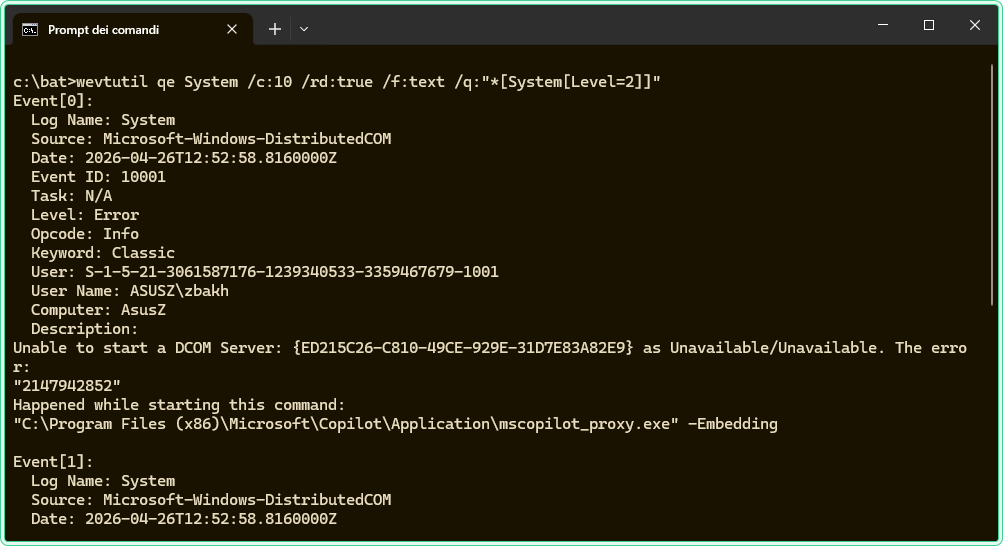
1. Find recent errors in the System log
The problem: A server has been throwing intermittent errors and you need to quickly identify what is failing without opening Event Viewer and scrolling through thousands of entries. You want only errors, newest first, readable in the terminal.
The solution: Use qe with an XPath filter for Level 2 (Error) and /rd:true to get the most recent events at the top. /f:text gives readable output instead of raw XML.
rem Query the System log for errors only, newest first, plain text output
rem Level 2 = Error, Level 1 = Critical, Level 3 = Warning
wevtutil qe System /c:20 /rd:true /f:text /q:"*[System[Level=2]]"
Example output (abbreviated):
Event[0]:
  Log Name: System
  Source: Service Control Manager
  Date: 2026-04-20T08:14:33.000
  Event ID: 7034
  Task: None
  Level: Error
  Opcode: Info
  Keyword: Classic
  User: N/A
  User Name: N/A
  Computer: SRV-PROD-01
  Description:
  The Print Spooler service terminated unexpectedly. It has done this 1 time(s).
To include both errors and warnings in one query, combine Level values:
rem Query for both errors (Level 2) and warnings (Level 3)
wevtutil qe System /c:30 /rd:true /f:text /q:"*[System[Level<=3]]"wevtutil uses standard XML operators. The <= operator in the query above must be written as <= when run directly in CMD. In batch scripts, write it as <= — the shell handles the escaping automatically in most cases, but if the query returns no results, try wrapping it in escaped quotes.
2. Export a log before clearing it
The problem: A log channel is filling up and causing older events to be overwritten, or you need to clear it to free space — but you cannot delete log history on a production machine without archiving it first. Clearing without exporting loses the data permanently.
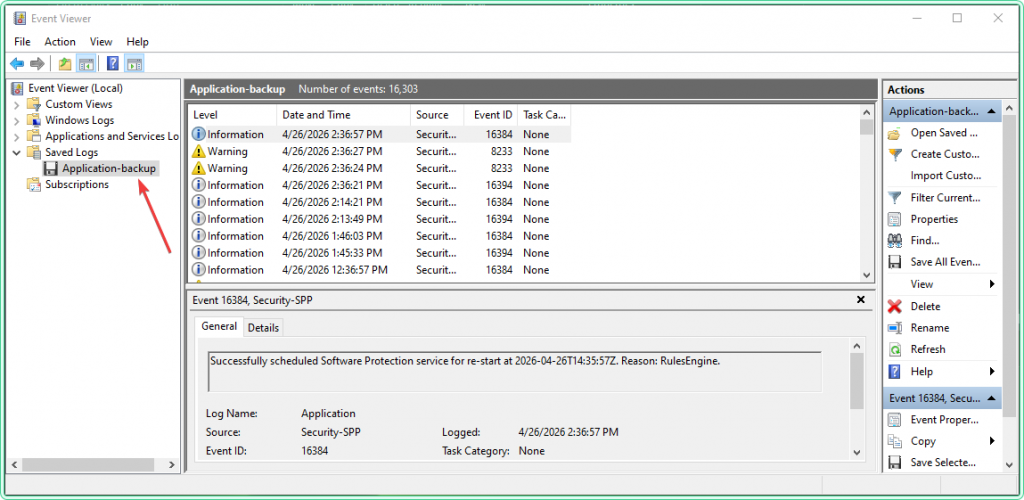
The solution: Export the log to an .evtx file first with epl, then clear it with cl. The exported file can be opened in Event Viewer on any Windows machine for later review.
rem Step 1 — export the Application log to a dated archive file
rem The .evtx format preserves all event metadata and can be reopened in Event Viewer
wevtutil epl Application C:\bat\Application-2026-04-20.evtx

rem Step 2 — clear the log after confirming the export succeeded
rem This operation requires an elevated prompt
wevtutil cl Applicationwevtutil cl permanently deletes all events from the log channel. Always run epl first and verify the output file exists and has a non-zero size before running cl. There is no undo.
Alternatively, cl accepts an optional backup path directly — it exports and clears in one command:
rem Export and clear in one step — /bu specifies the backup file path
wevtutil cl Application /bu:C:\bat\Application-2026-04-20.evtx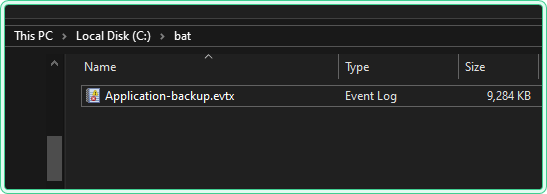
3. Query events by Event ID
The problem: You know the Event ID you are looking for — for example, 4625 (failed logon) in the Security log — and want to pull only those events without manually filtering through Event Viewer. This comes up constantly in security investigations and login troubleshooting.
The solution: Add the EventID filter to the XPath query using EventID=N inside the System selector.
rem Query the Security log for failed logon events (Event ID 4625)
rem The Security log requires an elevated prompt to read
wevtutil qe Security /c:25 /rd:true /f:text /q:"*[System[EventID=4625]]"
To search for multiple Event IDs in one query, use the or operator:
rem Query for both failed logon (4625) and account lockout (4740) events
wevtutil qe Security /c:50 /rd:true /f:text /q:"*[System[(EventID=4625) or (EventID=4740)]]"/c:N to limit results — omitting it will dump the entire log to the terminal, which can take several minutes and produce output too large to read.
4. Query a remote machine
The problem: A machine in another office or server room is generating errors and you need to check its Event Log without requesting an RDP session or physically accessing it. You have admin credentials for the target machine.
The solution: Use /r to specify the remote computer name. Credentials can be passed with /u and /p if your current session does not already have admin rights on the target.
rem Query the System log on a remote machine using current credentials
rem Requires admin access on the remote machine and RPC connectivity (port 135)
wevtutil qe System /r:SRV-PROD-01 /c:20 /rd:true /f:text /q:"*[System[Level=2]]"
rem Query with explicit credentials when current session lacks remote admin rights
rem Use /p:* to prompt for password instead of embedding it in the command
wevtutil qe System /r:SRV-PROD-01 /u:DOMAIN\John /p:* /c:20 /rd:true /f:text /q:"*[System[Level=2]]"/p:* to get an interactive prompt instead. Commands with plain-text passwords appear in CMD history and in process monitoring tools.
5. Query events from a saved .evtx file
The problem: You have an exported .evtx file — either from a previous export, from another machine, or sent by a colleague — and you need to search through it with filters rather than scrolling through it in Event Viewer.
The solution: wevtutil qe accepts a file path instead of a log channel name. Add /lf:true to tell it you are querying a file rather than a live channel.
rem Query an .evtx file instead of a live log channel
rem /lf:true tells wevtutil the source is a file, not a channel name
wevtutil qe C:\bat\Application-2026-04-20.evtx /lf:true /c:30 /rd:true /f:text /q:"*[System[Level=2]]"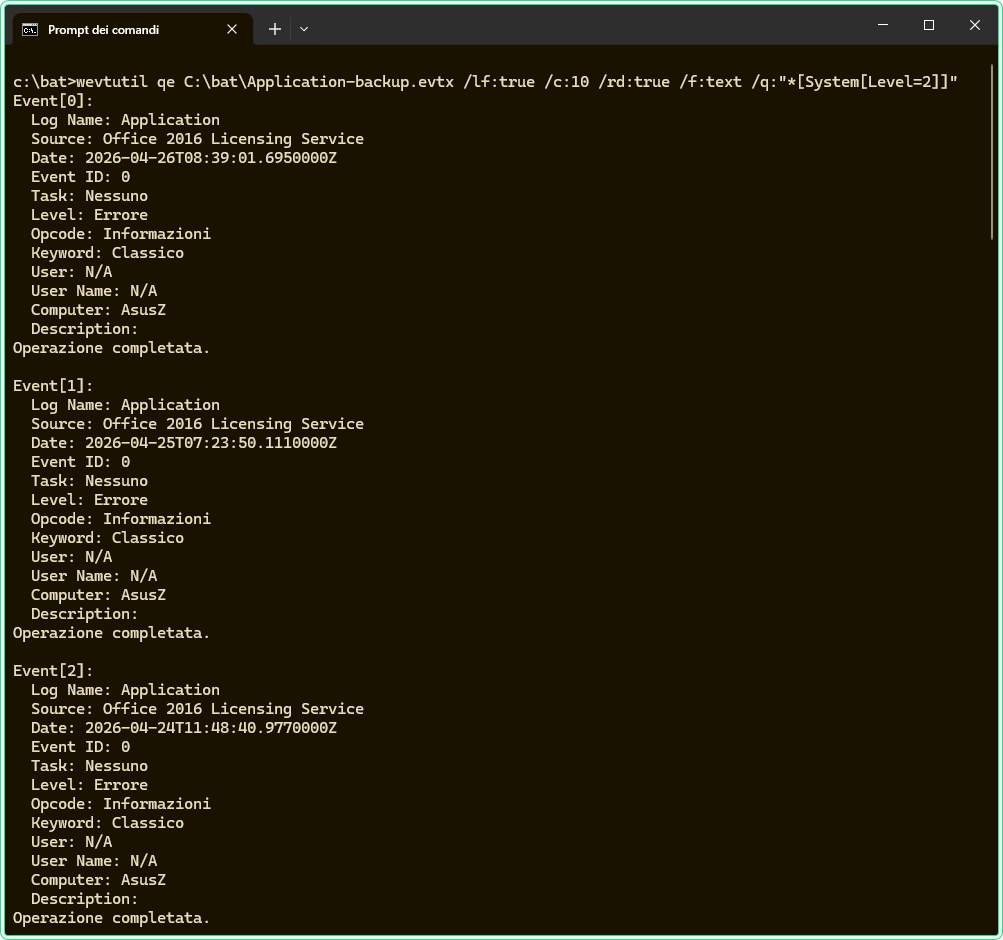
Hidden gems
List all available log channels with enum-logs
Windows has hundreds of Event Log channels beyond the familiar System, Application, and Security. wevtutil el lists all of them — including operational logs for specific components like Group Policy, DNS, DHCP, and WMI. When you know something failed but are not sure which log to look in, enumerate the list and search for relevant channel names:
rem List all log channels and filter by keyword — useful for finding unfamiliar logs
wevtutil el | findstr /i "GroupPolicy"
rem Example: query the Group Policy operational log directly
wevtutil qe Microsoft-Windows-GroupPolicy/Operational /c:20 /rd:true /f:text /q:"*[System[Level=2]]"Get event count without reading all events
wevtutil gli returns the number of events in a log channel or .evtx file without pulling any event content. This is useful for quickly checking whether a log is accumulating events faster than expected, or for confirming an export file is not empty before clearing the live channel:
rem Get event count and file size for the Application log
wevtutil gli Application

rem Get event count for an exported .evtx file
wevtutil gli C:\bat\Application-2026-04-20.evtx
XML output for scripting and parsing
The default output format for wevtutil qe is actually XML — /f:text converts it to readable plain text. When you need to parse event data in a script, omit /f:text and pipe the XML output to a file or process it with findstr. The XML format includes all event fields including EventData, which often contains the most useful diagnostic information and is omitted or truncated in plain text mode:
rem Export query results as XML for scripting or parsing
rem XML output includes full EventData fields that text mode may truncate
wevtutil qe System /c:10 /rd:true /f:xml /q:"*[System[Level=2]]" > C:\bat\system-errors.xml
PowerShell equivalent
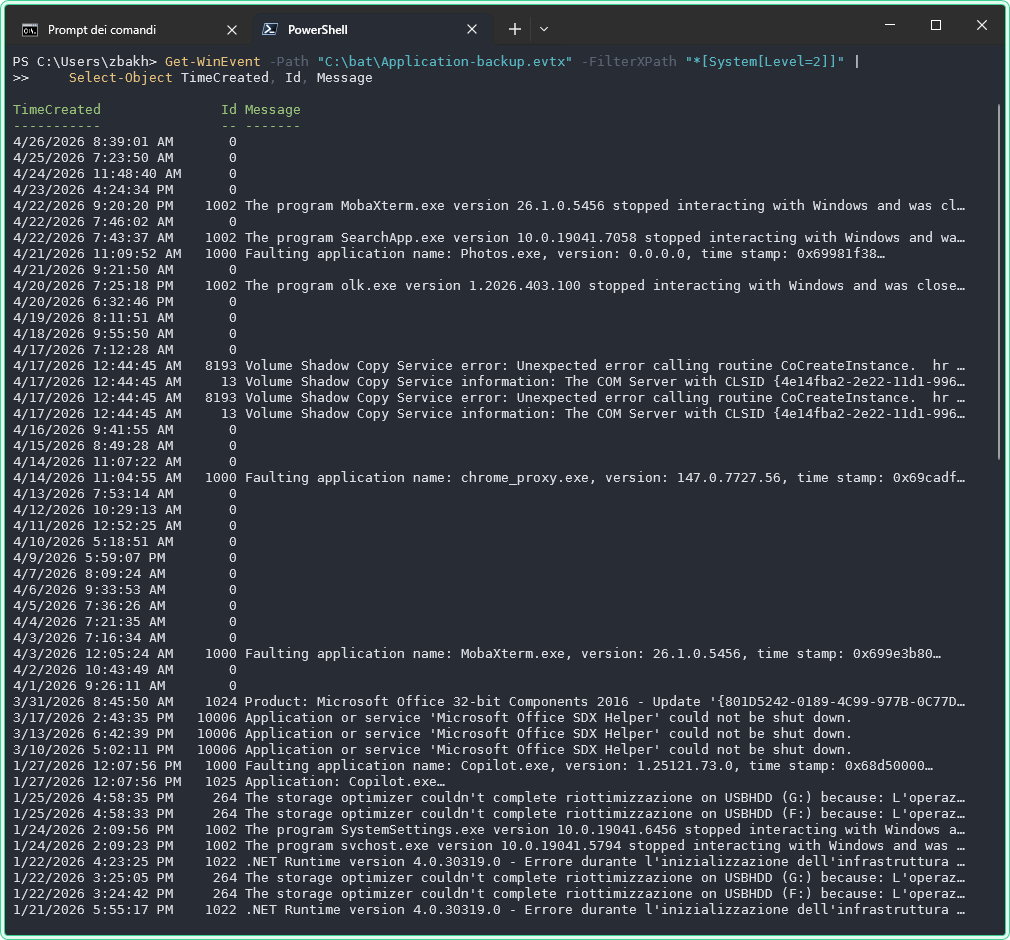
Get-WinEvent is the PowerShell equivalent of wevtutil qe and is generally more comfortable to work with when you need to process results as objects, filter on multiple fields, or integrate with other PowerShell commands. Use wevtutil when you are working in a CMD-only environment, writing batch scripts, or need to quickly export and clear logs without launching PowerShell.
# Get-WinEvent equivalent of wevtutil qe System /c:20 /rd:true /f:text /q:"*[System[Level=2]]"
Get-WinEvent -FilterHashtable @{
    LogName = 'System'
    Level   = 2
} -MaxEvents 20 | Select-Object TimeCreated, Id, Message
# Query from an .evtx file in PowerShell
Get-WinEvent -Path "C:\bat\Application-2026-04-20.evtx" -FilterXPath "*[System[Level=2]]" |
Select-Object TimeCreated, Id, Messagewevtutil is faster for simple exports and clears, especially in batch scripts. Get-WinEvent is better when you need to filter on EventData fields (such as the username in a failed logon event), work with results as PowerShell objects, or build structured reports.
Where this matters
Post-incident log preservation — before making any changes to a system showing errors, export the relevant logs first so the evidence is not overwritten during troubleshooting or reboots.
Remote server troubleshooting — checking error logs on production servers without opening a GUI session reduces interruption risk and works even when RDP is unavailable.
Scheduled log archiving — wevtutil epl inside a scheduled batch script creates dated .evtx archives automatically, useful when log retention must exceed what the channel size allows.
Security event analysis — querying for specific Event IDs such as failed logons (4625) or privilege escalation (4672) from the command line is faster than filtering inside Event Viewer during an active investigation.
Clearing logs on shared machines — kiosks and shared workstations accumulate large logs quickly; cl /bu clears them while keeping an archive, which is the correct approach when the machines are not sending logs to a SIEM.
Tips and limitations
- Clearing the Security log requires SYSTEM privileges in some configurations. On hardened servers, even a local administrator account may be blocked from clearing the Security log by audit policy. If
wevtutil cl Securityreturns an access denied error despite running elevated, this is expected behavior controlled by the “Manage auditing and security log” policy. - XPath filters are case-sensitive for channel names.
wevtutil qe systemmay fail whilewevtutil qe Systemworks. When in doubt, get the exact channel name fromwevtutil el. wevtutildoes not follow log subscriptions. If the machine is forwarding events to a Windows Event Collector,wevtutilqueries the local log only — not the forwarded events on the collector. Connect to the collector machine directly to query forwarded events.- The /c flag is a hard cap on results, not a time filter. There is no built-in “last 24 hours” flag in
wevtutil. To filter by time, use a TimeCreated XPath expression — or switch toGet-WinEventwhich acceptsStartTimeandEndTimedirectly in the filter hashtable.
Official documentation
- wevtutil — Windows Commands | Microsoft Learn — full parameter reference and subcommand documentation
Related tools
- Windows Event Log Analyzer — paste raw Event Log output and get an AI-powered summary of what went wrong and what to check next
Related guides
- How to read Windows Event Logs with PowerShell — the Get-WinEvent equivalent with time filters, structured output, and remote machine queries
- gpresult command in Windows — cross-reference the Group Policy operational log when
gpresultshows a GPO applied but settings are not taking effect - DCDIAG — Active Directory troubleshooting — domain diagnostics that generate Event Log entries
wevtutilcan then query for deeper analysis - Windows Command Line (CMD) Cheat Sheet — quick reference for CMD commands used in the same admin workflows
- vssadmin command in Windows:
vssadminin Windows: the VSS and Backup events you would query are written by this subsystem. - wbadmin command in Windows: the two Backup event channels this reads, and the decimal error code inside event 517.
Five cheat sheets, one PDF
Subnet masks, PowerShell, Linux commands, HTTP status codes and the ESXi command line - one page each, free to keep. Leave an address and it arrives in a minute.