
Every time you run sfc /scannow or DISM /RestoreHealth, Windows writes a detailed record of what it found and what it did to C:\Windows\Logs\CBS\CBS.log. The terminal output gives you a one-line summary. The log gives you the full picture: every file that was checked, every hash mismatch, every repair attempt, and whether it succeeded or was queued for the next boot.
Most guides tell you the log exists and stop there. This article shows you how to actually read it in Windows - how to open it without waiting for Notepad to load a 200MB file, which lines matter, and what the entries mean in plain language. All examples use PowerShell and can be run directly against C:\Windows\Logs\CBS\CBS.log on any machine that has run SFC at least once.
If you have not yet run SFC or DISM and are looking for where to start, see the sfc /scannow in Windows and DISM in Windows: repair the Windows image when SFC can't guides first.
Applies to: Windows 10 / 11 / Windows Server 2019 / 2022
Quick answer
These two queries cover the most common needs. For a full walkthrough of what each line means and how to build on them, read from the top.
Check what the most recent SFC run found:
# -Tail 100 reads from the end - fast even on large files
Get-Content C:\Windows\Logs\CBS\CBS.log -Tail 100 | Select-String "\[SR\]"
# -Wait to watch in real-time
Get-Content C:\Windows\Logs\CBS\CBS.log -Wait | Select-String "\[SR\]"![2 windows one showing running sfc /scannow and another whowing [SR] fetch in real-time](https://zaur.it/wp-content/uploads/2026/05/01.-Show-CBS-SR-with-wait-1024x828.png)
sfc /scannowFind files that could not be repaired:
Get-Content C:\Windows\Logs\CBS\CBS.log | Select-String "\[SR\].*(Cannot repair|Could not requeue)"What CBS.log is
CBS stands for Component Based Servicing - the Windows subsystem responsible for managing system components, updates, and repairs. CBS.log is its operational log, written to by SFC, DISM, Windows Update, and the Windows Modules Installer. Every repair operation appends to the same file, which is why it grows over time and can become very large on machines that have been running for months or years.
The log is plain text and always located at:
C:\Windows\Logs\CBS\CBS.logReading it requires Administrator rights - the file is protected and cannot be opened by a standard user account.
C:\Windows\Logs\DISM\dism.log. CBS.log contains DISM-related entries too, but dism.log has more granular detail about image servicing operations. For DISM-specific failures, check both logs.
How to open CBS.log
CBS.log on an active machine is rarely small. After months of Windows Updates and SFC runs it commonly reaches 100-400MB. Opening the full file in Notepad works, but loading takes time and searching through it manually is impractical. The right approach depends on what you need.
PowerShell - filter while reading (recommended)
The fastest way for troubleshooting: pipe the file through Select-String and read only the lines that matter. No waiting for the full file to load.
# Show only SFC-related lines
Get-Content C:\Windows\Logs\CBS\CBS.log | Select-String "\[SR\]"

# Show only the last 300 lines - covers most recent SFC or DISM session
Get-Content C:\Windows\Logs\CBS\CBS.log -Tail 300

# Show only lines that contain the word "corrupt" or "repaired"
Get-Content C:\Windows\Logs\CBS\CBS.log | Select-String "corrupt|repaired|cannot repair"Get-Content on a large file reads it sequentially and can be slow on files over 200MB. -Tail reads from the end of the file and is significantly faster when you only need the most recent entries.
Notepad++ - best for visual analysis
Notepad++ opens large files quickly and handles CBS.log without performance issues. Once open, use Ctrl+F to search for [SR] to jump to SFC entries, or use Search → Find in Files if you need to search across multiple log files. The Mark feature (Search → Mark) lets you highlight all matching lines in a color, making it easy to scan through a large file visually.
Other editors
Visual Studio Code opens CBS.log without issues and has built-in search with regex support. Use Ctrl+F and search for \[SR\] with regex enabled.
Notepad (built-in) works on smaller files - if the log is under 50MB and you just ran SFC once on a fresh system, Notepad is fine. On larger files it loads slowly and the lack of search highlighting makes it impractical.
How to read the entries
Log entry structure
Every line in CBS.log follows this format:
date time, type [component] messageA real example - four consecutive lines from a single SFC session:
2026-04-20 09:14:33, Info    CBS    [SR] Verifying 100 (0x0000064) components
2026-04-20 09:14:33, Info    CBS    [SR] Beginning Verify and Repair transaction
2026-04-20 09:15:12, Info    CBS    [SR] Repairing corrupted file [l:24{12}]"kernel32.dll" from store
2026-04-20 09:15:13, Info    CBS    [SR] Verify complete
The component tag in square brackets tells you which subsystem wrote the entry:
| Tag | Written by | What to look for |
|---|---|---|
[SR] | SFC (System File Checker) | Corruption detected, repairs attempted, files queued |
[DISM] | DISM operations | Component store operations, restore health progress |
[CBS] | Component Based Servicing | Windows Update, package installs, general servicing |
SFC entries - what [SR] lines mean
SFC marks all its entries with [SR]. Here are the entries you will encounter and what they mean:
| Entry text | Meaning |
|---|---|
Verifying N components | SFC started - this is the beginning of a scan session |
Beginning Verify and Repair transaction | SFC is now actively checking files |
Verify complete | Scan finished - look at what came before this for any issues |
This component store is clean | No corruption found - equivalent to "did not find any integrity violations" |
Repairing corrupted file [filename] from store | Corruption found and successfully repaired |
Could not requeue corrupt file repair for file [filename] | Repair attempted but failed - component store may be damaged |
Cannot repair member file [filename] | File could not be repaired - run DISM to fix the component store first |
Repairing corrupted file queued for next boot | File is locked by the OS - replacement scheduled for next startup |
DISM /Online /Cleanup-Image /RestoreHealth and then run SFC again.
Practical examples
Before running these examples, make sure you have run sfc /scannow at least once from an elevated prompt. This gives CBS.log at least one [SR] session to filter against. Each example below builds on the previous one - start from the first and work through them in order.
1. Check what the last SFC run found
The problem: You ran sfc /scannow and got a one-line result in the terminal. You want to see the full detail of what was checked and whether anything was actually repaired.
The solution: Read the last 100 lines of CBS.log and filter for [SR] - this covers the most recent SFC session without loading the full file.
# -Tail 100 reads from the end - fast even on a 400MB file
# Select-String filters to SFC lines only, ignoring Windows Update and DISM noise
Get-Content C:\Windows\Logs\CBS\CBS.log -Tail 100 | Select-String "\[SR\]"
If SFC found no issues, you will see a clean session summary - Verifying N components at the start, This component store is clean near the end, and Verify complete on the last line:
2026-04-20 09:14:31, Info    CBS    [SR] Verifying 100 (0x0000064) components
2026-04-20 09:14:31, Info    CBS    [SR] Beginning Verify and Repair transaction
2026-04-20 09:15:09, Info    CBS    [SR] This component store is clean
2026-04-20 09:15:09, Info CBS [SR] Verify complete2. Find which files were repaired or could not be repaired
The problem: SFC reported it repaired corrupt files but the terminal only says how many. You need the actual file names to know whether the repaired files are relevant to the issue you are investigating.
The solution: Add a second filter to the [SR] query that targets only the repair outcome lines - this trims the output from dozens of lines down to exactly what changed.
# Filter for [SR] lines that contain repair outcomes only
# "Repairing" = fixed successfully, "Cannot repair" = still broken, "Could not requeue" = repair queued
Get-Content C:\Windows\Logs\CBS\CBS.log | Select-String "\[SR\].*(Repairing|Cannot repair|Could not requeue)"
The output lists each affected file with a timestamp and status. The file name is always in quotes at the end of the line - ignore the [l:24{12}] length encoding prefix before it:
2026-04-20 09:15:12, Info    CBS    [SR] Repairing corrupted file [l:24{12}]"kernel32.dll" from store
2026-04-20 09:15:18, Info    CBS    [SR] Repairing corrupted file [l:36{18}]"ntdll.dll" from store
2026-04-20 09:15:22, Info CBS [SR] Cannot repair member file [l:28{14}]"sfc_os.dll"DISM /Online /Cleanup-Image /RestoreHealth to repair the component store, then run SFC again. Until you do, those files remain corrupt.
3. Find all SFC sessions and their timestamps
The problem: You are investigating a recurring issue and want to know when SFC was last run on this machine, how many times, and whether the results changed between runs.
The solution: Filter for the Verifying N components line that opens every SFC session - each match is one complete scan, with its exact timestamp.
# Every SFC session starts with this line - one result per scan run
# Use this to find when SFC was last run before navigating to that session's entries
Get-Content C:\Windows\Logs\CBS\CBS.log | Select-String "\[SR\] Verifying"
Each line is one SFC run. Use the timestamps to identify the session you want to investigate, then use the timestamp in the next query to filter just that session:
2026-03-10 14:22:01, Info    CBS    [SR] Verifying 100 (0x0000064) components
2026-04-01 09:05:44, Info    CBS    [SR] Verifying 100 (0x0000064) components
2026-04-20 09:14:31, Info    CBS    [SR] Verifying 100 (0x0000064) components
To read just one specific session - for example the April 1 run - filter by date prefix:
# Read only [SR] entries from the April 1 session
# Adjust the date prefix to match the session timestamp from the previous query
Get-Content C:\Windows\Logs\CBS\CBS.log | Select-String "2026-04-01.*\[SR\]"
4. Export a filtered report to a file
The problem: You need to share the relevant CBS.log entries with another admin or attach them to a support ticket. Sending a 200MB file is not practical - you want only the lines that matter.
The solution: Combine the [SR] filter with Out-File to write a clean report to C:\bat\. Two variants - one for the full SFC history, one for the most recent session only:
# Export all [SR] entries from the entire log - useful for a full history summary
Get-Content C:\Windows\Logs\CBS\CBS.log |
    Select-String "\[SR\]" |
    Out-File C:\bat\cbs-sr-report.txt

# Export only the last 500 lines - covers the most recent 1-2 SFC or DISM sessions
Get-Content C:\Windows\Logs\CBS\CBS.log -Tail 500 |
    Out-File C:\bat\cbs-recent.txt
After running either command, open the output file to confirm it captured what you expected:
# Open the report in Notepad directly from PowerShell
notepad C:\bat\cbs-sr-report.txt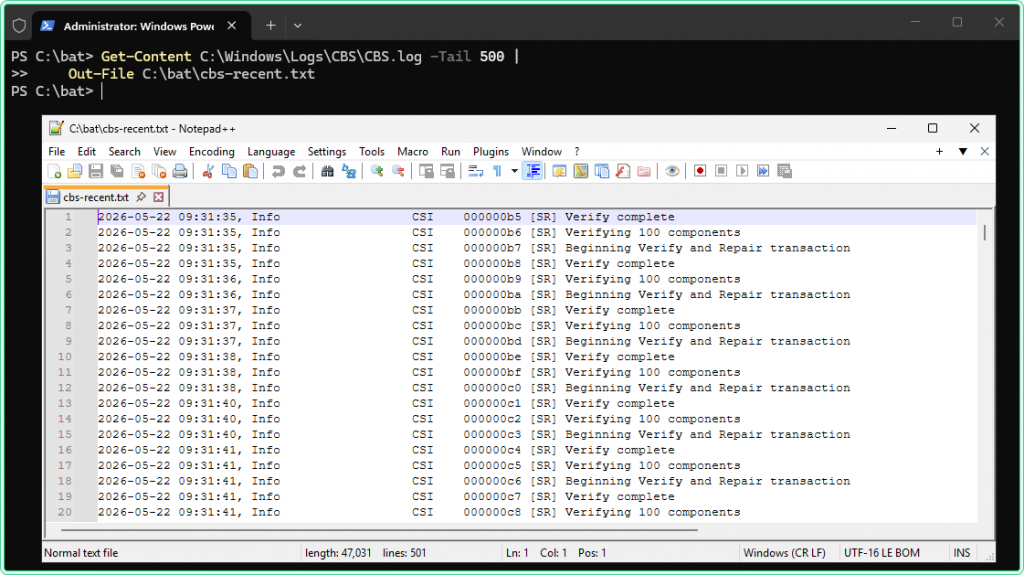
5. Find Windows Update failures in CBS.log
The problem: A Windows Update failed silently - no notification, just an update that never installed. You want to find the error entries in CBS.log to understand what happened and whether it is related to the same component store issues SFC found.
The solution: Drop the [SR] filter and search for error-level entries across the entire log. Windows Update writes to CBS.log using the same format, so the same filtering approach works across all subsystems.
# Search for error-level entries across all CBS subsystems - not just SFC
# Select-Object -Last 50 limits output - remove it if you want the full error history
Get-Content C:\Windows\Logs\CBS\CBS.log |
    Select-String "^\d{4}-\d{2}-\d{2}.*Error" |
    Select-Object -Last 50
Windows Update error entries look different from SFC entries - they reference package names and KB numbers rather than file names:
2026-04-18 03:14:07, Error    CBS    Failed to stage package: KB5034441 [HRESULT = 0x80073701 - ERROR_SXS_ASSEMBLY_MISSING]
2026-04-18 03:14:08, Error CBS Package KB5034441 failed to be changed to the Installed stateHRESULT = 0x80073701 specifically means a required component assembly is missing from the component store - the same condition SFC reports as "Cannot repair member file." If you see this in a Windows Update error line alongside unrepaired SFC entries, DISM /RestoreHealth needs to run before the update can install.
Hidden gems
The file names in CBS.log are encoded - ignore the prefix
File names in CBS.log appear in a format like [l:24{12}]"kernel32.dll". The l:24{12} part is a length encoding used internally by CBS - l: is the byte length of the string, and the number in braces is the character count. You can safely ignore this prefix. The actual file name is always in the quotes at the end. When searching for a specific file, search by the file name in quotes only.
Queued repairs are not failures
Lines containing "queued for next boot" or "requeue" do not mean the repair failed - they mean the file was locked by a running process and cannot be replaced until Windows restarts. After the next boot, Windows replaces the file during early startup before it is loaded. If you see these entries and SFC still reports issues after a reboot, that is when to investigate further.
The log resets after a Windows in-place upgrade
When you perform a Windows feature update or in-place repair upgrade, CBS.log is archived and a new one starts. The old log is saved to C:\Windows\Logs\CBS\ with a timestamp in the filename. If you are looking for entries from before an upgrade, check for CbsPersist_*.log files in the same directory:
# List all CBS log files including archived ones from previous Windows versions
Get-ChildItem C:\Windows\Logs\CBS\ | Sort-Object LastWriteTime
Last Run Result 0x1 from a scheduled task is not a CBS error code
If you run SFC or DISM via a scheduled task and the task returns 0x1, that is the process exit code - not a Windows component error code. Do not look it up in CBS.log. Open the transcript or the Task Scheduler operational log instead. CBS error codes that appear inside CBS.log itself are HRESULT values like 0x80073701 - those are meaningful and worth searching for.
Where this matters
Post-SFC investigation. SFC says "found and repaired corrupt files" - CBS.log tells you which files, whether the repair actually succeeded, and whether any files were only queued for next-boot replacement.
Windows Update failures. An update fails silently with no notification. CBS.log contains the HRESULT code and the package name - enough to identify whether it is a component store issue or an unrelated download failure.
Recurring SFC failures. You run SFC after every reboot and it keeps finding the same corruption. CBS.log session history shows whether the same files appear across multiple runs - pointing to a component store problem that DISM needs to fix rather than SFC.
Support tickets and handoffs. Another admin or Microsoft Support asks for evidence of the repair history. The export pattern from example 4 produces a clean, shareable file that contains only the relevant entries without requiring access to the full 200MB log.
Tips and limitations
- Administrator rights required. CBS.log is protected and cannot be read by a standard user account. Open PowerShell as Administrator before attempting to access it.
- The log is append-only. Every SFC and DISM run adds to the same file - it is never automatically truncated. On servers running for years with frequent update activity, the file can exceed 500MB. Use
-TailandSelect-Stringrather than opening the full file. - Do not delete CBS.log manually. Windows recreates it automatically, but deleting it while a CBS operation is in progress can cause that operation to fail. If you need to clear disk space, use Disk Cleanup (
cleanmgr) with the Windows Update Cleanup option, which handles log rotation safely. - Timestamps are in local time. CBS.log uses the local system clock. If you are correlating CBS.log entries with Event Viewer logs or logs from another machine in a different timezone, account for the time offset.
Get-Contenton large files can be slow. On files over 200MB, reading the full file throughSelect-Stringcan take 30-60 seconds. Always prefer-Tailwhen you only need recent entries. For the full file, Notepad++ loads it faster than PowerShell'sGet-Content.
Official documentation
Related tools
- Windows Event Log Analyzer - paste CBS.log output directly to get an AI-powered summary of what was found and what needs attention
Related guides
- sfc /scannow in Windows - run SFC to generate the CBS.log entries this guide explains how to read
- DISM in Windows: repair the Windows image when SFC can't - when CBS.log shows "Cannot repair member file" entries, DISM is the correct next step
- How to read and clear Windows Event Logs with PowerShell - use Get-WinEvent alongside CBS.log to correlate system events with repair activity
- wevtutil command in Windows - export and query Windows Event Logs from CMD when investigating issues alongside CBS.log
- findstr and find in Windows: the dialect behind the log filters here, including why a dot is a wildcard by default.
Five cheat sheets, one PDF
Subnet masks, PowerShell, Linux commands, HTTP status codes and the ESXi command line - one page each, free to keep. Leave an address and it arrives in a minute.