
tasklist lists every process on a machine with its PID, session and memory footprint. taskkill ends processes by PID, image name or filter. Together they are the command-line half of Task Manager, and unlike Task Manager they work over a plain CMD session, inside a batch file, and against a remote host.
Most admins meet them the same way: netstat -ano reports a port held by PID 4820 and there is no name attached to it. Or a scheduled job leaves a locked file behind and the owning process refuses to close. Both cases are a two-command job - resolve the PID, then end it in the right order.
The Microsoft reference lists every switch but not the behaviour that actually costs time: which filters silently stop working against a remote host, why /svc refuses to combine with CSV output, why PID 4 can never be killed, and how to parse the output in a script without the memory column breaking your delimiter. That is what this article covers.
Applies to: Windows 10 / 11, Windows Server 2016 / 2019 / 2022 / 2025
Quick answer
The full workflow is three commands: identify the process behind a PID, ask it to close, and only then force it. Skipping straight to /f is the habit that loses unsaved work and leaves half-written files behind.
rem 1. netstat -ano gives you a PID, not a name - resolve it before you act on it
tasklist /fi "pid eq 4820"

rem 2. no /f means "close politely" - the process can flush its state and exit
taskkill /pid 4820

rem 3. only if it ignores that, force it and take its child processes with it
taskkill /pid 4820 /f /t
What they do
tasklist reads the process table and prints it. taskkill does one of two things depending on /f: without it, it sends a close request to the process's top-level windows and waits for the process to shut itself down; with it, it terminates the process outright. A console application or a service host with no window will usually ignore the polite request entirely.
tasklist [/s computer [/u [domain\]user [/p password]]] [{/m module | /svc | /v}]
         [/fo {table | list | csv}] [/nh] [/fi filter [/fi filter ...]]

taskkill [/s computer [/u [domain\]user [/p [password]]]]
         {[/fi filter] [...] [/pid processID | /im imagename]} [/f] [/t]
The switches that matter
| Switch | Command | What it does |
|---|---|---|
/fi | both | Applies a filter. Repeatable - multiple filters are combined. |
/svc | tasklist | Shows the services hosted inside each process. Table output only. |
/v | tasklist | Verbose - adds user name, CPU time and window title. |
/m | tasklist | Lists processes that have a matching DLL module loaded. |
/fo | tasklist | Output format: table (default), list or csv. |
/nh | tasklist | Drops the header row. Valid with table and csv only. |
/pid | taskkill | Targets one specific process ID. |
/im | taskkill | Targets every process with that image name. |
/f | taskkill | Forces termination. Ignored remotely - remote kills are always forced. |
/t | taskkill | Ends the process and every child process it started. |
/s | both | Target a remote computer. No leading backslashes on the name. |
Filters
Both commands share the same filter syntax: /fi "NAME operator value". The whole expression goes inside one pair of quotes, and the filter name is not case sensitive.
| Filter | Operators | Value |
|---|---|---|
| IMAGENAME | eq, ne | Executable name, e.g. tomcat9.exe |
| PID | eq, ne, gt, lt, ge, le | Process ID |
| STATUS | eq, ne | RUNNING, NOT RESPONDING, UNKNOWN |
| SESSION | eq, ne, gt, lt, ge, le | Session number |
| SESSIONNAME | eq, ne | Session name, e.g. Console (tasklist only) |
| CPUTIME | eq, ne, gt, lt, ge, le | HH:MM:SS |
| MEMUSAGE | eq, ne, gt, lt, ge, le | Memory in KB |
| USERNAME | eq, ne | user or domain\user |
| SERVICES | eq, ne | Service name, e.g. wuauserv |
| WINDOWTITLE | eq, ne | Window title |
| MODULES | eq, ne | DLL name |
STATUS and WINDOWTITLE are not supported against a remote system. They do not error clearly - you simply get results that do not match what you asked for, which is why remote triage should filter on IMAGENAME or PID instead.
Practical examples
1. Put a name on a PID from netstat
The problem: A service will not start because port 8080 is already taken. netstat -ano reports the port is held by PID 4820 and stops there.
The solution: Feed that PID straight into a tasklist filter. The output shows the image name, the session it runs in, and how much memory it holds - enough to decide whether it is safe to end.
rem -a shows listening sockets, -n skips DNS resolution so it returns instantly,
rem -o adds the owning PID - without -o there is nothing to hand to tasklist
netstat -ano | findstr ":8080"

rem the quotes wrap the whole filter expression, not just the value
tasklist /fi "pid eq 4820"
Expected output:
Image Name                     PID Session Name        Session#    Mem Usage
========================= ======== ================ =========== ============
tomcat9.exe 4820 Services 0 1,204,880 K2. Find which svchost.exe is running a service
The problem: A host shows a dozen svchost.exe processes and one of them is burning CPU. The image name tells you nothing - you need the service inside it.
The solution: /svc prints the services hosted by each process, and the SERVICES filter works the other way round - give it a service name and get the PID that hosts it.
rem which PID hosts Windows Update - answers "which svchost do I care about"
tasklist /svc /fi "services eq wuauserv"

rem the reverse view: every service running inside one specific PID
tasklist /svc /fi "pid eq 1140"
Image Name PID Services
========================= ======== ============================================
svchost.exe 1140 wuauservsvchost.exe. It hosts services that belong to other components, and killing it takes all of them down at once. Restart the individual service with sc stop wuauserv instead.
3. A service stuck on "Stopping"
The problem: services.msc shows a service with the status Stopping. It never reaches Stopped, refreshing the console changes nothing, and net stop either hangs or reports that the service could not be stopped.

The solution: The SCM sent the stop request and the service never reported back, so it sits in STOP_PENDING indefinitely - the SCM will not force it. You end the host process yourself, the SCM notices the process is gone, and the service moves to Stopped.
Step 1 - get the real service name. The list shows the display name; sc and the SERVICES filter both want the service name. Double-click the service and read the General tab.
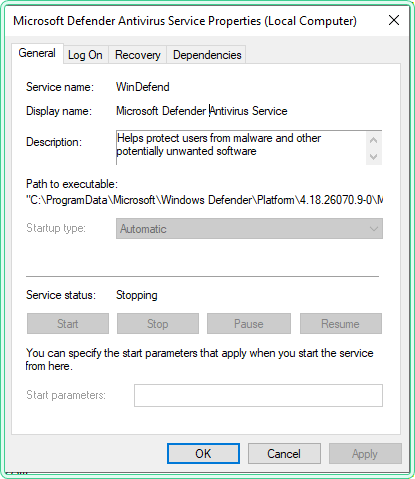
Two things in that dialog are worth reading properly. The four action buttons are greyed out because the service is in a pending state - that is the GUI telling you it has nothing left to offer, which is exactly why this ends up as a command-line job. And the executable path sits under a versioned Platform\4.18.26070.9-0 folder, so it changes with every Defender platform update: match on the service name or the image name, never on the full path.
Step 2 - confirm the state and find the PID. Plain sc query does not print a PID; queryex adds the PID and FLAGS lines, which is the whole reason to use it here.
rem WinDefend is the service name from the Properties dialog above
sc queryex WinDefend
SERVICE_NAME: WinDefend
TYPE : 10 WIN32_OWN_PROCESS
STATE : 3 STOP_PENDING
(STOPPABLE, NOT_PAUSABLE, ACCEPTS_SHUTDOWN)
WIN32_EXIT_CODE : 0 (0x0)
SERVICE_EXIT_CODE : 0 (0x0)
CHECKPOINT : 0x0
WAIT_HINT : 0x7d0
PID : 4256
FLAGS :STATE 3 STOP_PENDING is the command-line spelling of what the GUI calls Stopping. The PID on the second-to-last line is what you act on.
Step 3 - end the host process. What happens next depends entirely on what kind of service it is, and this is where most write-ups stop too early.
An ordinary service: the kill works
Print Spooler is the classic example - it hangs on Stopping regularly, and it is a normal, unprotected service. The same three steps apply, with Spooler as the service name.
rem /f is required - a wedged service will not answer a polite close request
taskkill /pid 3168 /f

rem killing the process does not restart the service; start it again yourself
sc start Spooler
SUCCESS: The process with PID 3168 has been terminated.The SERVICES filter collapses the lookup and the kill into one command, which is what you want in a script that has to clear the same service on a schedule.
rem resolves the service name to its host process - no PID to copy by hand
taskkill /f /fi "services eq Spooler"
A protected service: the kill is refused
Run the same command against the WinDefend PID from the screenshots and it fails, on any account, in any prompt.
taskkill /pid 4256 /fERROR: The process with PID 4256 could not be terminated.
Reason: Access is denied.MsMpEng.exe behind WinDefend is one - and the kernel refuses the terminate request before file or account permissions are ever considered. An elevated prompt does not change it, running as SYSTEM does not change it, and neither does SeDebugPrivilege.
That refusal is the protection doing its job, not an obstacle to route around. A Defender service showing Stopping clears when the machine restarts, and it usually got there because something asked it to stop in the first place - a third-party AV installer taking over, or a policy change. If stopping it was the actual goal, Tamper Protection is what is saying no, and the supported route is the Windows Security app or policy, not a kill.
Finding every wedged service at once
Rather than checking services one at a time, ask WMI. The State value it uses is "Stop Pending" - two words, with a space, not the GUI's "Stopping".
# ProcessId is the same number sc queryex prints as PID
Get-CimInstance Win32_Service -Filter "State = 'Stop Pending'" |
Select-Object Name, DisplayName, ProcessIdsc queryex reports PID : 0 while the state is still STOP_PENDING, the host process has already exited and the SCM entry is stale. There is nothing left to kill - that one only clears on a restart.
One last check before any of this: run tasklist /svc /fi "pid eq PID" against the PID first. If the stuck service shares a svchost.exe with other services, killing it takes all of them down, and a restart is the cheaper option.
4. End a hung application
The problem: A desktop application stopped repainting and the user cannot close it.
The solution: Find it with the STATUS filter, ask it to close, and only escalate if it does not go. The commands below start their own throwaway notepad.exe so the sequence is safe to practise on a live machine.
rem start a process we own, so nothing important is at risk while practising
start "" notepad.exe

rem STATUS only reports NOT RESPONDING for processes that own a window -
rem a stuck console app or service will still show as RUNNING here
tasklist /fi "status eq not responding"

rem confirm the target and read its PID from the second column
tasklist /fi "imagename eq notepad.exe"

rem no /f: notepad gets a close request and will prompt if a file is unsaved
taskkill /im notepad.exe

rem it refused? now force it
taskkill /im notepad.exe /f
SUCCESS: Sent termination signal to the process "notepad.exe" with PID 4820.tasklist filter to confirm - if the row is still there, the process ignored the close request and you need /f.
5. Kill a process tree, not just the parent
The problem: An installer or a build script was ended, but the file it was writing is still locked and a stray child process keeps running.
The solution: /t ends the process together with everything it spawned. Orphaned children are the usual reason a process you already "killed" still holds a handle.
rem /t walks the child processes; /f forces each of them
rem without /t you end the parent and leave the children running unattached
taskkill /pid 3312 /f /t
SUCCESS: The process with PID 5104 (child process of PID 3312) has been terminated.
SUCCESS: The process with PID 3312 (child process of PID 776) has been terminated.6. Find memory hogs and save a snapshot
The problem: A server is paging and you need to know what is holding the memory before the next maintenance window.
The solution: Filter on MEMUSAGE, which is measured in kilobytes, then write a CSV snapshot you can compare against later.
rem MEMUSAGE is in KB, so 500000 is roughly 488 MB - not 500 MB
tasklist /fi "memusage gt 500000" /fo table

rem create the folder first so the redirect cannot fail on a fresh machine
if not exist C:\perf\ mkdir C:\perf\

rem csv keeps columns machine-readable; /nh drops the header so a later
rem diff or import does not treat the title row as data
tasklist /fo csv /nh > C:\perf\processes.csv
7. Query and clean up a remote host
The problem: An application server two sites away has a stuck worker process and RDP is queueing.
The solution: Both commands take /s. You need administrative rights on the target and the RPC path open - the same requirement as connecting with Computer Management.
rem no leading backslashes on the computer name - "\\SRV-PROD-01" is rejected
tasklist /s SRV-PROD-01 /fi "imagename eq tomcat9.exe" /svc

rem /f is accepted but redundant here: remote terminations are always forced
taskkill /s SRV-PROD-01 /im tomcat9.exe/p puts it in the console history and in any transcript of the session. Run the prompt as the target account instead, or use PowerShell remoting with a credential object.
Hidden gems
PID 4 and PID 0 are not applications
PID 0 is System Idle Process and PID 4 is System - the kernel itself. Neither can be terminated, and taskkill /pid 4 /f returns access denied no matter how elevated you are.
This matters most with file locks. When a handle traces back to PID 4, no application is holding your file - the kernel is, almost always on behalf of an SMB client on another machine. Chasing it with taskkill is wasted effort; close the session from the file server side instead.
/svc only works with table output
/svc is documented as valid only when /fo is table. Combining it with CSV is a common reflex when scripting, and it fails rather than degrading quietly.
rem this is rejected - /svc cannot be combined with csv output
tasklist /svc /fo csv

rem for scriptable service-to-PID mapping, ask the service database instead
sc queryex wuauserv | findstr "PID"
Parsing tasklist without the memory column breaking it
CSV output looks parser-friendly until you notice the Mem Usage field contains its own thousands separators - "1,204,880 K". CMD's for /f is not quote-aware: it splits on every comma in the line, so that one field turns into three tokens.
It is still safe to read the image name and the PID, because they are fields 1 and 2 and the first embedded comma does not appear until field 5. Anything past the session number needs a real CSV parser.
rem tokens=1,2 is safe: the only commas inside quotes live in Mem Usage (field 5)
rem %~a and %~b strip the surrounding quotes that /fo csv adds
rem interactive CMD uses %a - inside a .bat file double it to %%a
for /f "tokens=1,2 delims=," %a in ('tasklist /fo csv /nh') do @echo %~b  %~a
0 System Idle Process
4 System
1140 svchost.exe
3312 tomcat9.exeIf you need the memory column, hand the same output to PowerShell. ConvertFrom-Csv respects the quoting, so the field survives intact.
# ConvertFrom-Csv is quote-aware, so "1,204,880 K" stays one field
# the property name has a space in it, hence the quotes around 'Image Name'
tasklist /fo csv | ConvertFrom-Csv | Where-Object { $_.'Image Name' -eq 'svchost.exe' }
Wildcards in /im need a filter
taskkill /im * on its own is rejected. The wildcard is only accepted when a filter is also present, which is a deliberate guard against ending every process on the machine by accident.
rem rejected - a bare wildcard with no filter is not allowed
taskkill /im *

rem accepted - the filter scopes what the wildcard is allowed to match
taskkill /im * /fi "username eq %USERNAME%" /fi "status eq not responding"
PowerShell equivalent
Get-Process and Stop-Process cover the same ground and return objects instead of text, which removes the parsing problem entirely. The one thing they do not have is a tree switch.
# the equivalent of: tasklist /fi "pid eq 4820"
Get-Process -Id 4820

# -Force skips the confirmation prompt; stopping a process owned by another
# user still requires an elevated session, and -Force does not grant that
Get-Process -Name notepad | Stop-Process -Force

# -WhatIf shows what would be ended without touching anything - worth making
# a habit before any Stop-Process that uses a wildcard or a pipeline
Get-Process -Name notepad | Stop-Process -WhatIf
Sorting by working set gives a cleaner answer than the MEMUSAGE filter, because you get a ranked list rather than everything above a threshold you had to guess at.
# the ranked version of: tasklist /fi "memusage gt 500000"
# WS is in bytes, so divide by 1MB to get a readable column
Get-Process | Sort-Object WS -Descending |
    Select-Object -First 5 Name, Id, @{n='WS_MB';e={[math]::Round($_.WS/1MB,1)}}
# the /svc equivalent - which services are hosted inside one svchost PID
Get-CimInstance Win32_Service | Where-Object ProcessId -eq 1140 |
Select-Object Name, State, StartModeStop-Process has no equivalent of taskkill /t. When you need a whole process tree gone, taskkill /pid X /f /t is still the shortest correct answer - calling it from PowerShell is entirely normal.
Where this matters
- Port conflicts - a service refuses to bind and you need the name behind the PID that
netstat -anoreported before you decide anything. - Locked files during deployment - a copy step fails because a worker process from the previous run is still holding a handle in the target folder.
- Runaway svchost CPU -
/svcturns an anonymous host process into a named service you can restart properly instead of killing. - Session cleanup on RDS hosts - the
SESSIONfilter scopes a cleanup to one user's session so you do not touch anyone else's work. - Scripted health checks - a scheduled batch job confirms a critical process is present and raises an alert when the filter returns nothing.
- Remote triage before an RDP session -
/sanswers "what is running there" in seconds, which is faster than waiting on a queued remote desktop connection.
Tips and limitations
- Ending a process owned by another user, or any service process, needs an elevated prompt. Without it
taskkillreturns access denied. taskkill /fgives the process no chance to flush buffers. Applications with open data files can leave partial writes behind - always try the polite form first.- Protected and critical system processes cannot be ended at all, whatever your rights. That is by design, not a permissions problem to work around.
taskkillexits with a non-zero code when it cannot find or cannot end the target, soif errorlevel 1is enough for a script to branch on./nhis valid withtableandcsvoutput only - it does nothing forlist.- Use
/vtogether with/svcwhen you want the full picture without truncated columns. - Ending a service process directly leaves the Service Control Manager thinking the service is still running. Use
sc stopfor anything the SCM owns.
Official documentation
- tasklist - Windows Commands | Microsoft Learn
- taskkill - Windows Commands | Microsoft Learn
- Stop-Process - Microsoft.PowerShell.Management | Microsoft Learn
Related tools
- Port Checker - confirm from outside whether the port you just freed is actually reachable again.
- Windows Command Line Cheat Sheet - the
tasklistandtaskkillone-liners alongside the rest of the CMD toolkit.
Related guides
- powercfg on Windows: power plans, sleep diagnostics and battery reports: name the process holding the power request that blocks sleep.
- schtasks in Windows: create, query and audit scheduled tasks from CMD: the command line side of scheduled tasks, from audit to XML deployment.
- netstat Command in Windows - where the PID you hand to
tasklistusually comes from. - How to Check Open Ports on Windows - the full port-to-process workflow this article plugs into.
- quser and qwinsta for RDP Sessions - resolve the session numbers that the SESSION filter matches on.
- Troubleshooting High CPU with Perfmon - what to do once
tasklisthas named the process but not explained it. - systeminfo in Windows: reading every field: host inventory from the same era of tooling, applied to processes instead.
- findstr and find in Windows: find or
findstrfor filtering a process list, and why the choice changes the result. - driverquery in Windows: the same
/sand/fo csvswitch family on the driver side. - whoami /all: read your Windows access token: where
SeDebugPrivilegeshows up in your own token, and what its Disabled state does and does not mean. - Get-Service and Set-Service in PowerShell: how to get from a service to the process ID behind it.
Five cheat sheets, one PDF
Subnet masks, PowerShell, Linux commands, HTTP status codes and the ESXi command line - one page each, free to keep. Leave an address and it arrives in a minute.