
The script runs fine from your terminal. You create a scheduled task, it fires at the right time - and produces nothing. The Last Run Result column shows 0x1 and the task history says "Task completed" with no further detail. No error message, no output file, nothing to go on.
This happens because Task Scheduler runs scripts in a fundamentally different environment from your interactive session - different user context, different working directory, no loaded modules, no interactive shell. A small set of well-defined failure modes account for the vast majority of these silent failures, and each one has a direct fix once you know what to look for.
This guide builds a working test environment first, then walks through each failure mode by deliberately breaking it and diagnosing what happened. By the end you will have a reliable script template, a diagnostic workflow you can apply to any failing task, and a clear understanding of why each fix works.
Applies to: Windows 10 / 11 / Windows Server 2019 / 2022
Quick answer
These two changes resolve about 90% of "script works in terminal but fails as a task" cases. If you want to understand why each fix matters and learn to diagnose the rest, read from the top.
First, configure the task action with these exact fields:
Program/script:   powershell.exe
Arguments:        -ExecutionPolicy Bypass -NonInteractive -File "C:\bat\your-script.ps1"
Start in:         C:\bat\
Second, wrap the script in a transcript so every run produces a log file you can inspect:
Start-Transcript -Path "C:\logs\tasks\your-script-$(Get-Date -Format 'yyyyMMdd-HHmmss').log"
# your script logic here
Stop-TranscriptHow Task Scheduler differs from your terminal
Every failure mode in this guide maps to one of these differences. When a script works interactively and fails as a scheduled task, the question is always: which property does the script depend on that the task environment does not provide?
| Property | Interactive terminal | Task Scheduler |
|---|---|---|
| User context | Your logged-on account | Configured run-as user - often SYSTEM or a service account |
| Working directory | Your current path | C:\Windows\System32 by default |
| Execution policy | User-scoped + machine-scoped | Machine-scoped only - user registry key not loaded |
| Loaded modules | Your $PROFILE and auto-loaded modules | No profile, no auto-loading |
| Network access | Your Kerberos credentials | Depends on run-as account and logon type |
| Session type | Interactive - can show dialogs | Non-interactive - no desktop, no GUI |
Set up the test environment
Before working through the failure modes, set up a consistent test environment. All examples in this guide use the same script, the same task name, and the same paths - so you can follow along and reproduce each failure and fix on your own machine.
| Item | Value |
|---|---|
| Script file | C:\bat\test-task.ps1 |
| Task name | TestTask |
| Task log file | C:\logs\tasks\test-task.log |
| Transcript files | C:\logs\tasks\test-task-YYYYMMDD-HHmmss.log |
| Run as | SYSTEM (for local-only operations) |
| Schedule | Daily at 08:00 - triggered manually during this walkthrough |
Create the folders
Open an elevated PowerShell window and create the working folders:
New-Item -Path "C:\bat" -ItemType Directory -Force
New-Item -Path "C:\logs\tasks" -ItemType Directory -Force
Create the test script
Save the following as C:\bat\test-task.ps1. This script writes a timestamped entry to a log file on each run. It is intentionally simple - its only job is to prove the task ran and produce visible output. The transcript wrapper is included from the start so that every failure mode in this guide produces a log file you can read.
# C:\bat\test-task.ps1
# Test script for the Task Scheduler walkthrough
# Run: powershell.exe -ExecutionPolicy Bypass -NonInteractive -File "C:\bat\test-task.ps1"

# --- Transcript setup ---
# Each run writes a separate dated log file - never overwrites the previous one
$transcriptPath = "C:\logs\tasks\test-task-$(Get-Date -Format 'yyyyMMdd-HHmmss').log"
Start-Transcript -Path $transcriptPath

try {
    $logFile = "C:\logs\tasks\test-task.log"

    # Write a timestamped entry - if this line appears, the task ran successfully
    Add-Content -Path $logFile -Value "$(Get-Date -Format 'yyyy-MM-dd HH:mm:ss') - ran as: $env:USERNAME"
    Write-Host "Done. Log entry written to: $logFile"
}
catch {
    Write-Error "Unhandled error: $_"
    exit 1
}
finally {
    # finally block guarantees Stop-Transcript runs even when an error occurs
    Stop-Transcript
}
Run it manually from the elevated PowerShell window to confirm it works before creating the task:
powershell.exe -ExecutionPolicy Bypass -NonInteractive -File "C:\bat\test-task.ps1"Check C:\logs\tasks\. You should see two files: test-task.log with one timestamped entry, and a transcript file named test-task-YYYYMMDD-HHmmss.log. Open the transcript - it should end with Done. Log entry written to: C:\logs\tasks\test-task.log and no errors. If anything is missing, fix it before continuing.
2026-05-11 14:32:07 - ran as: DOMAIN\zaurCreate the scheduled task
Create TestTask using either the GUI or schtasks - both produce the same result. The GUI gives you a visual reference for the fields referenced throughout this guide; the command-line version is faster to reproduce.
Option A - Task Scheduler GUI
Open Task Scheduler (taskschd.msc) and click Create Task in the right panel. Use "Create Task", not "Create Basic Task" - you need access to all tabs.
General tab - set these fields:
- Name:
TestTask - Run whether user is logged on or not - selected
- Run with highest privileges - checked
- Configure for: Windows 10 or your server OS version
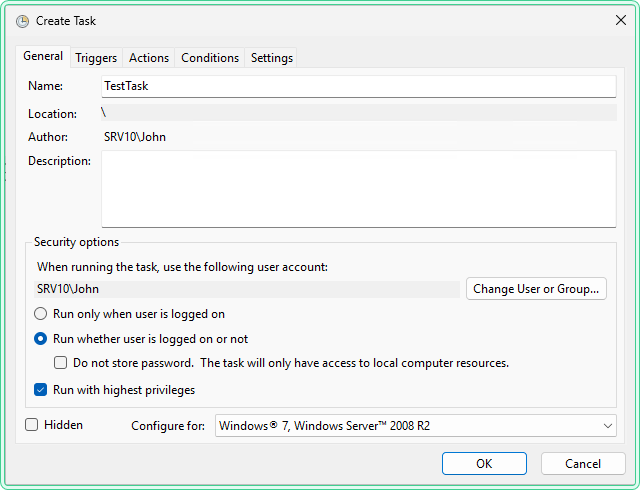
Triggers tab - click New and configure a Daily trigger at 08:00. You will not wait for this trigger during the walkthrough - you will run the task manually each time.
Actions tab - click New. Fill in the three fields exactly as shown below. Getting these fields right is the single most common source of failures and is the subject of failure mode 1.
- Program/script:
powershell.exe - Add arguments:
-ExecutionPolicy Bypass -NonInteractive -File "C:\bat\test-task.ps1" - Start in:
C:\bat\
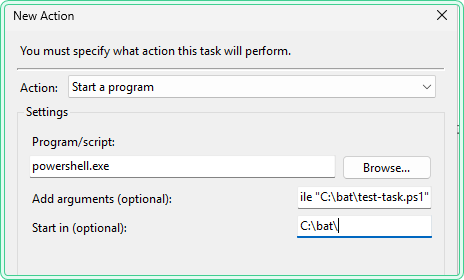
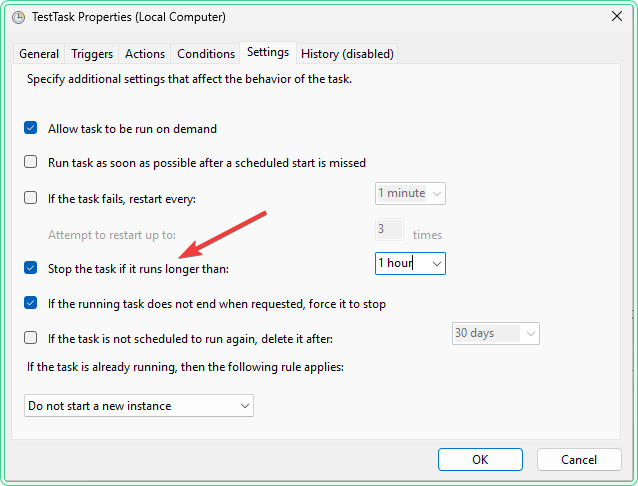
Settings tab - enable "Stop the task if it runs longer than" and set it to 1 hour. This ensures a hung script is killed automatically rather than running indefinitely.
Click OK. When prompted for credentials, enter the password for your current account (or leave blank if running as SYSTEM - Task Scheduler will not prompt for SYSTEM).
Option B - schtasks command line
From an elevated command prompt, the following creates the same task in one command. /ru SYSTEM requires no password prompt:
schtasks /create ^
  /tn "TestTask" ^
  /tr "powershell.exe -ExecutionPolicy Bypass -NonInteractive -File C:\bat\test-task.ps1" ^
  /sc DAILY ^
  /st 08:00 ^
  /ru SYSTEM ^
/f| Switch | Purpose |
|---|---|
/tn | Task name |
/tr | The full run command - program and all arguments as one quoted string |
/sc DAILY /st 08:00 | Schedule type and start time in 24-hour format |
/ru SYSTEM | Run as SYSTEM - suitable for local operations requiring no network credentials |
/f | Force - overwrites without prompting if the task already exists |
schtasks /create, the Start in field cannot be set from the command line - it is a GUI-only field in the task XML. After creating the task with schtasks, open it in the GUI (Task Scheduler → Task Scheduler Library → TestTask → Edit) and set the Start in field to C:\bat\ on the Actions tab. Alternatively, use Register-ScheduledTask (shown later in this guide) which exposes the -WorkingDirectory parameter directly.
Verify the baseline works
Run the task immediately without waiting for the 08:00 trigger:
schtasks /run /tn "TestTask"Wait a few seconds, then check C:\logs\tasks\. You should see a new transcript file and a new entry in test-task.log. Notice the username in the log entry - it should now say SYSTEM, not your interactive account. This confirms the task ran under the correct context, not your session.
2026-05-11 08:00:03 - ran as: SYSTEMC:\logs\tasks\ - test-task.log with a SYSTEM entry, and a dated transcript with no errors. This is the working baseline. Every failure mode below starts from this state and ends by restoring it.
Enable the Task Scheduler operational event log
The transcript tells you what happened inside the script. The Task Scheduler operational log tells you what happened at the task level - whether the task triggered, whether the action launched, and what exit code was returned. You need both.
The operational log is disabled by default. Enable it once. Open Event Viewer (eventvwr.msc), expand Applications and Services Logs → Microsoft → Windows → TaskScheduler, right-click Operational and choose Enable Log.
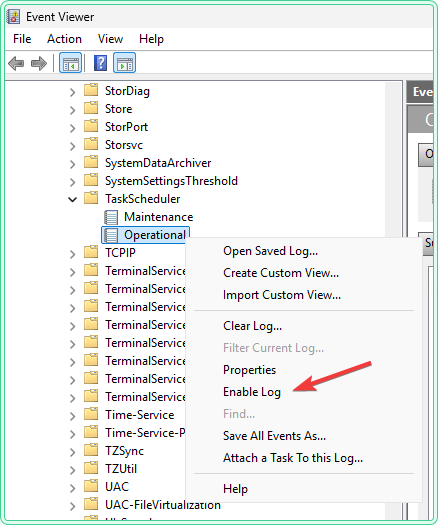
To query the log from PowerShell, filtering to TestTask events only:
# Show the last 10 TestTask events from the operational log, newest first
Get-WinEvent -LogName "Microsoft-Windows-TaskScheduler/Operational" |
    Where-Object { $_.Message -like "*TestTask*" } |
    Select-Object TimeCreated, Id, Message |
    Select-Object -First 10 |
    Format-List
The event IDs to watch for during the failure modes below:
| Event ID | Meaning |
|---|---|
| 100 | Task started |
| 101 | Task failed to start - check the return code in the event detail |
| 102 | Task completed - Last Run Result 0 |
| 103 | Task action returned non-zero exit code |
| 200 | Action launched |
| 201 | Action completed - return code included |
| 202 | Action failed to launch |
The six failure modes
Each failure mode follows the same pattern: break the working baseline in a specific way, observe the symptom, diagnose it using the transcript and event log, then fix it and restore the baseline before moving to the next one.
1. Script path placed directly in the Program/script field
Break it. Edit TestTask - open Task Scheduler, double-click the task, go to the Actions tab, click Edit. Change the action fields to:
Program/script:   C:\bat\test-task.ps1
Add arguments:    (empty)
Start in:         (empty)
Click OK and run the task: schtasks /run /tn "TestTask". Check C:\logs\tasks\ - nothing new appears. The Last Run Result in Task Scheduler shows 0x1. No transcript file is created.
Diagnose it. No transcript exists because PowerShell was never launched - the script never started. Windows tried to execute the .ps1 file directly as an executable, which it cannot do. The operational event log shows Event ID 101 with a launch failure. Query it:
Get-WinEvent -LogName "Microsoft-Windows-TaskScheduler/Operational" |
    Where-Object { $_.Message -like "*TestTask*" -and $_.Id -eq 101 } |
    Select-Object -First 1 -ExpandProperty Message
Fix it. The Program/script field must always be powershell.exe. The script path goes in Add arguments with the -File switch. Restore the action to the correct values:
Program/script:   powershell.exe
Add arguments:    -ExecutionPolicy Bypass -NonInteractive -File "C:\bat\test-task.ps1"
Start in: C:\bat\Run the task again and confirm the baseline is restored - a new transcript and a new log entry should appear in C:\logs\tasks\.
2. Execution policy blocking the script
Break it. Edit the task action and remove -ExecutionPolicy Bypass from Add arguments, leaving:
Add arguments: -NonInteractive -File "C:\bat\test-task.ps1"Run the task. No transcript file appears. Last Run Result is 0x1.
Diagnose it. PowerShell launched this time (unlike failure mode 1) but was blocked before executing the script. To see what policy the task runs against, open a PowerShell window and check all scopes:
# List execution policies for all scopes
# The task sees MachinePolicy and LocalMachine only - CurrentUser is NOT loaded
Get-ExecutionPolicy -List
Scope ExecutionPolicy
----- ---------------
MachinePolicy Undefined
UserPolicy Undefined
Process Undefined
CurrentUser RemoteSigned
LocalMachine RestrictedIn this example, LocalMachine is Restricted. Your interactive session runs fine because CurrentUser overrides it to RemoteSigned. Task Scheduler does not load the user registry hive - it sees only Restricted. PowerShell blocks the script before the first line executes, so no transcript is opened and nothing is written.
Fix it. Restore -ExecutionPolicy Bypass to the Add arguments field:
Add arguments: -ExecutionPolicy Bypass -NonInteractive -File "C:\bat\test-task.ps1"-ExecutionPolicy Bypass applies only to this process invocation. It does not touch the registry or change the machine policy permanently. It is the standard and correct approach for scheduled tasks in enterprise environments.
Run the task and confirm the baseline is restored before continuing.
3. Wrong working directory - relative paths resolve to System32
Break it. Edit C:\bat\test-task.ps1 and change the log file path from absolute to relative. Also clear the Start in field in the task action:
# In test-task.ps1, change this line:
$logFile = "C:\logs\tasks\test-task.log"

# To this - a relative path:
$logFile = ".\test-task.log"
# In the task action, clear Start in:
Start in: (empty)Run the task. Last Run Result is 0 - the task appears to succeed. But C:\logs\tasks\test-task.log has no new entry.
Diagnose it. Open the transcript file (it was created this time, because the script did run). Look for the log file path it used. You will see:
Done. Log entry written to: C:\Windows\System32\test-task.logThe script ran and wrote the file - but to C:\Windows\System32\, not C:\logs\tasks\. The working directory defaulted to System32 because Start in was empty and the path was relative. The task reported success because it did not error - it just wrote to the wrong place.
Fix it. Restore both changes - absolute path in the script, and C:\bat\ in Start in:
# Restore in test-task.ps1:
$logFile = "C:\logs\tasks\test-task.log"
# Restore in task action:
Start in: C:\bat\Optionally, add Set-Location at the top of the script as a self-contained guard - it protects against a misconfigured or empty Start in field:
# Add this line at the very top of the script, before any file operations
Set-Location -Path "C:\bat\"
4. Required module not available in the task session
Break it. Add an Import-Module call to test-task.ps1 for a module that requires RSAT or is not present on this machine. Add it immediately after Start-Transcript:
# Add this line in test-task.ps1, after Start-Transcript:
Import-Module ActiveDirectory
Run the task. Open the transcript. You will see an error similar to:
Import-Module: The specified module 'ActiveDirectory' was not loaded because no valid module
file was found in any module directory.
Diagnose it. The module exists in your interactive session's PSModulePath (because RSAT is installed and your user profile loads it) but is not visible to the SYSTEM account's session. To see exactly which modules the task can access, create a one-off diagnostic script and run it as a task with the same run-as account:
# Save as C:\bat\diag-modules.ps1 and run it as TestTask's run-as account
# It writes the full module list and PSModulePath to files you can inspect

Get-Module -ListAvailable | Select-Object Name, ModuleBase |
    Export-Csv -Path "C:\logs\tasks\available-modules.csv" -NoTypeInformation

$env:PSModulePath -split ";" | Out-File -FilePath "C:\logs\tasks\psmodulepath.txt"
Fix it. Three options depending on your situation:
Option A - #Requires at the top of the script. This is the most defensive approach. PowerShell checks the requirement before executing any line - if the module is missing, the script fails immediately with a clear error rather than partially running with broken state:
#Requires -Modules ActiveDirectory
# If the module is missing, PowerShell stops here with a clear error message
# Nothing below this line runs until the requirement is met
Option B - Explicit availability check. Useful when you want to handle the absence gracefully rather than hard-fail:
if (-not (Get-Module -ListAvailable -Name ActiveDirectory)) {
    Write-Error "ActiveDirectory module not found. Install RSAT on this machine."
    exit 1
}
Import-Module ActiveDirectory
Option C - Full path to the module file. Bypasses PSModulePath entirely - useful when the module is installed but not visible to the run-as account's session:
Import-Module "C:\Windows\System32\WindowsPowerShell\v1.0\Modules\ActiveDirectory\ActiveDirectory.psd1"Remove the Import-Module ActiveDirectory line from test-task.ps1 and run the task to confirm the baseline is restored before continuing.
5. No network credentials - UNC paths fail silently
Break it. Add a line to test-task.ps1 that copies the log file to a UNC path:
# Add this line after the Add-Content call in test-task.ps1:
Copy-Item -Path "C:\logs\tasks\test-task.log" -Destination "\\SRV-FILE-01\reports\"
Run the task. Open the transcript. The local log entry was written successfully, but the Copy-Item line produces an access denied error:
Copy-Item: Access to the path '\\SRV-FILE-01\reports\' is denied.Diagnose it. The task runs as SYSTEM. SYSTEM has no Kerberos ticket and cannot authenticate to domain file shares. In your interactive session, your user account authenticates transparently via Kerberos - you never see it happen. Under SYSTEM, authentication fails immediately. The error only surfaces because the transcript is capturing it.
DOMAIN\COMPUTERNAME$) has been explicitly granted access on the remote server. This is sometimes used for machine-scoped operations, but it requires deliberate ACL configuration on every target share.
Fix it - option A: use a domain service account. This is the standard solution for domain-joined machines. Edit the task General tab and change the run-as user to a service account (e.g. DOMAIN\svc-maintenance) that has write access to the target share. Ensure Do not store password is unchecked - the task needs stored credentials to authenticate over the network.
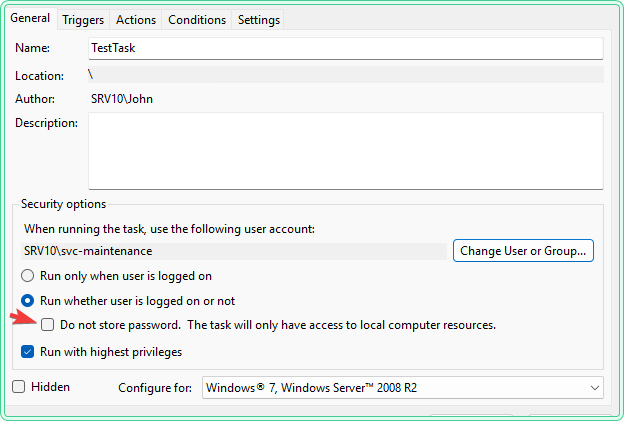
Fix it - option B: use a stored credential file. For workgroup machines or when a service account is not available. Run once interactively, logged in as the account the task runs under, to create the encrypted credential file:
# Run this once interactively as the task's run-as account
# The resulting file can only be decrypted by the same account on the same machine
$cred = Get-Credential
$cred | Export-Clixml -Path "C:\bat\cred-svc.xml"
Then use it in the script:
$cred = Import-Clixml -Path "C:\bat\cred-svc.xml"
Copy-Item -Path "C:\logs\tasks\test-task.log" -Destination "\\SRV-FILE-01\reports\" -Credential $credRemove the Copy-Item line and restore the task run-as account to SYSTEM before continuing.
6. Script hangs waiting for user input
Break it. Add a Read-Host prompt to test-task.ps1:
# Add this line after Start-Transcript in test-task.ps1:
$answer = Read-Host "Continue? (y/n)"
Run the task. Check Task Scheduler after 30 seconds - the task status shows Running. It does not complete. No transcript is closed. The log file has no new entry. The task will remain in this state indefinitely.
Diagnose it. Task Scheduler runs scripts in a non-interactive session - there is no console window, no desktop, no keyboard. Read-Host is waiting for input that will never come. If no execution time limit is set, the task stays in Running state until you stop it manually from the Task Scheduler GUI or with:
schtasks /end /tn "TestTask"Fix it. Two changes together prevent this permanently:
First, -NonInteractive in the task action arguments tells PowerShell to throw a terminating error instead of waiting when any interactive prompt is reached. The script fails fast with a message in the transcript rather than hanging:
Add arguments: -ExecutionPolicy Bypass -NonInteractive -File "C:\bat\test-task.ps1"Second, set an execution time limit on the Settings tab as a safety net. Even with -NonInteractive, some operations (network timeouts, deadlocked COM calls) can hang without triggering a prompt. A time limit ensures the task is killed automatically if it exceeds a sensible ceiling:
Remove the Read-Host line from test-task.ps1 and run the task to confirm the baseline is restored. Any Get-Credential calls that prompt interactively must also be replaced with the Import-Clixml pattern from failure mode 5.
Managing tasks with Register-ScheduledTask
schtasks is practical for simple tasks but becomes unwieldy when you need to set multiple triggers, conditions, or settings - all parameters must be crammed into a single command string. Register-ScheduledTask in PowerShell uses structured objects and is easier to script, review in code review, and deploy consistently across multiple machines.
The following recreates TestTask with all the correct settings - including the working directory and execution time limit that schtasks /create cannot set in one command:
# Build each component separately, then register the task in one call
$action = New-ScheduledTaskAction `
    -Execute "powershell.exe" `
    -Argument "-ExecutionPolicy Bypass -NonInteractive -File C:\bat\test-task.ps1" `
    -WorkingDirectory "C:\bat\"

$trigger  = New-ScheduledTaskTrigger -Daily -At "08:00"

# Stop the task automatically if it runs longer than 1 hour
$settings = New-ScheduledTaskSettingsSet -ExecutionTimeLimit (New-TimeSpan -Hours 1)

$principal = New-ScheduledTaskPrincipal -UserId "SYSTEM" -RunLevel Highest

Register-ScheduledTask `
    -TaskName "TestTask" `
    -Action $action `
    -Trigger $trigger `
    -Settings $settings `
    -Principal $principal `
    -Force
When you are done with this walkthrough, remove the test task and clean up the test files:
rem Remove the scheduled task
schtasks /delete /tn "TestTask" /f
# Remove the test files
Remove-Item -Path "C:\bat\test-task.ps1" -Force
Remove-Item -Path "C:\logs\tasks\" -Recurse -ForceHidden gems
Last Run Result 0x1 is an exit code, not a Windows error code
Task Scheduler displays the exit code of the process it launched as the Last Run Result. 0x1 means powershell.exe exited with code 1 - typically a terminating script error or an explicit exit 1. It is not a Win32 error code. Running net helpmsg 1 returns "Incorrect function" - meaningless in this context.
Codes that are actual Win32 errors and can be decoded with net helpmsg: 0x5 (Access Denied), 0x2 (File Not Found), 0x41301 (Task is already running). These originate from the task infrastructure itself, not from your script. When in doubt, open the transcript - it has the actual error message from PowerShell.
PowerShell 7 uses a different executable
If your environment uses PowerShell 7, the Program/script field must point to pwsh.exe, not powershell.exe. The two are separate installations with separate execution policies, separate module paths, and separate $PROFILE locations. A script that works in a pwsh.exe session may fail entirely when launched via powershell.exe if it depends on PS7-only syntax or modules. Check which version your scripts target before creating the task.
32-bit vs 64-bit PowerShell can make modules disappear
C:\Windows\System32\WindowsPowerShell\v1.0\powershell.exe is 64-bit. C:\Windows\SysWOW64\WindowsPowerShell\v1.0\powershell.exe is 32-bit. Some older RSAT modules and third-party snap-ins are only registered for one bitness. If a module loads interactively but not in a task, verify that both the executable path and the module's registration match - a 64-bit module is not visible to a 32-bit PowerShell process.
Where this matters
Patch-night automation. Scripts that restart services, clear caches, or validate system health after patching run at 3am with no one watching. Without transcript logging and a working action configuration, silent failures go unnoticed until the next morning's incident.
Scheduled Robocopy backups. Robocopy scripts that copy to UNC paths fail silently under SYSTEM because there are no domain credentials. The correct pattern is a service account with read access to the source and write access to the destination, stored in the task credentials.
AD report generation. Scripts that query Active Directory using the ActiveDirectory module fail on machines where RSAT is not installed system-wide or where the module path is not visible to the run-as account. The diagnostic task from failure mode 4 identifies this in under a minute.
Deploying tasks via GPO or Intune. The Register-ScheduledTask pattern can be embedded in a startup script or configuration baseline to push consistent task configurations - with correct working directories, execution time limits, and argument strings - to every machine in scope.
Tips and limitations
- SYSTEM has no network credentials by default. Tasks running as SYSTEM can access local resources freely but have no Kerberos ticket for domain file shares or remote machines. Use a domain service account for anything that touches the network.
- "Run with highest privileges" and SYSTEM are not the same thing. Checking "Run with highest privileges" elevates the task to a full administrator token for the configured run-as account. It does not change the account to SYSTEM. If the run-as account is not in the local Administrators group, this checkbox has no effect.
- The task history in the GUI is capped at 100 entries per task. The operational event log in Event Viewer has no such cap - it rotates by size and is fully queryable with
Get-WinEvent. For tasks that run frequently, rely on the event log rather than the GUI history. - Transcript log files accumulate over time. Each run creates a new file. Add a cleanup step to your scripts to remove transcripts older than 30 days, or create a separate monthly maintenance task for it:
Get-ChildItem "C:\logs\tasks\" -Filter "*.log" | Where-Object LastWriteTime -lt (Get-Date).AddDays(-30) | Remove-Item -Force - Setting the working directory. See the cs-info during setup -
schtasks /createcannot set the Start in field, so either edit the task in the GUI afterwards or useRegister-ScheduledTaskwith-WorkingDirectory.
Official documentation
- schtasks create - Windows Commands | Microsoft Learn
- Register-ScheduledTask - PowerShell | Microsoft Learn
Related tools
- Windows Event Log Analyzer - paste a TaskScheduler/Operational event entry to get a plain-English explanation of the error and suggested next steps
Related guides
- schtasks in Windows: create, query and audit scheduled tasks from CMD: the command line side of scheduled tasks, from audit to XML deployment.
- wevtutil command in Windows - query the TaskScheduler/Operational log and export it from a CMD session or batch script
- How to read Windows Event Logs with PowerShell - filter TaskScheduler events by task name, time range, and Event ID using Get-WinEvent
- How to monitor Windows Server performance from PowerShell using Get-Counter - Get-Counter collection scripts are a natural use case for scheduled tasks - apply the patterns from this guide to run them unattended
- How to upgrade PowerShell 7 on Windows 10 and 11: why a task that calls powershell.exe still runs 5.1 after you install 7.
- winget install and upgrade from a script: why a task running as SYSTEM cannot use the WinGet CLI at all
Five cheat sheets, one PDF
Subnet masks, PowerShell, Linux commands, HTTP status codes and the ESXi command line - one page each, free to keep. Leave an address and it arrives in a minute.