
Checking whether a port is open — on the local machine or on a remote server — comes up in almost every troubleshooting scenario involving services, firewalls, or application connectivity. Windows has two built-in tools for this: netstat in CMD for local port state, and Test-NetConnection in PowerShell for testing connectivity to remote hosts. Each answers a different question. Knowing which one to reach for, and when to use an external checker instead, saves time during the part of an incident where every minute counts.
This article covers all three approaches with practical examples, explains what each tool actually shows and what it cannot show, and walks through the scenarios where each one is the right choice.
Quick answer
Check which ports are listening on the local machine:
netstat -ano | findstr LISTENINGTest whether a remote host is reachable on a specific port:
Test-NetConnection -ComputerName server.domain.local -Port 443The three tools and what they answer
Before diving into examples, it helps to understand what question each tool is actually answering — because they are not interchangeable:
| Tool | Question it answers | Direction |
|---|---|---|
netstat | Which ports are open on this machine? | Local only |
Test-NetConnection | Can this machine reach a port on a remote host? | Outbound |
| Port Checker | Can the internet reach a port on your IP? | Inbound, external |
A port can be listening locally, reachable from inside the network, and still blocked from the internet — all at the same time. These tools answer three different layers of that question.
Practical examples
1. List all listening ports on the local machine
The problem: A service is not responding and you need to verify whether it is actually bound to a port and listening — or whether it failed to start and the port is not open at all. You want a fast answer without installing anything.
The solution: netstat -ano shows all active connections and listening ports with the Process ID (PID) that owns each socket. Pipe it through findstr LISTENING to filter only open ports.
rem Show all listening ports with their PIDs
rem -a = all connections and listening ports
rem -n = show addresses as numbers (faster, no DNS resolution)
rem -o = show the owning process ID
netstat -ano | findstr LISTENING
Example output:
  TCP    0.0.0.0:80             0.0.0.0:0              LISTENING       4
  TCP    0.0.0.0:443            0.0.0.0:0              LISTENING       4
  TCP    0.0.0.0:3389           0.0.0.0:0              LISTENING       1248
  TCP    127.0.0.1:5040         0.0.0.0:0              LISTENING       3124
  TCP    0.0.0.0:49664          0.0.0.0:0              LISTENING       756
The PID in the last column identifies which process owns the port. To find the process name for a given PID:
rem Find the process name for PID 1248 (shown in the netstat output above)
tasklist | findstr "1248"
To check whether a specific port is listening, filter directly by port number:
rem Check if port 3389 (RDP) is listening on this machine
netstat -ano | findstr ":3389"0.0.0.0:PORT is listening on all network interfaces. A port showing 127.0.0.1:PORT is listening only on the loopback interface — it is not accessible from the network, only from the local machine itself.
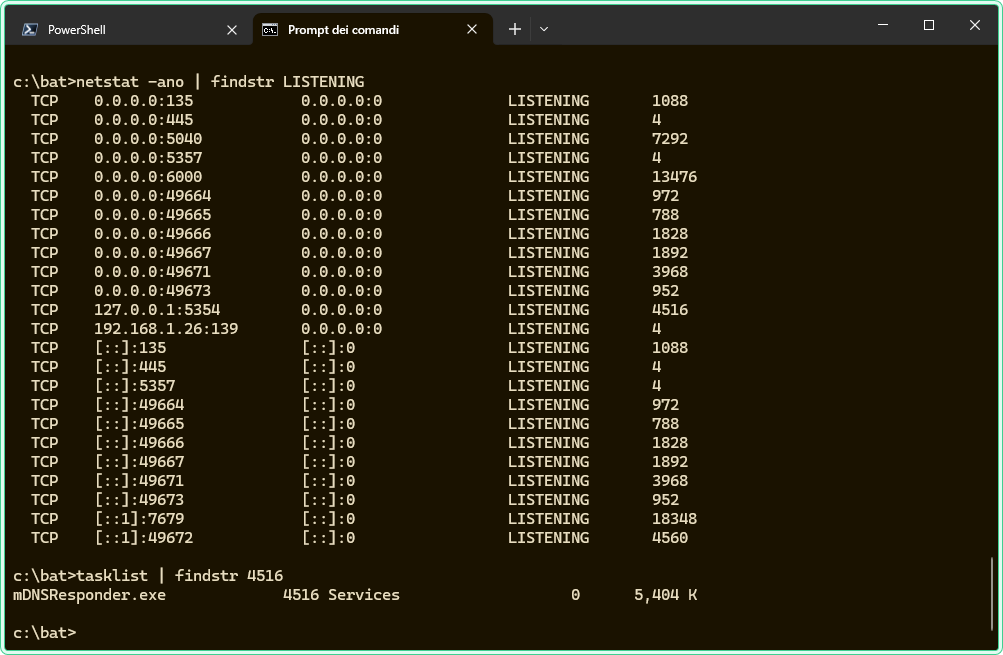
netstat -ano output2. Test connectivity to a remote port with Test-NetConnection
The problem: An application server is not responding. You need to determine whether the problem is on the network path between your machine and the server — a firewall block, a routing issue, or a misconfigured service — or whether the server is reachable but the application itself is failing.
The solution: Test-NetConnection attempts a TCP connection to a specific port on a remote host and reports whether the connection succeeded. It is the PowerShell equivalent of telnet host port but built-in on all modern Windows systems without any installation required.
# Test whether port 443 (HTTPS) is reachable on a remote server
# TcpTestSucceeded: True means the port is open and responding
Test-NetConnection -ComputerName srv-web-01.domain.local -Port 443
Example output:
ComputerName     : srv-web-01.domain.local
RemoteAddress    : 192.168.1.50
RemotePort       : 443
InterfaceAlias   : Ethernet
SourceAddress    : 192.168.1.100
TcpTestSucceeded : True
The key field is TcpTestSucceeded. True means the port is open and the remote host accepted the TCP connection. False means the connection was refused or timed out — the port is either closed, the service is not running, or a firewall is blocking the path.
# Quick check — suppress the full output and show only the result
(Test-NetConnection -ComputerName srv-web-01.domain.local -Port 443).TcpTestSucceededTest-NetConnection tests outbound TCP connectivity from your machine to the remote host. A result of True means the path is clear from your perspective — it does not mean the port is reachable from other machines or from the internet. Firewalls may allow traffic from internal subnets but block the same port externally.
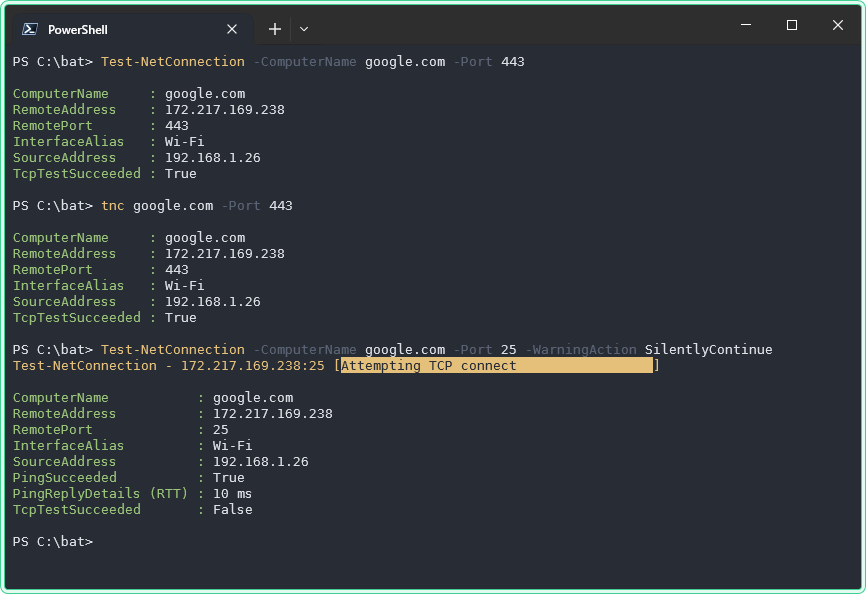
3. Scan multiple ports in a loop
The problem: You need to check a range of common ports on a server — for example, after a firewall rule change — to confirm which ones are now accessible without running Test-NetConnection manually for each port.
The solution: Loop through a list of ports in PowerShell and collect the results in one pass.
# Check a list of common ports on a remote server
# Useful after firewall changes to confirm what is accessible
$target = "srv-web-01.domain.local"
$ports  = @(80, 443, 3389, 445, 22)

foreach ($port in $ports) {
    $result = Test-NetConnection -ComputerName $target -Port $port -WarningAction SilentlyContinue
    [PSCustomObject]@{
        Port   = $port
        Open   = $result.TcpTestSucceeded
    }
}
Example output:
Port  Open
----  ----
  80  True
 443  True
3389  True
 445  False
22 False-WarningAction SilentlyContinue suppresses the “TCP connect to port X failed” warning messages that appear for closed ports. Without it, the output mixes results and warnings in a way that is harder to read.
4. Check whether a port is reachable from the internet
The problem: You have configured a web server or a VPN endpoint and need to verify that it is reachable from outside your network — not just from internal machines that bypass the perimeter firewall. netstat shows the port is listening. Test-NetConnection from inside confirms it is reachable internally. But neither tool can tell you whether the internet can reach it.
The solution: Use an external Port Checker tool. It sends a connection attempt from an external server to your public IP on the specified port, which is the only way to confirm the port is reachable from outside your network.
The Port Checker tool on zaur.it tests a port against your current public IP automatically — no need to know your IP in advance:
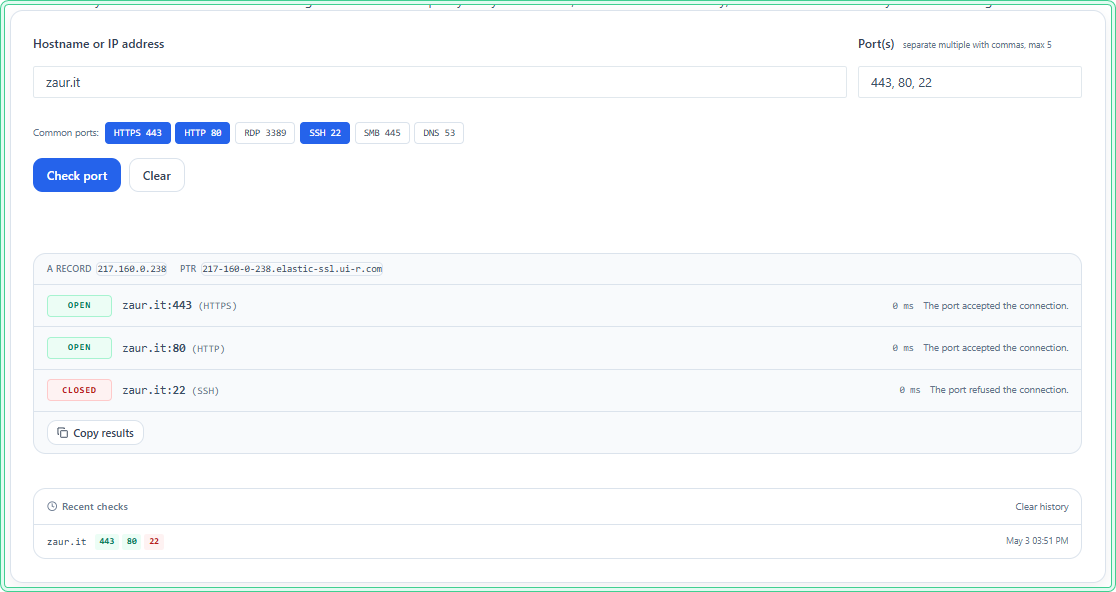
When to use an external port checker instead of the built-in tools:
| Scenario | Use |
|---|---|
| Verify a service is listening on this machine | netstat |
| Test connectivity from this machine to a remote host | Test-NetConnection |
| Verify a port is reachable from the internet | Port Checker (external) |
| Confirm a firewall rule allows inbound traffic from outside | Port Checker (external) |
Hidden gems
netstat -b shows the executable name directly
Instead of finding the PID with netstat -ano and then looking it up in tasklist, the -b flag shows the executable name responsible for each connection directly in the netstat output. It requires an elevated prompt and is slower, but it saves the lookup step:
rem Show listening ports with the executable name — requires elevation
rem Slower than -ano but shows process name without a separate tasklist lookup
netstat -ab | findstr /i "listening"
Test-NetConnection has a built-in traceroute mode
Adding -TraceRoute runs a traceroute to the target alongside the port test. This is useful when a port test fails and you want to immediately see where the path breaks — without running a separate tracert command:
# Test port and trace the route in one command
# Useful when TcpTestSucceeded is False and you need to find where the path breaks
Test-NetConnection -ComputerName srv-web-01.domain.local -Port 443 -TraceRoute
netstat shows TIME_WAIT as open — it is not
Connections in TIME_WAIT state appear in netstat output but are not actually open — they are connections that have finished and are waiting for the TCP timeout before the socket is released. When counting active connections to a service, filter them out explicitly:
rem Show only established connections — exclude TIME_WAIT and other states
netstat -ano | findstr ESTABLISHED
Where this matters
Service not starting — before digging into application logs, confirm the port is not already in use by another process. netstat -ano | findstr ":PORT" identifies the conflict in seconds.
Firewall rule verification — after adding a firewall rule, use Test-NetConnection from a machine on the same subnet and the Port Checker from outside to confirm the rule works at both layers.
RDP troubleshooting — when remote desktop fails to connect, netstat -ano | findstr ":3389" on the target confirms whether RDP is actually listening, before blaming the network.
Web server going live — after configuring a web server, the sequence is: netstat to confirm it is listening on port 80/443, Test-NetConnection from another internal machine to confirm LAN access, Port Checker to confirm external access.
VPN and split-tunnel environments — when a machine is connected to a VPN, route behavior changes. Test-NetConnection shows what is reachable through the current routing table, which helps diagnose split-tunnel misconfigurations.
Tips and limitations
- Test-NetConnection is TCP only. It cannot test UDP ports. UDP does not have a connection handshake, so there is no reliable way to test UDP port reachability from the command line without application-level tools. For UDP services, test at the application level instead.
- A firewall can make a closed port look open. Some firewalls accept the TCP connection and then silently drop traffic, which causes
Test-NetConnectionto reportTcpTestSucceeded: Trueeven though the service is not actually reachable. If the test passes but the application still fails to connect, test at the application level. netstatshows state at the moment of the query. It is a snapshot — ports open and close as services start and stop. Run it multiple times if you are troubleshooting a flapping service.- External port checkers only work for inbound ports on your public IP. They cannot test ports on internal machines behind NAT, and they cannot test outbound connectivity. For internal machine testing, always use
Test-NetConnectionfrom another machine on the same network.
Official documentation
Related tools
- Port Checker — test whether a port on your public IP is reachable from the internet
- Network Diagnostics Tool — run DNS lookup, ping, and port checks in one place
Related guides
- netstat command in Windows — full practical reference for
netstatflags, connection states, and filtering patterns - nslookup — Windows DNS troubleshooting — resolve hostnames before testing port connectivity to confirm DNS is not the issue
- Common Network Ports Cheat Sheet — quick reference for port numbers when you need to know what service uses a port
- Windows Command Line (CMD) Cheat Sheet — CMD quick reference for commands used alongside
netstat - Test-NetConnection: the client side of the same check, testing a remote port from PowerShell instead of listing local listeners.
- tracert and pathping in Windows: tracing the path when a port test fails and you need to know where it stops.
- route print and route add on Windows: reading the routing table and making static routes survive a reboot.
- arp command in Windows: reading the ARP cache: when a host answers ARP but not the port you need, this is the next check.
Five cheat sheets, one PDF
Subnet masks, PowerShell, Linux commands, HTTP status codes and the ESXi command line - one page each, free to keep. Leave an address and it arrives in a minute.