
You need to find every disabled user account in the Sales OU, and you are logged on to a Server Core box where the ActiveDirectory PowerShell module is not installed. You could install RSAT, or RDP somewhere else, or run a remote PowerShell session, or you could type one line: dsquery user "OU=Sales,DC=corp,DC=contoso,DC=com" -disabled. dsquery and dsget ship with the AD DS Tools on every Domain Controller and every machine with RSAT, no module imports needed.
Most guides on these commands give you a list of recipes to copy. This one teaches you how to construct your own queries: the three components every dsquery has, when to use a built-in filter, and when to drop into raw LDAP filter syntax for things the built-in flags do not cover.
Applies to: Windows Server 2016 / 2019 / 2022 / 2025
Quick answer
These three commands cover the most common dsquery tasks. They are a shortcut for readers who already know dsquery basics. If you want to understand how to build your own queries, read from the top.
rem Find a user by name (wildcard supported)
dsquery user -name "John*"

rem Find all disabled users in the domain (overriding the default 100-result cap)
dsquery user -disabled -limit 0

rem List the members of a group, with attributes
dsquery group -name "IT-Admins" | dsget group -members
What dsquery and dsget actually do
dsquery and dsget are a pair of CLI tools that talk to Active Directory using LDAP. They live in %SystemRoot%\System32 on any machine where the AD DS Tools are installed: every Domain Controller has them by default, and any Windows client or member server gets them with RSAT (Remote Server Administration Tools). They communicate with the nearest Domain Controller on port 389 (LDAP) or 636 (LDAPS), no extra configuration needed.
The split between the two tools is deliberate: dsquery finds objects and returns their distinguished names (DNs), dsget reads attributes from those DNs. The contract between them is the pipe character. dsquery outputs DNs one per line, dsget consumes DNs the same way. Any other tool that produces DNs (a script, a file) can feed dsget the same way.
The object types dsquery understands
| Object type | Use for |
|---|---|
user | User accounts (excludes built-in computer accounts) |
computer | Computer accounts in the domain |
group | Security and distribution groups |
ou | Organizational units |
contact | Contact objects (mail-only entries, no logon) |
site | AD sites |
server | Servers registered in AD (typically DCs) |
subnet | Subnet objects associated with sites |
quota | Directory quota specifications |
partition | Directory partitions |
* | LDAP filter mode (escape hatch for queries the built-in types do not cover) |
Anatomy of a full pipeline
Reading a real command in parts makes everything that follows easier to understand. Here is what a typical dsquery and dsget pipeline looks like with each component labeled:
dsquery user -name "John*" -limit 0 | dsget user -samid -display -disabled
└─────┬─────┘ └────┬────┘ └───┬───┘   └─────┬─────┘ └────────┬────────┘
   tool +     filter      result      pipe to       attributes to read
  object type             cap         dsget
Every dsquery has three logical pieces: the object type (user), a filter (-name "John*"), and an optional result cap (-limit 0 removes the default 100-result limit). The output of dsquery is a list of DNs. Pipe those DNs into dsget and pick which attributes you want back: -samid for the login name, -display for the friendly name, -disabled for the enabled/disabled state.
Set up the test environment
Every example below operates on the same lab so the output is predictable. The lab is one DC in a domain called corp.contoso.com with the following objects:
- Three OUs:
OU=IT,OU=Sales,OU=ServiceAccounts - Five user accounts:
jsmith,tjohnson,mwilson(all enabled),bcooper(disabled),oldservice(enabled, never logged on) - Two security groups:
IT-Admins(containsjsmithandbcooper),Sales-Team(containstjohnsonandmwilson)
You can reproduce the lab in your own environment by running this PowerShell script on a fresh DC. It is idempotent, so re-running it after a partial failure is safe:
# Run elevated on the DC of corp.contoso.com
Import-Module ActiveDirectory

$DomainDN = "DC=corp,DC=contoso,DC=com"
$Pwd = ConvertTo-SecureString "P@ssw0rd123!" -AsPlainText -Force

# Three OUs
foreach ($ou in 'IT','Sales','ServiceAccounts') {
    if (-not (Get-ADOrganizationalUnit -Filter "Name -eq '$ou'" -ErrorAction SilentlyContinue)) {
        New-ADOrganizationalUnit -Name $ou -Path $DomainDN -ProtectedFromAccidentalDeletion $false
    }
}

# Five users - bcooper is disabled, oldservice will never have logged on
$Users = @(
    @{ Sam='jsmith';     Given='John';  Sur='Smith';   Dept='IT';              OU='IT';              Enabled=$true  },
    @{ Sam='tjohnson';   Given='Tom';   Sur='Johnson'; Dept='Sales';           OU='Sales';           Enabled=$true  },
    @{ Sam='mwilson';    Given='Mary';  Sur='Wilson';  Dept='Sales';           OU='Sales';           Enabled=$true  },
    @{ Sam='bcooper';    Given='Brian'; Sur='Cooper';  Dept='IT';              OU='IT';              Enabled=$false },
    @{ Sam='oldservice'; Given='Old';   Sur='Service'; Dept='ServiceAccounts'; OU='ServiceAccounts'; Enabled=$true  }
)
foreach ($u in $Users) {
    if (-not (Get-ADUser -Filter "SamAccountName -eq '$($u.Sam)'" -ErrorAction SilentlyContinue)) {
        New-ADUser -Name "$($u.Given) $($u.Sur)" -GivenName $u.Given -Surname $u.Sur `
            -SamAccountName $u.Sam -UserPrincipalName "$($u.Sam)@corp.contoso.com" `
            -Department $u.Dept -Path "OU=$($u.OU),$DomainDN" `
            -AccountPassword $Pwd -Enabled $u.Enabled -PasswordNeverExpires $true
    }
}

# Two groups with members
New-ADGroup -Name 'IT-Admins'  -GroupScope Global -GroupCategory Security -Path "OU=IT,$DomainDN"    -ErrorAction SilentlyContinue
New-ADGroup -Name 'Sales-Team' -GroupScope Global -GroupCategory Security -Path "OU=Sales,$DomainDN" -ErrorAction SilentlyContinue
Add-ADGroupMember -Identity 'IT-Admins'  -Members jsmith,bcooper      -ErrorAction SilentlyContinue
Add-ADGroupMember -Identity 'Sales-Team' -Members tjohnson,mwilson    -ErrorAction SilentlyContinue
Verify the lab is ready by running dsquery user -name * from CMD. You should see the five lab users plus the built-in Administrator, Guest, and krbtgt accounts. ADUC shows the same objects organized into their OUs:
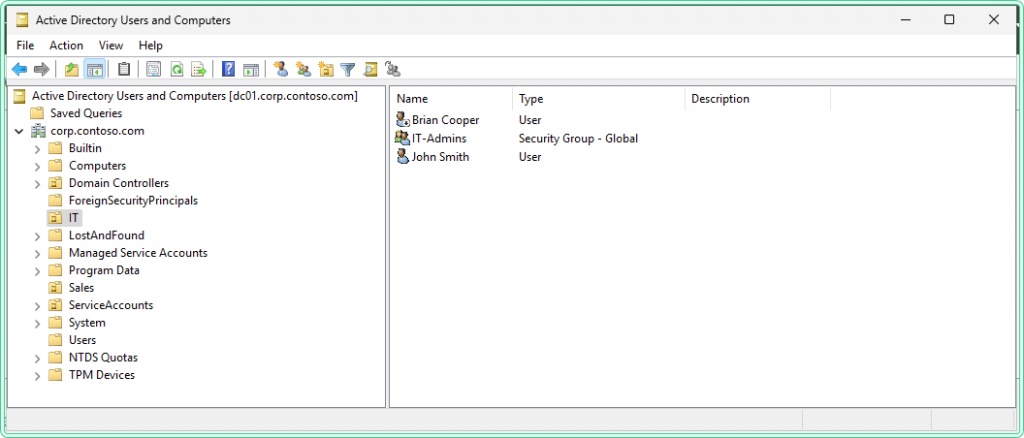
dsquery example operates onPractical examples
Example 1: Find a user by name
The problem: A ticket lands on your desk with just a first name. You need to find the matching user account in the directory.
The solution: dsquery user -name with a wildcard returns every matching user as a DN, ready to feed into ADUC, dsget, or anything else.
rem -name matches against the CN attribute, wildcards supported
dsquery user -name "John*"
"CN=John Smith,OU=IT,DC=corp,DC=contoso,DC=com"Returning a DN is useful, but most queries want the answer narrowed before you read it. The next example introduces scope.
Example 2: Find disabled users in a specific OU
The problem: Your security baseline says disabled accounts must be reviewed monthly. You need a list of disabled users in the IT OU only, not the whole domain.
The solution: Pass an OU DN as the first positional argument to scope the search, then add the -disabled built-in filter. Always include -limit 0 on bulk queries to override the default cap.
rem First positional arg = start node DN (scope), -limit 0 disables the 100-result cap
dsquery user "OU=IT,DC=corp,DC=contoso,DC=com" -disabled -limit 0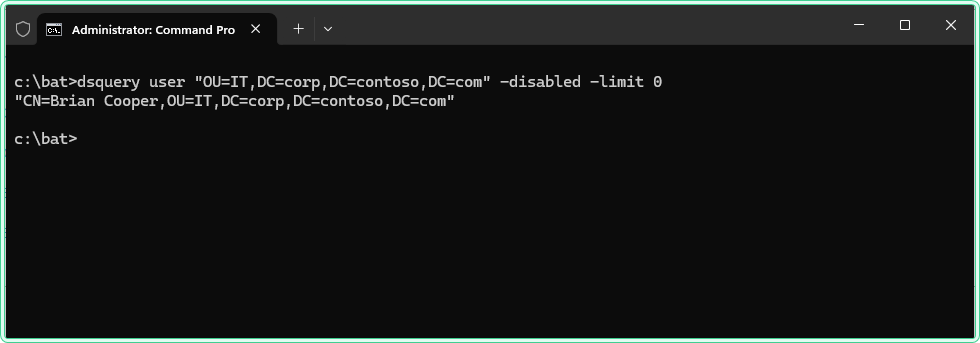
dsquery returns the disabled user's distinguished name, ready to feed into dsget-limit is 100. In a real domain with thousands of users this silently truncates your results and you may not notice. Set -limit 0 explicitly for any export or audit query.
Built-in filters cover the common cases. When you need attributes back, not just DNs, dsget takes over.
Example 3: Pipe dsquery into dsget for attributes
The problem: A manager asks for "the list of people in IT-Admins, with their login names and whether their accounts are still enabled." DNs alone are not useful, you need attribute values.
The solution: dsquery finds the group, the first dsget extracts its members as DNs, the second dsget reads attributes from each member.
rem dsget group -members lists DNs of users in the group
rem A second dsget user resolves each DN into the requested attributes
dsquery group -name "IT-Admins" | dsget group -members | dsget user -samid -display -disabled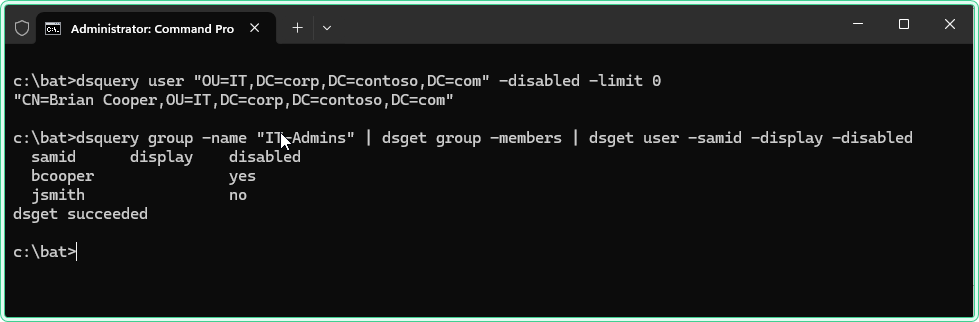
dsget twice resolves group members into user attributes in one lineBuilt-in filters and dsget cover roughly 80% of queries. For the remaining 20% (combinations of attributes, OR conditions, negations, attribute-not-present checks) you need LDAP filter syntax.
Building your own dsquery query
Once you have seen three examples, the pattern is the same: pick an object type, set a scope, apply a filter. The trick is knowing which knob to turn for which question. Every dsquery has three logical components:
- Object type (
user,group,computer, etc, or*for LDAP filter mode) - Scope (a start node DN as the first positional arg, or omit to search the whole domain)
- Filter (a built-in flag like
-disabledor-name, OR a raw LDAP filter via-filter "(...)")
Work through a concrete request to see how the components combine. Say someone asks: "find all enabled users in the Sales OU whose department is set to Sales." Walk through it:
- Object type:
userwould work, but we need to combine three conditions (enabled AND in OU AND department=Sales), and-disabledis a flag, not a filter expression. Use*with an LDAP filter instead. - Scope: the Sales OU is the start node, so the first positional arg is
"OU=Sales,DC=corp,DC=contoso,DC=com". - Filter: three AND-ed conditions: object class is user, account is not disabled, department equals Sales.
Combine them into a single command:
dsquery * "OU=Sales,DC=corp,DC=contoso,DC=com" -filter "(&(objectClass=user)(!userAccountControl:1.2.840.113556.1.4.803:=2)(department=Sales))" -limit 0Decoding the filter piece by piece: the outer (&...) means logical AND across all conditions inside it. (objectClass=user) restricts to user objects. (!userAccountControl:1.2.840.113556.1.4.803:=2) reads as "userAccountControl does NOT have bit 2 set" (bit 2 is the ACCOUNTDISABLE flag). The = in (department=Sales) is exact-match, no wildcards.
1.2.840.113556.1.4.803 is an LDAP matching rule OID called LDAP_MATCHING_RULE_BIT_AND. It tells AD to do a bitwise AND comparison against the userAccountControl integer instead of a normal equality check. The same OID is used for any bit-flag attribute test.
Once the three-component model clicks, you can construct any query without looking up examples first. The next example uses the same pattern on a different attribute.
Example 4: LDAP filter with dsquery *
The problem: You need every user whose department attribute is set to IT, regardless of which OU they live in. None of the built-in dsquery flags filter by department, so a built-in flag query cannot answer this.
The solution: Switch to dsquery * and write the condition as an LDAP filter. Use -attr to ask for specific attributes back without piping through dsget.
rem -attr returns attribute values directly (skips dsget entirely)
dsquery * -filter "(&(objectClass=user)(department=IT))" -attr sAMAccountName department -limit 0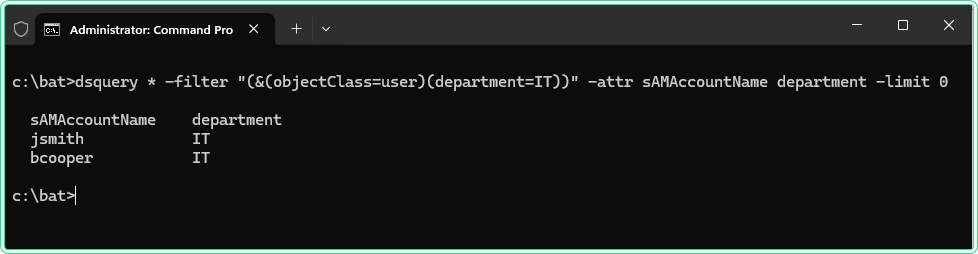
dsget and returns LDAP attributes directlyCross-reference the result against ADUC by opening Brian Cooper's account properties. The disabled checkbox confirms what dsquery reported in Example 2, and the Organization tab shows the same department value the LDAP filter just queried:
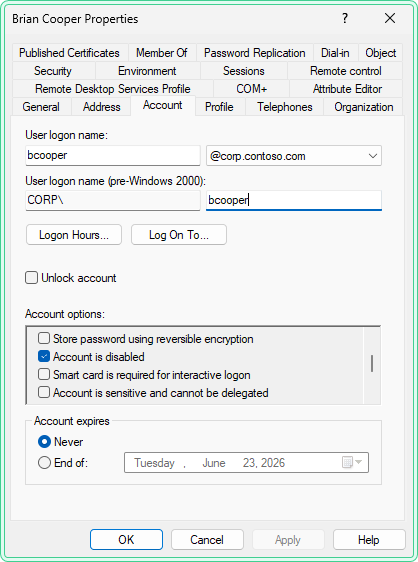
dsquery -disabled flag finds exactly what ADUC shows on the Account tabKnowing what is in the directory is one thing. Doing something with the results is the next step.
Example 5: Export results to a file for scripting
The problem: Quarterly access review. You need every user in the domain with login name, display name, and disabled state, in a file you can hand to a manager or feed into another script.
The solution: Use -limit 0 to get every match, pipe to dsget for the attributes, redirect to a file. dsget separates columns with whitespace, suitable for fixed-width parsing or import into Excel as text.
rem -limit 0 returns ALL users; redirect captures dsget output
dsquery user -limit 0 | dsget user -samid -display -disabled > C:\bat\users.txt

rem Verify the file
type C:\bat\users.txt
samid display disabled
Administrator Administrator no
Guest Guest yes
krbtgt yes
jsmith John Smith no
tjohnson Tom Johnson no
mwilson Mary Wilson no
bcooper Brian Cooper yes
oldservice Old Service no
dsget succeededOne pitfall: if a user object is deleted between dsquery returning its DN and dsget trying to read it (unlikely but possible during large exports), dsget prints dsget failed:Element not found. for that DN and continues with the rest. The exit code reflects success even with individual failures, so always inspect the output rather than relying on the return code alone.
Hidden gems
The -inactive flag silently misses never-logged-on accounts
The -inactive N flag finds users whose lastLogonTimestamp attribute is older than N weeks. It does NOT find accounts that have never logged on at all, because their lastLogonTimestamp is empty rather than old. On a fresh lab where no user has authenticated yet, dsquery user -inactive 1 returns nothing, which looks like the command is broken.
To find never-logged-on accounts, switch to an LDAP filter that checks for the attribute being absent:
rem !(lastLogonTimestamp=*) matches users whose lastLogonTimestamp is NOT set to anything
dsquery * -filter "(&(objectCategory=person)(objectClass=user)(!(lastLogonTimestamp=*)))" -limit 0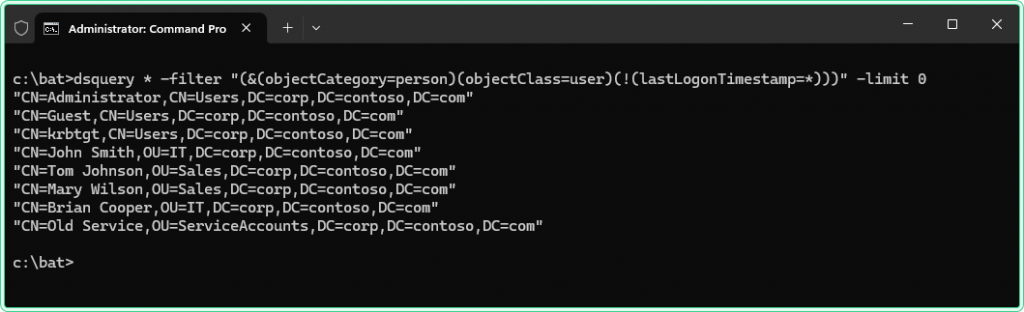
-inactive with the assumption that "no result = no problem" can leave dormant service accounts visible in your domain for years. For audit work, always pair -inactive with a separate never-logged-on LDAP filter and exclude disabled accounts from both.
DN output is quoted by default
dsquery wraps every DN in double quotes. This is the right format for piping into dsget, but breaks plain text processing with findstr or your own scripts because the quote becomes part of the matched string. Two workarounds: use -o rdn to print only the relative DN without quotes, or use -o samid for users to get just the SAM account name.
rem -o samid returns just sAMAccountName, no quotes, ready for grep/findstr
dsquery user -disabled -o samid -limit 0
Three-stage pipelines for joined data
dsget commands can be chained. dsquery group | dsget group -members | dsget user walks from group name to member DNs to user attributes in one line. This is the closest dsquery and dsget come to a JOIN in SQL, and it works for any reasonable group size.
-attr flag on dsquery * returns raw LDAP values, including binary attributes like objectSid and objectGUID as unprintable bytes. Stick to dsget when you need readable output and only use dsquery * -attr for text attributes.
Diagnose the DC, not just query it
dsquery answers what is in the directory. When the directory itself is misbehaving, secure channels are broken, or DC discovery is failing, the nltest Command Builder writes the exact diagnostic command for your scenario.
Where this matters
Server Core without RSAT PowerShell: dsquery and dsget ship with the AD DS Tools that install automatically when you promote a server to DC, so they work on Server Core where you would otherwise need to install or import additional modules.
Bulk audits before quarterly access reviews: Export every enabled user, their OU, and last logon attribute to a text file in one piped command, then hand the file to security or compliance without writing a script.
Scripting against legacy systems: Older Server 2012 boxes, restricted batch contexts, or environments where you cannot install PowerShell modules can still run dsquery and dsget. Both have been stable since Windows Server 2003.
Cross-checking ADUC: When the GUI shows one thing and you suspect a filtered view or stale replication is hiding objects, dsquery on the same DC confirms exactly what is in the directory right now.
PowerShell equivalents
The ActiveDirectory PowerShell module is the modern alternative when it is available. Both toolsets remain supported. For quick reference, here is how each example maps:
dsquery and dsget | PowerShell equivalent |
|---|---|
dsquery user -name "John*" | Get-ADUser -Filter "Name -like 'John*'" |
dsquery user "OU=IT,..." -disabled | Get-ADUser -SearchBase "OU=IT,..." -Filter {Enabled -eq $false} |
dsquery group -name "IT-Admins" | dsget group -members | Get-ADGroupMember -Identity "IT-Admins" |
dsquery * -filter "(&(objectClass=user)(department=IT))" | Get-ADUser -LDAPFilter "(&(objectClass=user)(department=IT))" |
dsquery user -limit 0 | dsget user -samid | Get-ADUser -Filter * | Select-Object SamAccountName |
Both tools speak LDAP underneath. The PowerShell cmdlets are more flexible (object output, pipeline composability with the wider .NET ecosystem), but they require the ActiveDirectory module to be present. dsquery and dsget have no such dependency.
Tips and limitations
dsqueryanddsgetstill ship in Windows Server 2025 but are no longer the recommended tools for new scripts. Microsoft directs new development toward the ActiveDirectory PowerShell module.- Read access to AD is enough for most queries. Some attributes (passwords, sensitive operational data) are not returned regardless of the query because the directory itself does not expose them.
- The default
-limit 100is the most common gotcha. Set-limit 0for audits, exports, or any query where missing results would be a problem. dsgetis strict about its input format: one quoted DN per line, no extra whitespace. Sanitize any input that did not come fromdsqueryitself.- LDAP filter syntax in
dsquery *is the most powerful mode but the least documented in the Microsoft pages. The RFC 4515 spec is the canonical reference for filter syntax. - For multi-domain forests,
dsquerysearches the domain of the DC it connects to. Use-d <domain>or-s <server>to target a different domain or specific DC.
References and related reading
Official documentation
- Active Directory Troubleshooting Cheat Sheet:
dsqueryalongsidenltest,dcdiag,repadmin,w32tmandkliston one page. - Dsquery - Windows Commands | Microsoft Learn
- Dsget - Windows Commands | Microsoft Learn
- LDAP Search Filter Syntax | Microsoft Learn
Related tools on zaur.it
- nltest Command Builder - construct the right
nltestcommand for DC discovery, trust diagnostics, and secure channel testing, the natural partner todsquerywhen AD itself is misbehaving
Related guides
- DCDiag: how to diagnose and fix Active Directory problems - the standard health check before any
dsqueryordsgetinvestigation, especially when results are unexpected - nltest command in Windows: domain controller discovery and trust diagnostics - complements
dsqueryby checking the DC side of the conversation (secure channel, DC location, trust relationships) - Fix trust relationship between workstation and domain - what to do when
dsqueryconfirms accounts exist but workstations still cannot authenticate - ICACLS command in Windows - manage NTFS permissions for users and groups identified through
dsquery - Reading Windows and Unix timestamps in PowerShell: what the inactive switch is really reading, and why a zero in that attribute is not a date.
Five cheat sheets, one PDF
Subnet masks, PowerShell, Linux commands, HTTP status codes and the ESXi command line - one page each, free to keep. Leave an address and it arrives in a minute.