
Every Windows administrator knows ipconfig /all. It is usually the first command run when something on the network stops working. But ipconfig does more than display adapter information — it can flush the DNS cache, force a DHCP lease renewal, trigger DNS re-registration, and display or release addresses on specific adapters. These flags are the ones that actually fix problems, not just describe them.
This article focuses on the flags that come up in real troubleshooting scenarios: what they do, when to use them, and what to expect from the output — including the non-obvious behavior that causes confusion when something does not work as expected.
Quick answer
Show full adapter configuration including DNS servers, DHCP lease, and MAC address:
ipconfig /allFlush the DNS resolver cache when a hostname is resolving to a stale IP:
ipconfig /flushdnsWhat it does
ipconfig is the Windows command-line interface to the TCP/IP network configuration of the local machine. Without flags it shows a summary of active adapters. With flags it can query the DNS cache, flush it, release and renew DHCP leases, and trigger DNS registration with the domain controller. It works on all Windows versions and does not require PowerShell or any additional tools.
| Flag | Purpose |
|---|---|
/all | Show full adapter details: MAC, DHCP server, DNS servers, lease times |
/flushdns | Clear the local DNS resolver cache |
/displaydns | Show the current contents of the DNS resolver cache |
/registerdns | Re-register the machine’s DNS records with the DNS server |
/release | Release the DHCP lease on all adapters (drops IP address) |
/renew | Request a new DHCP lease on all adapters |
/release "name" | Release DHCP lease on a specific adapter by name |
/renew "name" | Renew DHCP lease on a specific adapter by name |
ipconfig /flushdns and /registerdns require an elevated command prompt on Windows 10 and Windows 11. /all and /displaydns work without elevation.
Practical examples
1. Read the full adapter configuration
The problem: A machine is not connecting to the network as expected and you need the full picture: which IP was assigned, by which DHCP server, when the lease expires, which DNS servers are configured, and what the MAC address is — all at once.
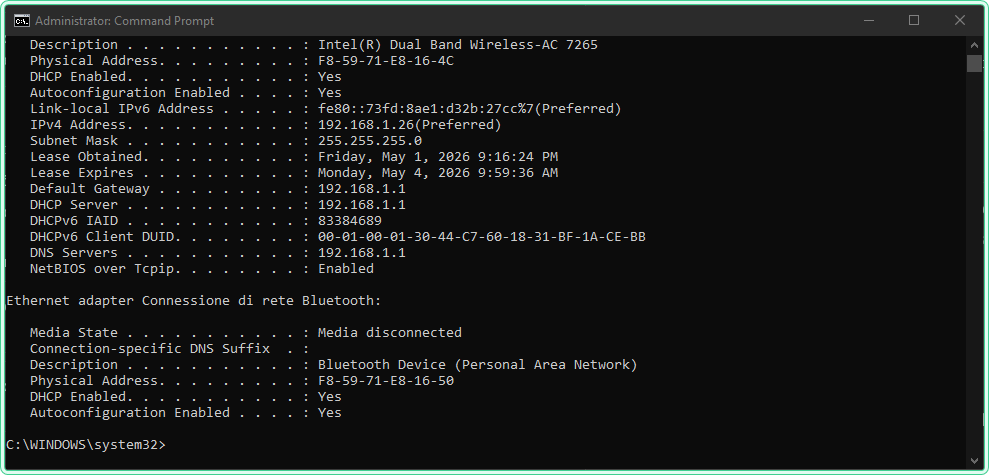
The solution: ipconfig /all dumps the complete TCP/IP configuration for every adapter on the machine. Knowing how to read the output quickly is half the value.
rem Full adapter information — the most complete single command for network state
ipconfig /all
Example output (one adapter, abbreviated):
Ethernet adapter Ethernet:

   Connection-specific DNS Suffix  . : domain.local
   Description . . . . . . . . . . . : Intel(R) Ethernet Connection
   Physical Address. . . . . . . . . : 00-1A-2B-3C-4D-5E
   DHCP Enabled. . . . . . . . . . . : Yes
   Autoconfiguration Enabled . . . . : Yes
   IPv4 Address. . . . . . . . . . . : 192.168.1.105(Preferred)
   Subnet Mask . . . . . . . . . . . : 255.255.255.0
   Lease Obtained. . . . . . . . . . : Sunday, April 20, 2026 8:00:00 AM
   Lease Expires . . . . . . . . . . : Monday, April 21, 2026 8:00:00 AM
   Default Gateway . . . . . . . . . : 192.168.1.1
   DHCP Server . . . . . . . . . . . : 192.168.1.1
   DNS Servers . . . . . . . . . . . : 192.168.1.10
                                       192.168.1.11
The fields that matter most during troubleshooting:
| Field | What to check |
|---|---|
| DHCP Enabled | If No — IP is static. Changes must be made manually. |
| IPv4 Address | 169.254.x.x means DHCP failed — APIPA address assigned. |
| DHCP Server | If this is the gateway IP — the router is acting as DHCP, not a dedicated server. |
| Lease Expires | If expired — the machine is holding a stale lease and may lose connectivity soon. |
| DNS Servers | Wrong DNS server here explains why hostname resolution fails even when the network is up. |
2. Flush the DNS cache when a hostname resolves to the wrong IP
The problem: A server’s IP address changed — after a migration, a DNS update, or a configuration fix — but the machine is still connecting to the old IP. Other machines on the network reach the correct server, but this one does not. The problem is a stale DNS cache entry.
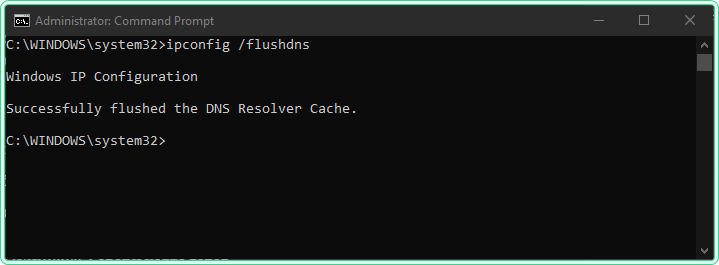
The solution: ipconfig /flushdns clears the local DNS resolver cache. The next DNS query for that hostname goes to the DNS server and returns the current record.
rem Flush the local DNS resolver cache — requires elevated prompt
rem Run this after a DNS record change to force the machine to re-query
ipconfig /flushdns
Expected output:
Windows IP Configuration

Successfully flushed the DNS Resolver Cache.Before flushing, you can inspect what is currently cached with /displaydns to confirm the stale record is present:
rem Show current DNS cache contents — pipe to findstr to search for a specific name
ipconfig /displaydns | findstr /i "srv-app-01"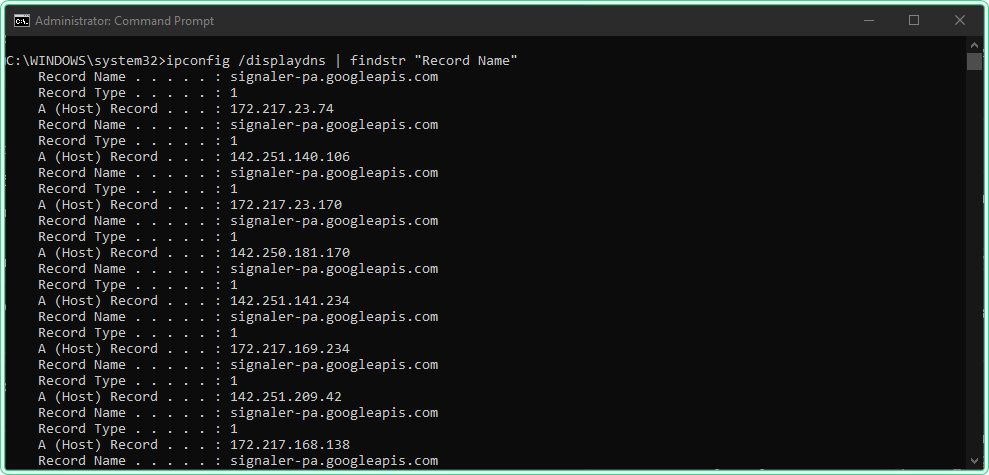
3. Release and renew a DHCP lease
The problem: A machine received a wrong IP address from DHCP — either from the wrong scope, an expired reservation, or after a DHCP server change — and needs a fresh lease without rebooting. Or a machine got a 169.254.x.x APIPA address because DHCP was unavailable at boot time, and DHCP is now reachable.
The solution: /release drops the current DHCP lease and removes the IP address from the adapter. /renew requests a new lease. Run them in sequence.
rem Release the current DHCP lease — the adapter loses its IP address immediately
ipconfig /release

rem Request a new DHCP lease — the adapter gets a new IP from the DHCP server
ipconfig /renewipconfig /release over an RDP session will disconnect you immediately — the machine loses its IP address and the RDP session drops. Only run /release from a local console session or a session that does not depend on the adapter being released.
If the machine has multiple adapters and you only want to renew one of them, specify the adapter name in quotes. Get the exact name from ipconfig /all first:
rem Renew DHCP lease on a specific adapter only — use the exact name from ipconfig /all
rem This leaves other adapters (Wi-Fi, VPN) untouched
ipconfig /renew "Ethernet"
4. Re-register DNS records after a hostname change
The problem: A machine was renamed or its IP changed, but other machines on the domain cannot resolve its new name or IP. The DNS record exists on the DNS server but is outdated, or was not updated automatically after the change.
The solution: ipconfig /registerdns forces the machine to re-register its current hostname and IP with the DNS server immediately, without waiting for the next automatic registration cycle.
rem Force immediate DNS re-registration — requires elevated prompt
rem Run this after renaming a machine or changing its IP
ipconfig /registerdns
Expected output:
Windows IP Configuration

Registration of the DNS resource records for all adapters of this computer has been initiated. Any errors will be reported in the Event Viewer in 15 minutes.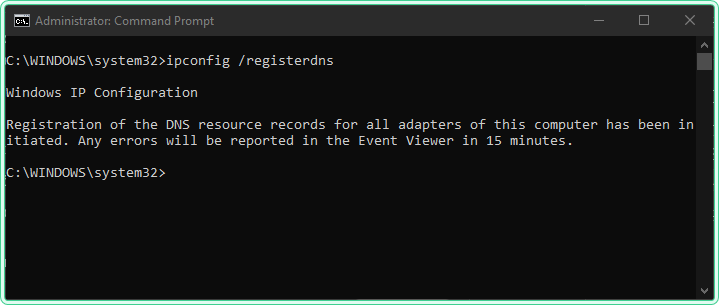
Hidden gems
169.254.x.x is a diagnostic signal, not a random address
When ipconfig shows a 169.254.x.x address (APIPA — Automatic Private IP Addressing), it means the adapter attempted DHCP and got no response. The OS assigned a link-local address so the adapter is technically “up” but not usable on the network. This is always a DHCP reachability problem — the DHCP server is down, unreachable, or the machine booted before the network was ready. Run ipconfig /renew once DHCP is reachable to resolve it without rebooting.
Adapter names in /release and /renew support wildcards
The adapter name argument accepts * as a wildcard. This lets you target a group of adapters by partial name — useful on machines with multiple Ethernet adapters or multiple VPN adapters with similar names:
rem Release all adapters whose name starts with "Ethernet"
rem Useful on machines with Ethernet, Ethernet 2, Ethernet 3
ipconfig /release "Ethernet*"
/displaydns shows negative cache entries too
The DNS cache stores not only successful lookups but also failed ones — “this hostname does not exist” results are cached as negative entries with their own TTL. If you recently fixed a DNS record that previously returned NXDOMAIN, the machine may still be serving the negative result from cache. /displaydns shows these entries and /flushdns clears them along with the positive entries:
rem Display all DNS cache entries including negative (NXDOMAIN) results
ipconfig /displaydns | findstr /i "Record Name"
PowerShell equivalents
PowerShell provides more structured access to network configuration through the NetTCPIP module, which is available on Windows 8.1 / Server 2012 R2 and later without any additional installation.
# Show IP configuration for all adapters — equivalent to ipconfig /all
Get-NetIPConfiguration -Detailed

# Flush the DNS cache — equivalent to ipconfig /flushdns
Clear-DnsClientCache

# Show DNS cache contents — equivalent to ipconfig /displaydns
Get-DnsClientCache

# Release and renew DHCP on a specific adapter
$adapter = Get-NetAdapter -Name "Ethernet"
$adapter | Remove-NetIPAddress -Confirm:$false   # release
$adapter | Set-NetIPInterface -Dhcp Enabled # renewGet-NetIPConfiguration returns objects rather than text, which makes it easier to filter and process in scripts. For interactive troubleshooting, ipconfig /all is faster to read. Use PowerShell when you need to act on the data programmatically — for example, finding all adapters with a specific DNS server configured across multiple machines.
Where this matters
DNS propagation troubleshooting — after updating a DNS record, /flushdns on the affected machine and /displaydns before and after confirm whether the machine is now resolving to the correct IP.
DHCP scope changes — after changing a DHCP scope, reservation, or option (such as updating DNS server IPs), /release followed by /renew forces machines to pick up the new settings immediately without waiting for lease expiry.
Machine rename or IP change — after renaming a computer or changing its static IP, /registerdns updates the DNS record immediately instead of waiting up to 24 hours for the automatic registration cycle.
New machine setup — on a freshly joined domain machine that is not yet visible to other machines by name, /registerdns forces the DNS registration that normally happens at the next reboot or Group Policy refresh cycle.
VPN connectivity issues — after connecting to a VPN, DNS resolution for internal hostnames sometimes requires a cache flush to pick up the VPN’s DNS servers instead of using stale cached results from before the connection.
Tips and limitations
ipconfig /flushdnsdoes not flush the browser’s DNS cache. Chrome, Firefox, and Edge maintain their own DNS caches independently of the Windows resolver cache. After flushing withipconfig, also clear the browser cache or use the browser’s own DNS flush page (chrome://net-internals/#dns in Chrome) if the issue is browser-specific.- /renew will fail if no DHCP server is reachable. Running
ipconfig /renewwhen DHCP is unavailable leaves the adapter without an IP address after the release. If you are not sure DHCP is reachable, verify connectivity first before running /release. - Static IP adapters ignore /release and /renew. These flags only affect DHCP-enabled adapters. On adapters with a static IP, the commands complete silently with no effect. Check
DHCP Enabledinipconfig /allbefore running them. - /registerdns requires the DNS server to allow dynamic updates. If the DNS zone is configured to not allow dynamic updates,
/registerdnswill appear to succeed but the record will not be created or updated. The failure is logged in the Event Log, not shown in the terminal output.
Official documentation
- ipconfig — Windows Commands | Microsoft Learn — full parameter reference
Related tools
- DNS Lookup Tool — check what a DNS server currently returns for a hostname after flushing the local cache
- DNS Propagation Checker — verify that a DNS record change has propagated across multiple DNS servers worldwide
- What Is My IP — confirm the public IP after a network change or DHCP renewal
Related guides
- nslookup — Windows DNS troubleshooting — query DNS servers directly to verify what a record returns before and after flushing the cache
- How to check open ports on Windows — verify network connectivity after a DHCP renewal or IP change
- Windows Command Line (CMD) Cheat Sheet — quick reference for CMD commands used in the same troubleshooting workflows
- Test-NetConnection: shows which interface and source address Windows selects for a given destination.
- tracert and pathping in Windows: following the gateway you just identified all the way to the destination.
- route print and route add on Windows: reading the routing table and making static routes survive a reboot.
- arp command in Windows: reading the ARP cache: the local side of the same picture: which adapter owns which subnet, and its own MAC.
Five cheat sheets, one PDF
Subnet masks, PowerShell, Linux commands, HTTP status codes and the ESXi command line - one page each, free to keep. Leave an address and it arrives in a minute.