
ExifTool is a free, portable command-line program that reads and writes the metadata hidden inside files: GPS coordinates and camera details in photos, the author and company name in Word documents, version information in EXE and DLL files. For a Windows admin it answers three practical questions: what does this file give away before I send it outside the company, how do I remove that, and how do I put the right dates back on files after a copy or migration.
This guide at a glance
Who it's for
Admins who share files
Screenshots for vendors, photos from a site visit, documents for an audit or a support case.
What you get
Read, strip, fix
One portable exe, no installer, five commands you will actually reuse.
The trap
Cleaned is not always clean
Every write leaves a full _original copy next to the file, and on a PDF the old metadata stays inside.
Quick answer
If ExifTool is already on your PATH, these three commands cover most daily use. Run them in CMD from the folder that holds the file. The first one only reads; the other two change the file.
rem Show every tag with its group, using short tag names you can reuse in other commands
exiftool -G1 -s photo.jpg

rem Remove all metadata; a backup copy photo.jpg_original is kept
exiftool -all= photo.jpg

rem Set the file's Modified date to the moment the photo was taken
exiftool "-FileModifyDate<DateTimeOriginal" photo.jpg
New to ExifTool? Start with the setup below; every example uses the same three files.
Before you start
The examples were checked with ExifTool 13.60 (released 28 October 2026). The Windows package is a zip with no installer, so it also works on a server without internet access: download it on your workstation and copy it across.
Download the 64-bit zip and check its hash
Get exiftool-13.60_64.zip from the official ExifTool site. The same page links a checksum list, so you can confirm the file before it goes anywhere near a server. Run this in PowerShell in your Downloads folder.
Get-FileHash .\exiftool-13.60_64.zip -Algorithm SHA256You should see a 64-character hash that matches the SHA256 line for this file in the checksum list. Comparing hashes by eye has one known trap, covered in Get-FileHash: the comparison that reports a good file as bad.
Unpack it to C:\bat\exiftool
Copy the zip to C:\bat\ on the target machine and run this in PowerShell. The exe ships as exiftool(-k).exe; the (-k) part makes it pause for drag-and-drop use. Copy it as exiftool.exe for the command line and keep the original: dropping a file on exiftool(-k).exe shows its tags in a window, handy for colleagues who avoid the command line. Keep the exiftool_files folder next to the exe: it does not run without it.
Unblock-File C:\bat\exiftool-13.60_64.zip
Expand-Archive C:\bat\exiftool-13.60_64.zip -DestinationPath C:\bat\
Rename-Item C:\bat\exiftool-13.60_64 exiftool
Copy-Item 'C:\bat\exiftool\exiftool(-k).exe' C:\bat\exiftool\exiftool.exe
Get-ChildItem C:\bat\exiftool
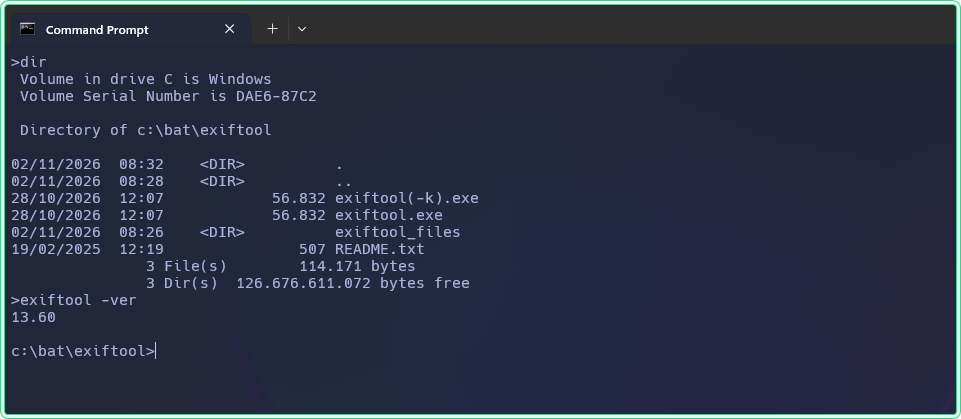
You should see exiftool(-k).exe, exiftool.exe and the exiftool_files folder side by side.
Put it on the PATH for this session
Open CMD (no elevation needed). Adding the folder to PATH for this window only lets you type exiftool without the full path, and changes nothing system-wide.
set PATH=%PATH%;C:\bat\exiftool
exiftool -ver
You should see 13.60.
Prepare three test files
Create the test folder, then copy into it any JPG photo, any Word document and any PDF. Name them photo.jpg, report.docx and report.pdf. Work on copies, never on originals. Most photos you find online have no location, so the last line writes test coordinates (Milan Cathedral) into the copy.
mkdir C:\bat\test
cd /d C:\bat\test
dir /b
exiftool -GPSLatitude=45.4642 -GPSLatitudeRef=N -GPSLongitude=9.1900 -GPSLongitudeRef=E -overwrite_original photo.jpg
You should see the three file names, then 1 image files updated. Skip the last line if your photo came from a phone with location turned on. Stay in this folder for every example below.
How an ExifTool command reads
Every command is a list of tag names with a dash in front. What follows the tag name decides whether ExifTool reads, deletes, sets or copies.
| You type | What happens |
|---|---|
-Model | Reads the tag |
-GPS:all= | Deletes every tag in the GPS group |
-Artist="John" | Sets a value |
"-FileModifyDate<DateTimeOriginal" | Copies one tag's value into another |
Switches change how ExifTool works through the files. These are the ones this article uses, in the order you are likely to need them:
| Switch | What it does |
|---|---|
-s | Shows tag names instead of descriptions, so you can copy them into the next command |
-G1 | Shows which group each tag comes from (GPS, IFD0, XMP...) |
-a | Shows duplicate tags; without it, some values are hidden |
-n | Raw values: GPS as decimal degrees, no unit conversion |
-r | Includes subfolders |
-ext jpg | Processes only files with this extension; repeat for more types |
-if "$GPSLatitude" | Processes only files where the condition is true |
-csv | One row per file, ready for Excel; -csv=FILE writes values back |
-d %s | Sets the date format; %s means Unix time |
-overwrite_original | Writes without keeping a _original backup |
-restore_original | Puts the backup back; -delete_original removes it |
Practical examples
1. See what a photo gives away
The problem: a colleague photographed a rack during a site visit and you are about to attach it to a vendor ticket. You want to know what else travels with the picture.
The solution: ask only for the tags that matter. Run in CMD in C:\bat\test; this command reads and changes nothing.
rem GPSPosition is the readable location; SerialNumber identifies the exact camera
exiftool -GPSPosition -Make -Model -SerialNumber -DateTimeOriginal photo.jpg
You should see where the photo was taken, which camera took it (down to its serial number) and when. This is the output for the test photo:
GPS Position                    : 45 deg 27' 51.12" N, 9 deg 11' 24.00" E
Make                            : FUJIFILM
Camera Model Name               : X100F
Serial Number                   : 74M52065
Date/Time Original              : 2021:09:15 16:24:38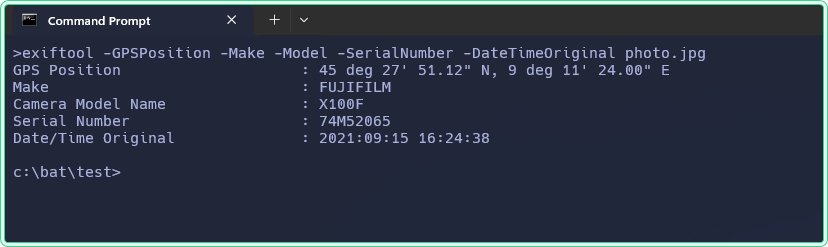
exiftool -GPS:all photo.jpg looks like the obvious way to list location tags, but it hides the coordinates: you get only "North" and "East". ExifTool shows each tag name once and prefers its own combined (Composite) copy, which is not in the GPS group. Add -a to see every copy, or ask for -GPSPosition as above.
2. Strip a photo before sharing it, and undo it
The problem: the photo shows the data centre's exact location and the serial number of the camera that took it.
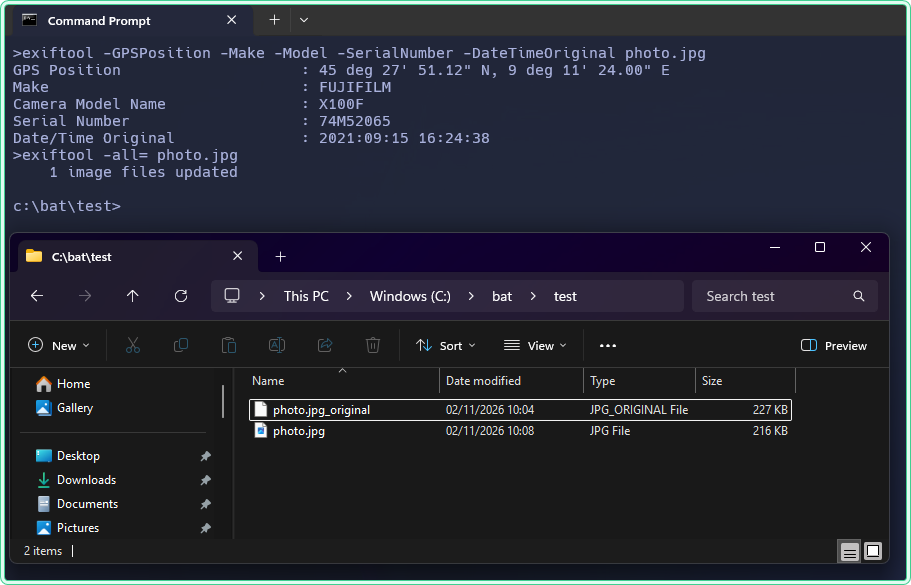
The solution: remove only the location, or remove everything. Both commands rewrite photo.jpg and keep the untouched file as photo.jpg_original.
rem Remove only location tags; camera details stay
exiftool -GPS:all= photo.jpg

rem Or remove everything, then check: the second command should print nothing
exiftool -all= photo.jpg
exiftool -GPSPosition -SerialNumber photo.jpg
Each write prints 1 image files updated. The backup file matters, and it is the first thing that surprises people:
Default
Safe, but doubles disk usage
exiftool -all= photo.jpg
leaves photo.jpg_original with all the dataexiftool -restore_original photo.jpg
puts the original back
-overwrite_original
No backup, no undo
exiftool -all= -overwrite_original photo.jpg
changes the file in placeexiftool -delete_original photo.jpg
removes backups made earlier (asks first)
-restore_original first to practise the undo, then strip again and send photo.jpg, never the _original file. When you are sure, clear the backups with -delete_original.
-all= also removes the Orientation tag, so a portrait photo can suddenly show up sideways. Keep that one tag with exiftool -all= -tagsFromFile @ -Orientation photo.jpg.
3. Find every photo with a location in a folder
The problem: a project share holds hundreds of photos from site visits and is about to be shared with a contractor. You need to know which ones carry a location, without opening them one by one.
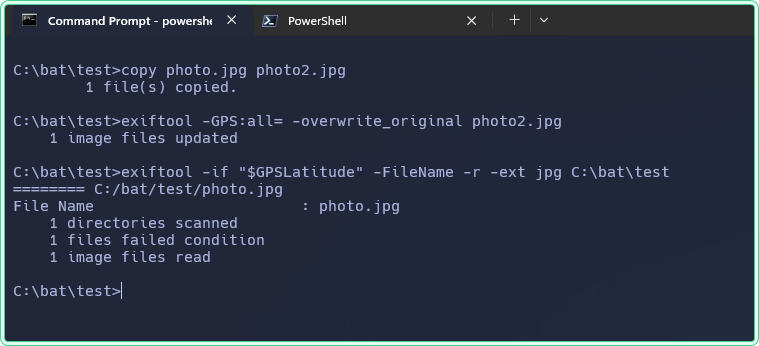
The solution: let -if filter the files, then strip the location only from the ones that matched. To see the filter work, first make a second photo without a location. Run in CMD in C:\bat\test:
rem Test data: a copy of the photo with the location removed
copy photo.jpg photo2.jpg
exiftool -GPS:all= -overwrite_original photo2.jpg

rem List only the photos that have a GPS latitude; -r includes subfolders
exiftool -if "$GPSLatitude" -FileName -r -ext jpg C:\bat\test
You should see only photo.jpg listed, followed by 1 files failed condition for photo2.jpg. On a real share, point the command at the share path instead of C:\bat\test. To strip the location from exactly those files, keep the same filter and change only the action:
rem Same filter, now deleting GPS; backups are kept as *_original
exiftool -if "$GPSLatitude" -GPS:all= -r -ext jpg C:\bat\test

rem Undo, then clean up the test copy
exiftool -restore_original -r -ext jpg C:\bat\test
del photo2.jpg-if '$GPSLatitude'. In double quotes PowerShell replaces $GPSLatitude with its own (empty) variable before ExifTool sees it, so every file fails the condition (2 files failed condition, 0 image files read) and no error tells you why.
4. Check Word and PDF files before they leave
The problem: a report for an auditor was built from an old template. Its properties may still name the original author and the consultancy that wrote it.
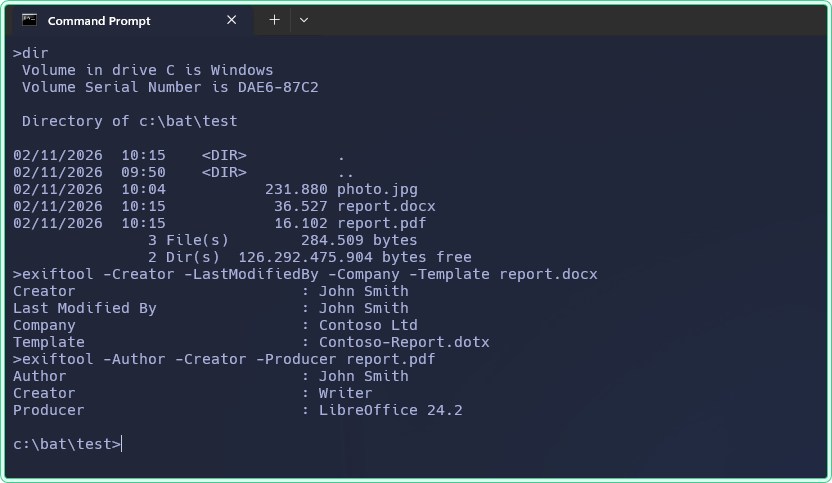
The solution: read the document properties with ExifTool, then clean them in the right place. Run in CMD in C:\bat\test; both commands only read.
rem Word: who created it, who edited it last, which company and template
exiftool -Creator -LastModifiedBy -Company -Template report.docx

rem PDF: author and the software that produced it
exiftool -Author -Creator -Producer report.pdf
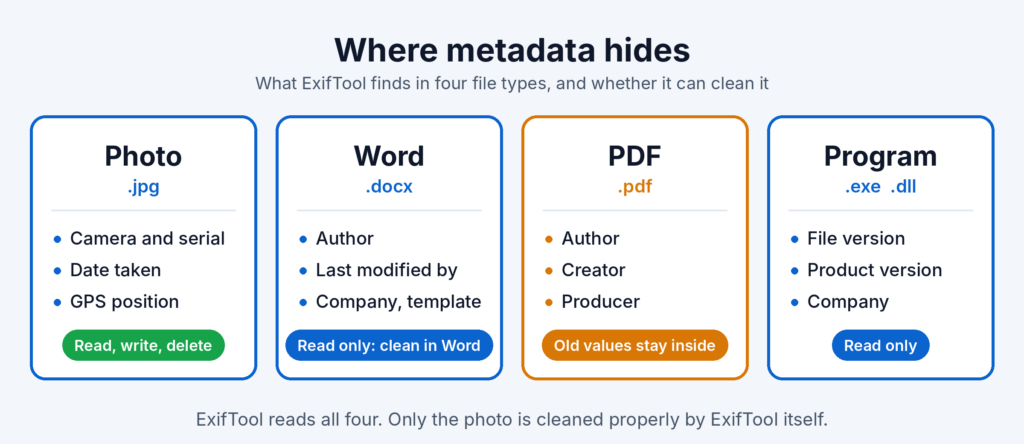
You should see who wrote and last edited the document, the company name and the template it was built from. ExifTool can read .docx files but cannot write them, so clean a Word file in Word itself: File > Info > Check for Issues > Inspect Document, then remove Document Properties and Personal Information.
exiftool -all= report.pdf and sending the result. ExifTool edits PDFs by appending a new revision, so the old author and producer are still inside the file and the change can be reversed. Clean the source document and export a fresh PDF instead.
5. List EXE and DLL versions into a CSV
The problem: a vendor asks which version of their agent is installed, and the folder holds a dozen EXE and DLL files.
The solution: read the version resource of every file in one pass. Run in CMD; the first command checks a single file, the second writes a CSV for the whole folder and changes nothing in it.
rem One file: version and vendor straight from the version resource
exiftool -FileVersion -ProductVersion -CompanyName C:\Windows\System32\notepad.exe

rem Whole folder: -ext limits the run to EXE and DLL files, -csv writes one row per file
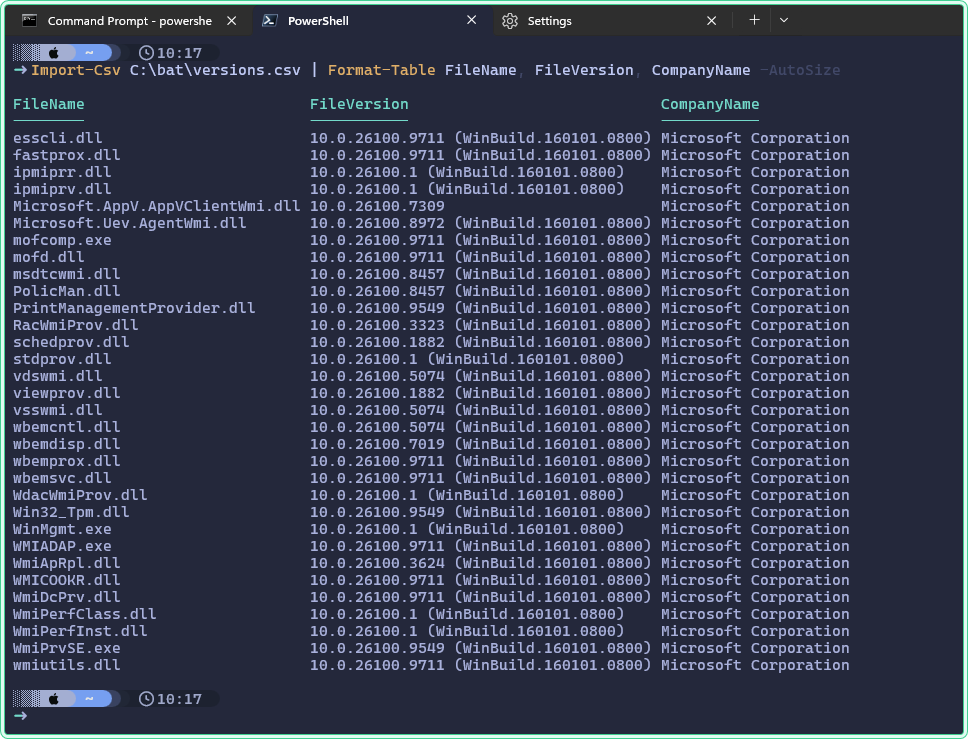
exiftool -csv -FileName -FileVersion -ProductVersion -CompanyName -ext exe -ext dll C:\Windows\System32\wbem > C:\bat\versions.csv
You should see Notepad's version numbers, then 32 image files read on a Windows Server 2025 machine ("image files" is ExifTool's word for any file it reads). C:\bat\versions.csv opens in Excel with one row per file. For a quick look without Excel, run this in PowerShell:
Import-Csv C:\bat\versions.csv | Format-Table FileName, FileVersion, CompanyName -AutoSizeThe build numbers are not all the same: 10.0.26100.1 means the file has not changed since release, while 10.0.26100.9711 came with a later cumulative update. That is the kind of difference a vendor asks about. For a single file, PowerShell alone is enough: (Get-Item C:\Windows\System32\notepad.exe).VersionInfo. ExifTool earns its place when you want one CSV across many files.
6. Fix file dates after a copy or migration
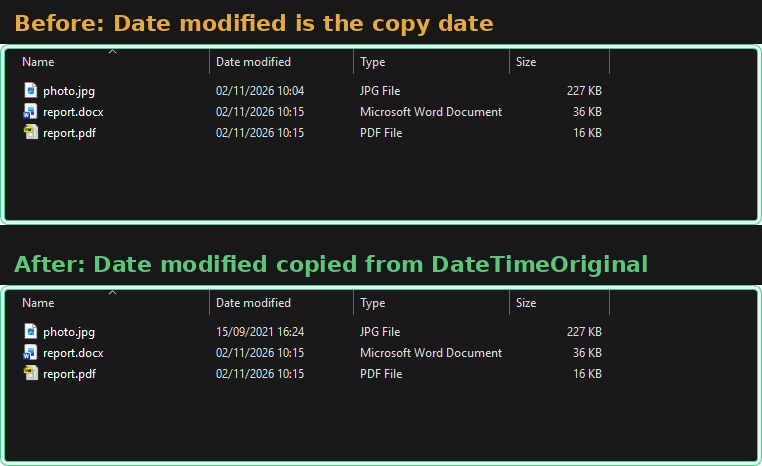
The problem: photos were copied to a new share with a tool that did not keep timestamps, and every file now shows today's date in Explorer. The real date is still inside each photo.
The solution: save the current dates first, then copy the date the photo was taken into the file system dates. Run in CMD in C:\bat\test.
rem 1. Save the current dates so you can undo
exiftool -csv -FileModifyDate -FileCreateDate -ext jpg C:\bat\test > C:\bat\dates-before.csv

rem 2. Copy the shooting date into Modified and Created; -r includes subfolders
exiftool "-FileModifyDate<DateTimeOriginal" "-FileCreateDate<DateTimeOriginal" -ext jpg -r C:\bat\test

rem Undo: write the saved dates back from the CSV (only to the JPG files listed in it)
exiftool -csv=C:\bat\dates-before.csv -ext jpg C:\bat\test
You should see 1 image files updated after step 2, and Explorer's Date modified column now shows the day the photo was taken. Only the file system dates change here, so no _original copies are created.
Hidden gems
Always quote anything with <. In both CMD and PowerShell, an unquoted < is input redirection, so -FileModifyDate<DateTimeOriginal without quotes fails with a confusing "file not found" error. Use double quotes in CMD; single quotes do not group arguments there.
Double every % in a .bat file. ExifTool date formats use %, and so does CMD. The command below previews renaming photos by shooting date. Typed at the prompt it works as shown; inside a batch file every % must be written as %%. TestName prints the new names without renaming anything; swap it for FileName only when the preview looks right, because a rename has no undo.
rem Dry run: shows old and new names, renames nothing
exiftool -d %Y%m%d_%H%M%S%%-c.%%e "-TestName<DateTimeOriginal" -ext jpg C:\bat\test

rem Same command inside a .bat file: every % is doubled
exiftool -d %%Y%%m%%d_%%H%%M%%S%%%%-c.%%%%e "-TestName<DateTimeOriginal" -ext jpg C:\bat\test
Prove what you removed. -diff compares two files and prints only the tags that differ. After removing just the location, the backup and the cleaned file differ by the GPS tags and nothing else:
exiftool -GPS:all= photo.jpg
exiftool photo.jpg_original -diff photo.jpg
======== diff < photo.jpg_original > photo.jpg
< [System] File Name : photo.jpg_original
> : photo.jpg
< [System] File Modification Date/Time : 2026:11:02 10:04:35+01:00
> : 2026:11:02 11:20:58+01:00
< [GPS] GPS Version ID : 2.3.0.0
< [GPS] GPS Latitude Ref : North
< [GPS] GPS Latitude : 45 deg 27' 51.12"
< [GPS] GPS Longitude Ref : East
< [GPS] GPS Longitude : 9 deg 11' 24.00"
< [Composite] GPS Latitude : 45 deg 27' 51.12" N
< [Composite] GPS Longitude : 9 deg 11' 24.00" E
< [Composite] GPS Position : 45 deg 27' 51.12" N, 9 deg 11' 24.00" ELines starting with < exist only in the backup. The file name and modification time always differ; everything else listed is what left the file. Run exiftool -restore_original photo.jpg afterwards to get the location back.
Coordinates you can paste into a map. exiftool -n -GPSPosition photo.jpg prints the position as two decimal numbers instead of degrees, minutes and seconds. Paste them into any map search box to see exactly where a photo was taken.
Dates as Unix time, with one catch. exiftool -d %s -DateTimeOriginal photo.jpg prints seconds since 1970, ready to compare with log entries or to paste into the Unix timestamp converter. On a server set to W. Europe Standard Time it returns 1631715878 for a photo taken at 16:24. EXIF stores the shooting time without a time zone, so ExifTool reads it in the time zone of the machine it runs on: the same photo gives 1631723078, two hours later, on a server set to UTC. Check tzutil /g before comparing timestamps across machines.
Where this matters
- Vendor and support tickets: photos of racks, labels and screens carry the site's GPS position unless you strip it.
- Audits and external reports: document properties name people and internal paths that were never meant to leave.
- File share migrations: photo archives keep their real dates inside the files even when the copy lost them.
- Software inventory: one CSV of file versions answers "which build is installed" without opening each file's properties.
Official documentation
- ExifTool by Phil Harvey - downloads, checksums, supported file types
- exiftool application documentation - every option with examples
- Installing ExifTool - Windows, macOS and Unix
Related tools
- Unix timestamp converter - turn the output of
-d %sback into a readable date, or the other way round
Related guides
- Get-FileHash: the comparison that reports a good file as bad - verify the ExifTool download against its published checksum
- Convert FILETIME to DateTime in PowerShell - how Windows stores the file dates that example 6 rewrites
- ROBOCOPY command in Windows - copy files without losing their timestamps in the first place
- ren command in Windows - simple wildcard renames when you do not need dates from inside the file
Five cheat sheets, one PDF
Subnet masks, PowerShell, Linux commands, HTTP status codes and the ESXi command line - one page each, free to keep. Leave an address and it arrives in a minute.