
A server restarted at 3 AM and the System log shows a Critical event you do not see every day: Kernel-Power, Event ID 41. You need to tell the team what happened before the morning call. Was it a power cut, a crash, or someone holding the power button?
An AI model is a fast way to get a first explanation of an unfamiliar event. It reads the text, says what the event means and suggests what to check. It does not see your server, so some of what it suggests is generic and some of it is wrong. This guide is for the admin who wants the speed without trusting the answer blindly.
You will take one real event from Event Viewer, clean it, run it through the Event Log Analyzer, and then confirm the answer with two short PowerShell commands. The same method works with ChatGPT, Claude or any other assistant.
Applies to: Windows 10 and 11, Windows Server 2016 to 2025, Windows PowerShell 5.1 and PowerShell 7
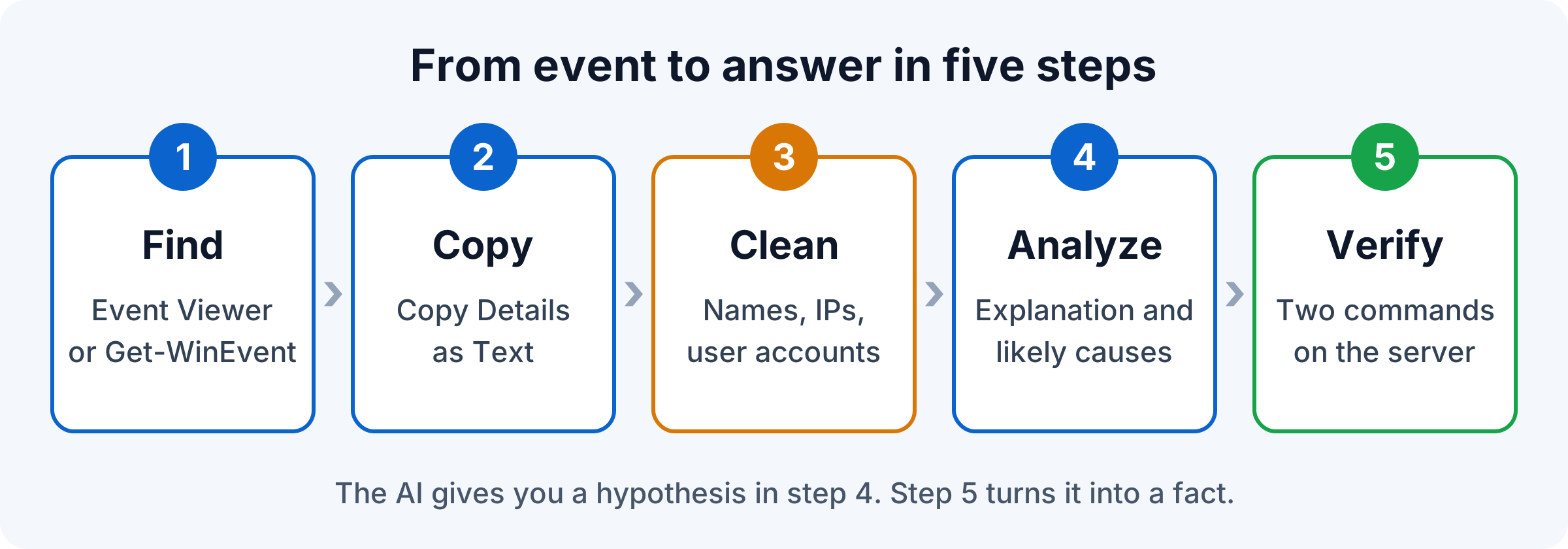
Quick answer
- In Event Viewer, right-click the event and choose Copy, then Copy Details as Text.
- Replace server names, user names and IP addresses with neutral values.
- Paste it into the Event Log Analyzer and click Analyze Event.
- Treat the answer as a hypothesis. Check it against the events around it with
Get-WinEventbefore you report anything.
Before you start
You need two things.
- A Windows machine with an unexpected restart in its log. If you do not have one, use a test VM and switch it off hard. In VMware Workstation that is VM, Power, Power Off; in vSphere, Power, then Reset. Windows logs Event ID 41 and Event ID 6008 when it boots again. Never do this on a production server.
- A PowerShell window opened as administrator on that machine, for the checks in steps 5 and 6. Both commands only read the log.
The examples come from a lab VM, SRV-APP-01, running Windows Server 2025 in VMware Workstation. It was restarted normally at 11:33 and powered off hard at 11:44.
Step 1: find the event
Press Win + R, type eventvwr.msc and open Windows Logs, then System. Click Filter Current Log on the right and enter 41,1001,1074,6008 in the Event IDs box. These four IDs are the ones Microsoft uses to tell a planned restart from an unexpected one.
On a healthy machine the filter shows only 1074 events. Each one names the process and the account behind a planned restart. In our lab the latest one came from wmiprvse.exe after a computer rename, which is why it still shows the old name, CLT-WIN-01: the event was logged before the restart.
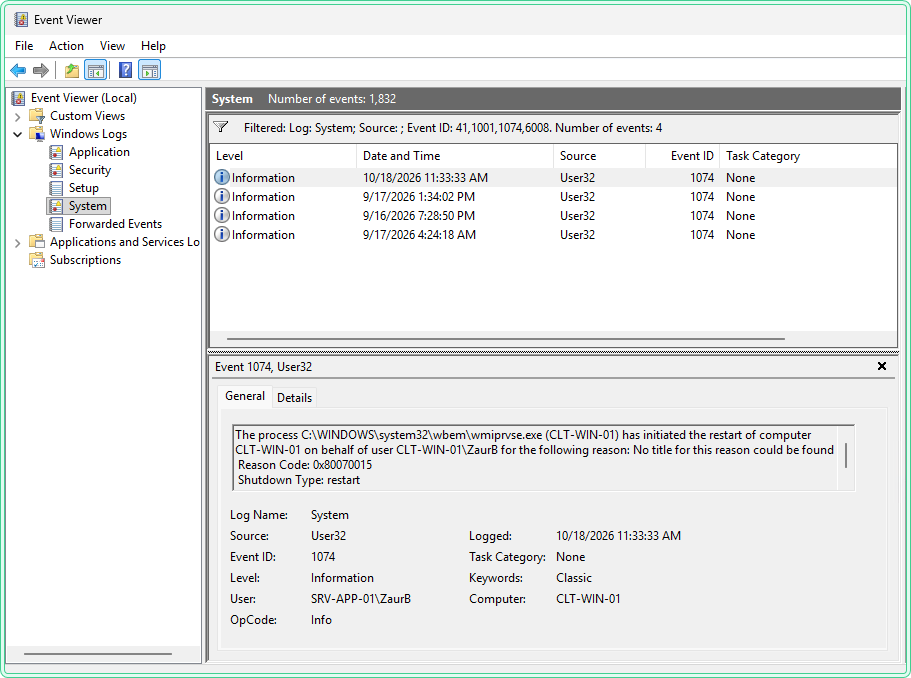
After the hard power off, two new events sit at the top: Kernel-Power 41 (Critical) and EventLog 6008 (Error). Both are written while Windows starts again, so their time is the boot, not the moment the power went off. The text of 6008 carries the time of the shutdown it calls unexpected.
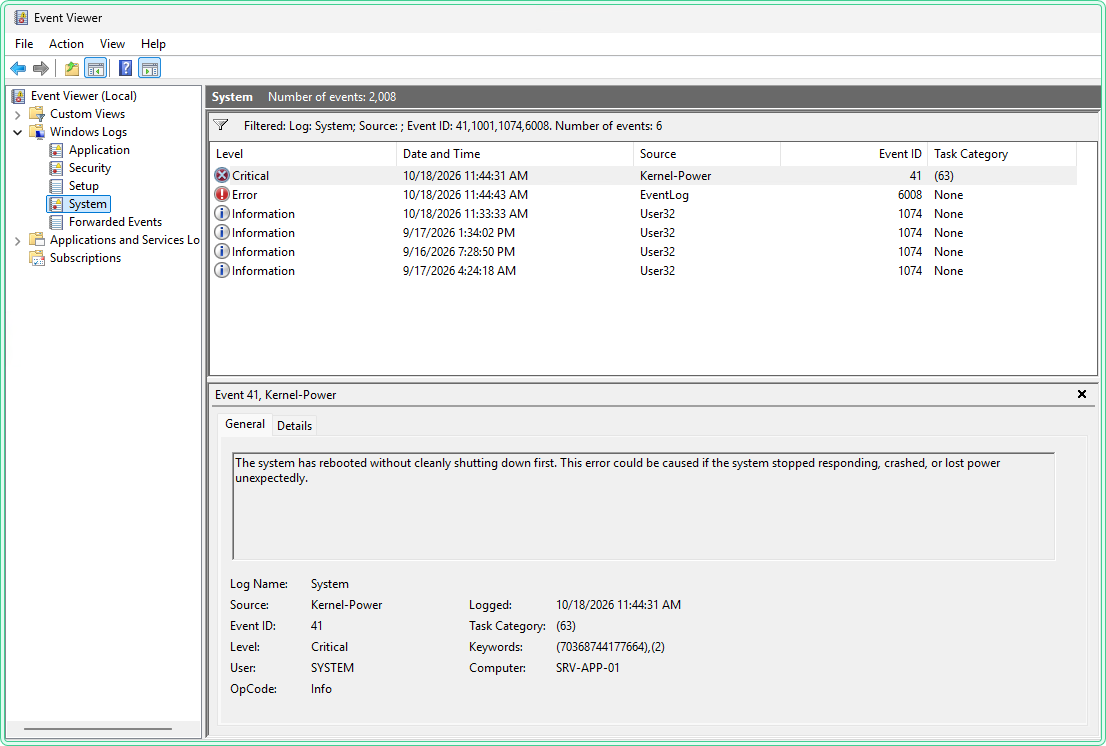
Step 2: copy the full event, not a screenshot
Right-click event 41 and choose Copy, then Copy Details as Text. This copies the header fields, the Description and the Event Xml section with the data fields. Keep the XML part: it holds the data fields that explain the restart, and step 6 depends on it.
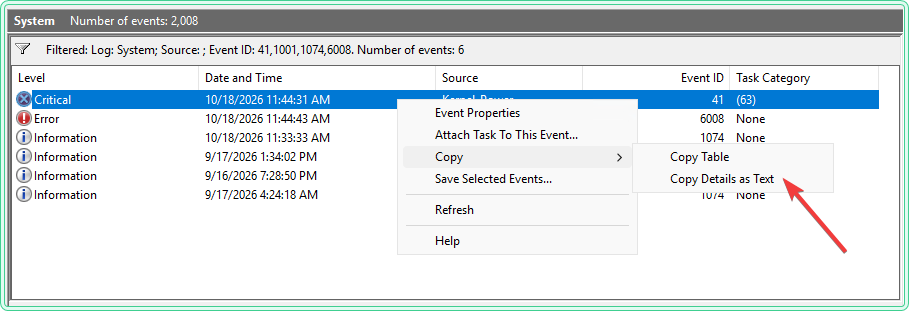
Step 3: remove what should not leave your network
Whatever you paste into an online AI tool leaves your company. The Event Log Analyzer sends the text to OpenAI and does not store it on zaur.it, but the rule is the same for every tool: clean the text first. Replacing values does not change the meaning of the event.
| Field in the event | Example | Replace with |
|---|---|---|
| Computer | SRV-SAP-PRD-04.corp.example.com | SRV-APP-01 |
| User or account | CORP\j.smith | DOMAIN\user1 |
| IP addresses | 10.20.4.17 | 10.0.0.10 |
| File paths with customer or project names | D:\Clients\ACME\... | D:\Data\... |
| Keep as they are | Event ID, Source, Level, Description, error codes | These are what the AI needs |
Step 4: ask the AI
Open the Event Log Analyzer, paste the cleaned text and click Analyze Event. The answer always has the same four parts: what happened, likely cause, recommended actions and severity.
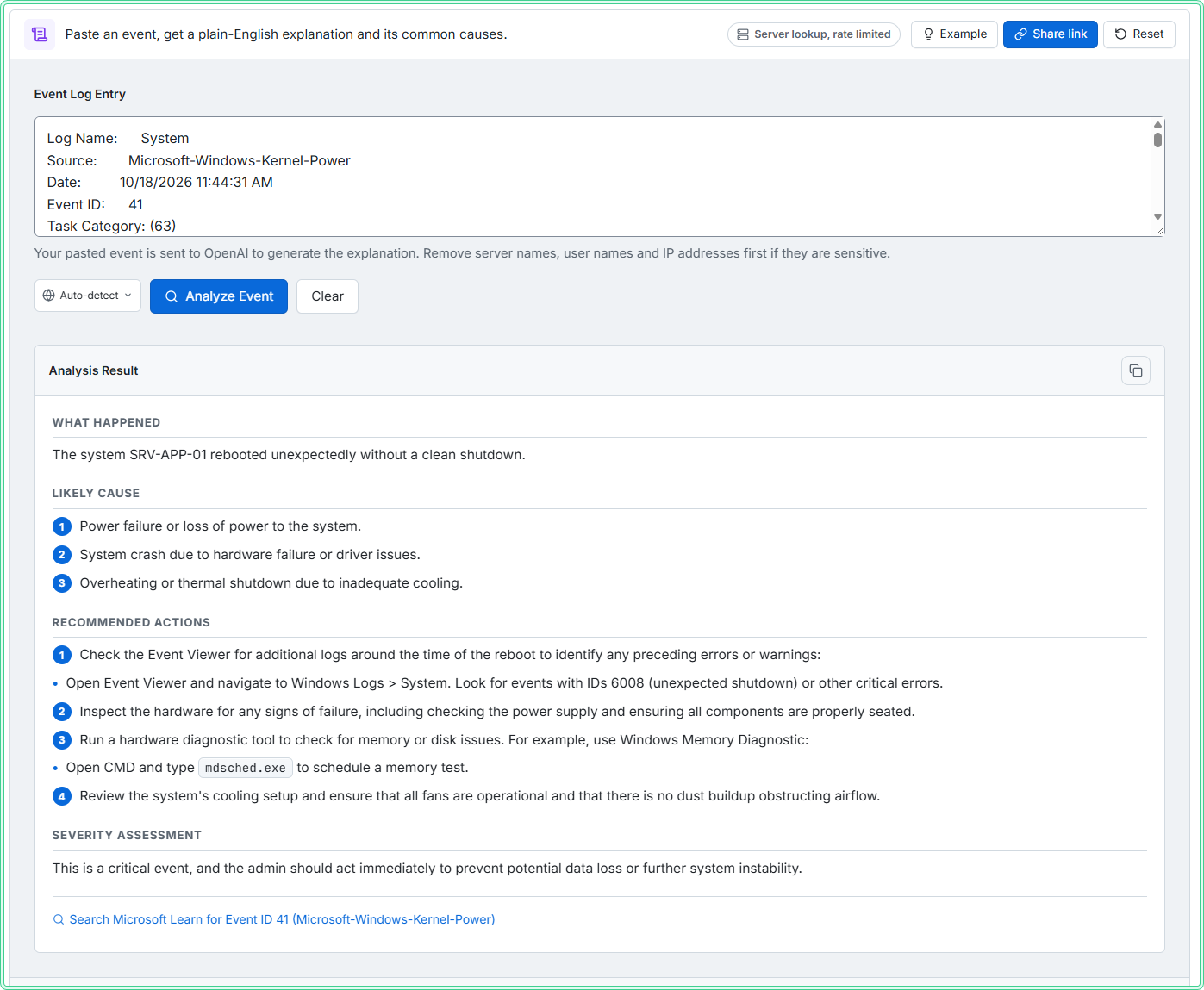
For our event 41 the summary was accurate: the server restarted without a clean shutdown. The likely causes were a power failure, a crash caused by hardware or a driver, and overheating. That is a good start. It also matches what Microsoft writes about this event, which can be logged when the system stopped responding, crashed or lost power.
The recommended actions are where you need to read carefully. We ran the same event through the analyzer three times. The run in the screenshot gave sensible steps; the two earlier runs suggested these:
| Suggested by the AI | The problem |
|---|---|
Get-EventLog -LogName System ... | Where-Object { $_.EventID -eq 41 } | It finds the same event 41 again and nothing around it. Get-EventLog also does not exist in PowerShell 7. |
Get-WmiObject -Class Win32_ComputerSystem | It returns the computer name and memory size. It says nothing about the health of the hardware. |
Get-WindowsUpdate | Not part of Windows. It comes from a community module, PSWindowsUpdate, that has to be installed first. |
| Check the power supply and the UPS | Reasonable, but you cannot tell yet whether power is the cause at all. |
Step 5: check the events around it
One event does not tell the story. The events before and after it do. Microsoft's guide to unexpected reboots gives the pattern:
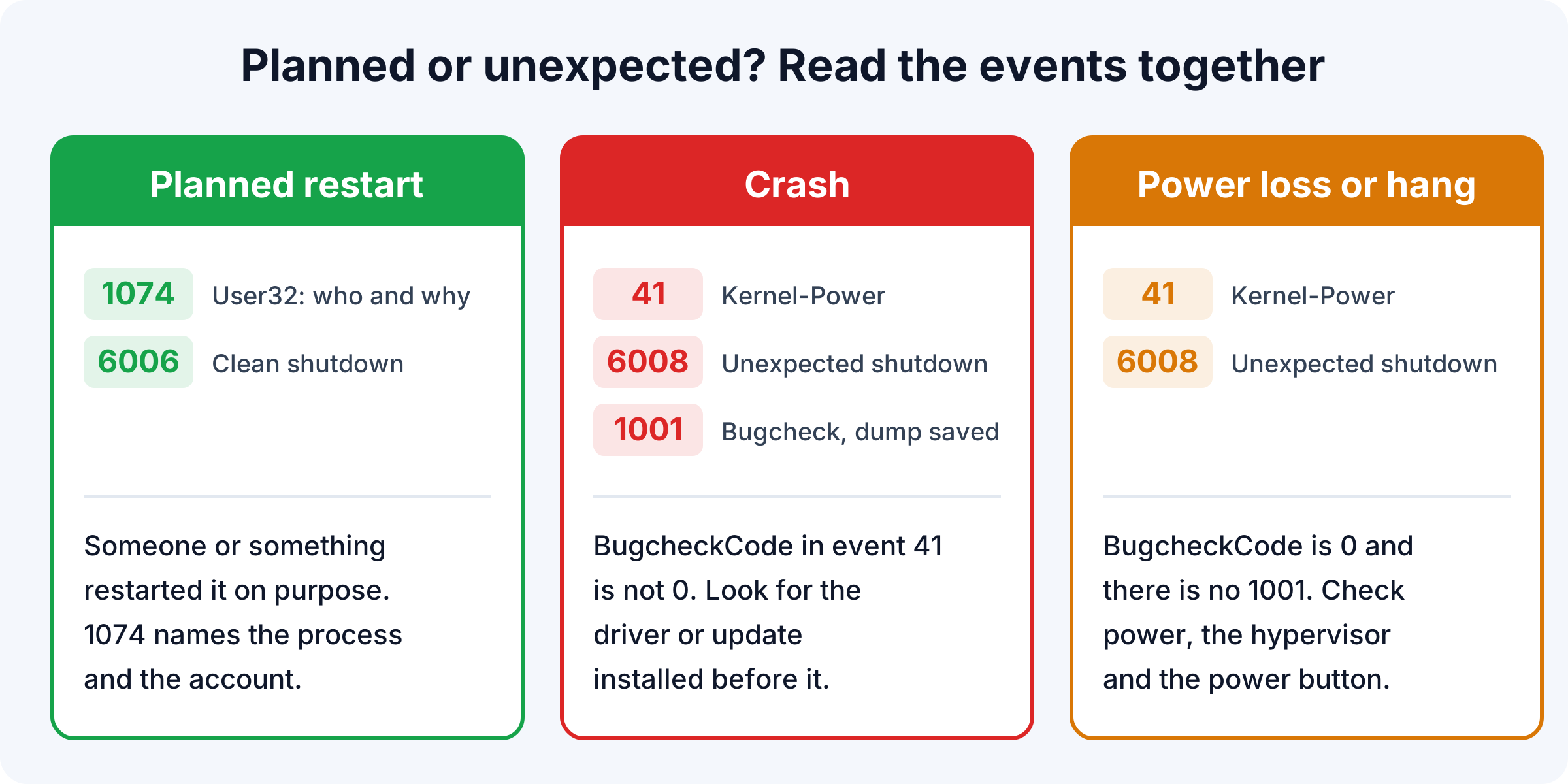
This command lists those events for the last two days, oldest first. Run it in the administrator PowerShell window on the server. Change -2 if the restart was longer ago.
# 41, 6008 and 1001 mark an unexpected restart; 1074 and 6006 a planned one
Get-WinEvent -FilterHashtable @{ LogName = 'System'; Id = 41, 1001, 1074, 6006, 6008; StartTime = (Get-Date).AddDays(-2) } |
    Sort-Object TimeCreated |
    Format-Table TimeCreated, Id, ProviderName -AutoSize
What to look for: if a 1074 stands just before the restart, it was planned and the message of that 1074 tells you by whom. If you see 41 and 6008 with no 1074 before them, it was unexpected.
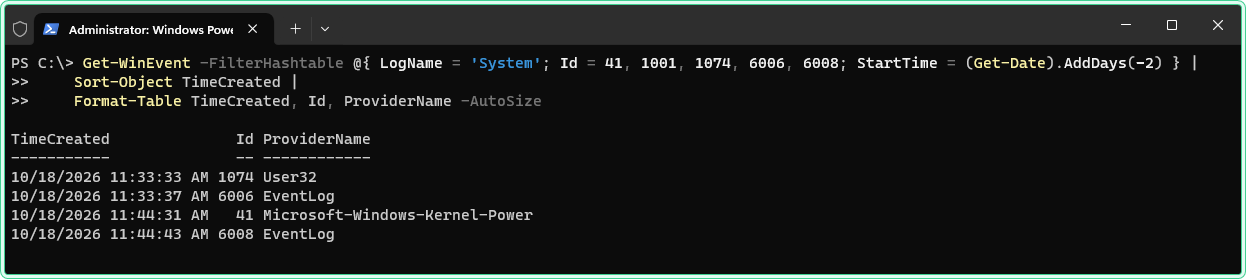
Our lab shows both cases in four lines. At 11:33 a 1074 is followed by 6006: a planned restart. At 11:44 there is a 41 and a 6008 with no 1074 before them: the hard power off.
Step 6: read the field the AI skipped
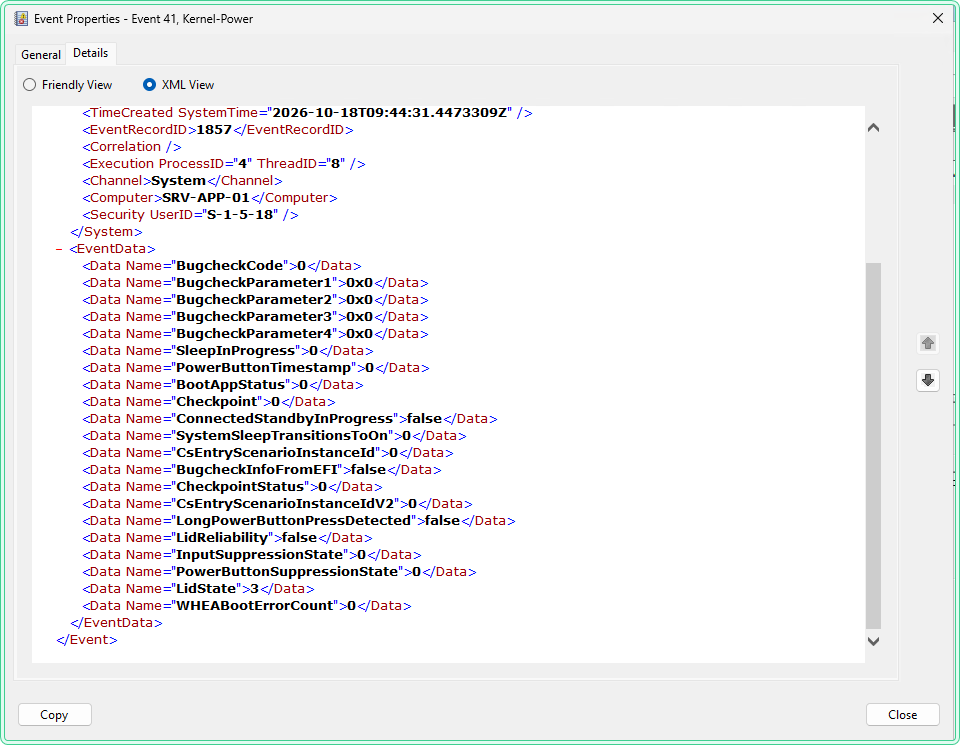
Event 41 carries data fields that answer the real question, and in our test the analyzer did not use them even when they were in the pasted text. Two of them matter most:
| Field | Value | What it means |
|---|---|---|
BugcheckCode | not 0 | The server crashed with a stop error. Look for event 1001 and the memory dump it names. |
BugcheckCode | 0 | No stop code was recorded: power loss, a hang, or a reset from outside, such as the hypervisor. |
PowerButtonTimestamp | not 0 | Someone pressed and held the power button. |
You can see these fields on the Details tab of the event in Event Viewer. Choose XML View and look at the EventData block.
Or read them with PowerShell. This command takes the latest event 41 and prints its data fields:
$e = Get-WinEvent -FilterHashtable @{ LogName = 'System'; Id = 41 } -MaxEvents 1
([xml]$e.ToXml()).Event.EventData.Data | Format-Table Name, '#text' -AutoSize
What to look for: the first line, BugcheckCode, and further down PowerButtonTimestamp. After our hard power off from VMware Workstation both are 0.
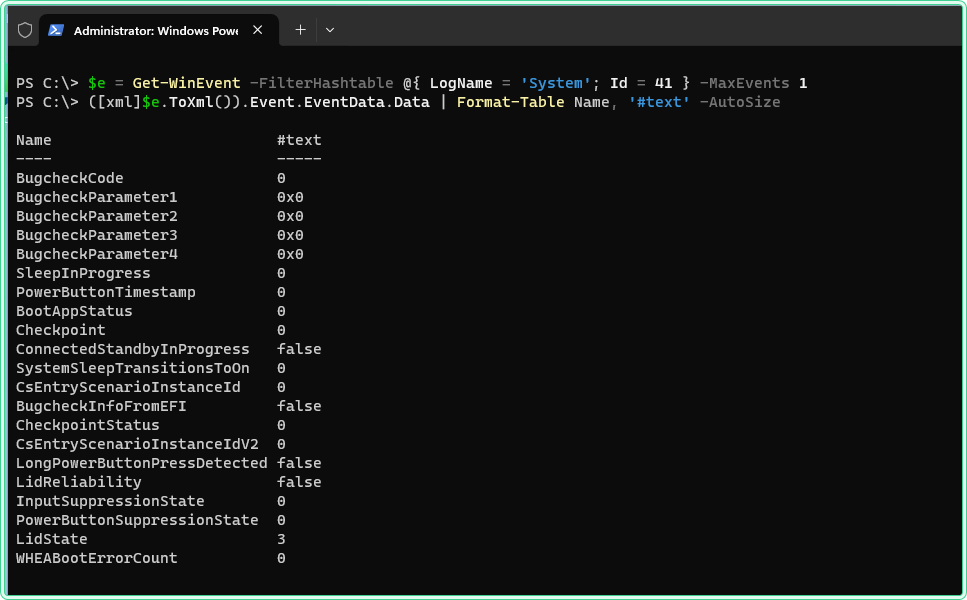
Compare that with the AI answer. The pasted text contained BugcheckCode 0, and the analyzer still listed a crash and overheating next to a power loss. Two commands ruled out the crash and pointed to where the answer is.
Where AI helps and where it does not
| Use AI for | Do not rely on AI for |
|---|---|
| An event ID you have never seen before | The final cause of an incident |
| A plain-language summary for a ticket or a manager | Exact command syntax, KB numbers and version details |
| A first list of things to check | Correlating many events across time and servers |
| Explaining an event in another language for a colleague | Decisions on Security log events in a live incident |
If you use ChatGPT or Claude directly
A general assistant gives better answers when you tell it what you need and ask it to separate facts from guesses. Paste this prompt above the cleaned event:
I am a Windows system administrator. Below is an event from the System log of a Windows Server VM.
1. Explain in two sentences what the event means.
2. List the possible causes, most likely first.
3. Tell me which data fields in this event confirm or rule out each cause.
4. Give only built-in PowerShell commands that READ information. Mark anything you are not sure about.

(paste the cleaned event here)
Point 3 is the important one: it makes the model look at fields such as BugcheckCode instead of giving a generic list.
Where this matters
- The morning after an outage: you need a short, correct explanation for the incident ticket before the meeting.
- An unfamiliar application log: a vendor service writes events with IDs no one on the team knows.
- Handover to a junior admin: the AI explanation plus the two checks is a repeatable routine they can follow alone.
- Monitoring alerts: an event forwarded from Zabbix or Graylog arrives without context and needs a first read.
Tips and limitations
- Paste one event at a time. A long export mixes several problems and the answer gets vague.
- Always paste the Event Xml part when you have it. It is where the useful fields are.
- The time in an exported event is shown in the time zone of the machine that displays it. Check the time zone before you compare events from two servers.
- Answers vary between runs. If two runs disagree on the cause, that is a sign the event alone is not enough.
- Never paste passwords, keys or tokens, even when they appear in an application log.
Official documentation
- Troubleshoot unexpected reboots using system event logs | Microsoft Learn
- Advanced troubleshooting for Event ID 41 | Microsoft Learn
- Get-WinEvent | Microsoft Learn
Related tools
- Event Log Analyzer: paste a cleaned event and get the explanation, likely causes and severity in one step.
Related guides
- Read Windows event logs with Get-WinEvent: more filters for the command used in steps 5 and 6.
- Windows Event ID cheat sheet: the event IDs admins look up most, on one printable page.
- Export event logs with wevtutil: save the log from the affected server before it rolls over.
Five cheat sheets, one PDF
Subnet masks, PowerShell, Linux commands, HTTP status codes and the ESXi command line - one page each, free to keep. Leave an address and it arrives in a minute.