
ren renames a file or a folder from the command line. It has existed since MS-DOS, it takes no switches, and it is still the fastest way to rename a batch of files by pattern without opening Explorer or writing a script.
The whole command is two arguments, which is exactly why the edge cases are worth knowing.
What Is ren?
ren (and its alias rename) renames files and folders in place. It is built into every version of Windows, needs no installation, and works the same way in CMD and in a batch file.
It is close to mv on Linux, except that it renames only. It cannot move anything to another directory.
Basic Syntax
ren [source] [newname]
That is the entire syntax. No flags, no options.
Example 1: Rename a single file
ren report1.txt final_report.txt
report1.txt is now final_report.txt
Example 2: Rename all .txt files to .bak
ren *.txt *.bak
All files like notes.txt, data.txt, todo.txt → become notes.bak, data.bak, etc.
This is one of ren's secret powers: it supports simple wildcards (* and ?).
Example 3: Rename a bunch of files by pattern
Let’s say you have:
IMG_001.jpg
IMG_002.jpg
IMG_003.jpg
And you want to remove the prefix IMG_. Unfortunately, ren alone can’t do that - but here’s a batch script workaround:
@echo off
for %%f in (IMG_*.jpg) do (
  set "old=%%f"
  setlocal enabledelayedexpansion
  ren "%%f" "!old:~4!"
  endlocal
)
This uses basic string slicing (~4) to chop off the first 4 characters (IMG_).
Rename Folders Too
Yes, ren works on folders as well!
ren OldProject NewProject
Just be sure the folder isn’t in use or open in Explorer.
Let's say you have a folder named Hello under c:\tmp and there's a file myfile.txt inside this folder opened for editing.
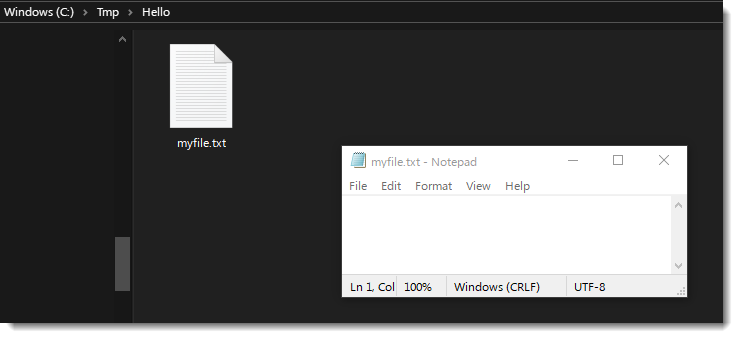
if you run now the ren command it will fail:
C:\Tmp>ren Hello HelloThere
The process cannot access the file because it is being used by another process.
Limitations
| Limitation | Workaround |
|---|---|
| No built-in support for regex | Use PowerShell for advanced renaming |
| Can't rename with path changes | Use move or robocopy instead |
| Can’t rename hidden/system files | Use attrib to unhide first |
Final Thoughts
The ren or rename command might not have a thousand options or a fancy UI, but that’s what makes it great. It does one thing, and it does it fast. Once you get comfortable with wildcards and a bit of scripting, you’ll be renaming like a pro in no time.
Next time you need to clean up a folder full of messy filenames - don’t reach for the mouse. Open a terminal, and type ren.
Want to see a PowerShell version of this with regex support and preview mode? Drop a comment and I’ll whip up a sequel!
Related guides
- Windows dir Command: Syntax, Switches, and Practical Examples - listing and filtering the same directories
- attrib command in Windows: view and change file attributes - the attribute side of the same file metadata
Five cheat sheets, one PDF
Subnet masks, PowerShell, Linux commands, HTTP status codes and the ESXi command line - one page each, free to keep. Leave an address and it arrives in a minute.