
A deeply nested project path is tedious to type and awkward in scripts that expect a short root. subst maps that folder to a drive letter, so D:\Projects\Client\2026\Build\Output becomes P:.
The command has been in Windows since DOS. It creates a virtual drive that points at a local folder, visible to Explorer and to any application that opens a path.
What Is SUBST?
SUBST stands for “substitute”, and it lets you assign a drive letter to a local path.
It doesn’t move or duplicate anything — it just maps a folder as if it were a separate drive.
You know that 100-character-long
C:\Users\Zaur\Projects\SuperImportant\StuffToDemopath?
You can turn it intoZ:\in one line.
Basic Syntax
SUBST <DriveLetter>: <FolderPath>
Example:
SUBST Z: "C:\scripts"
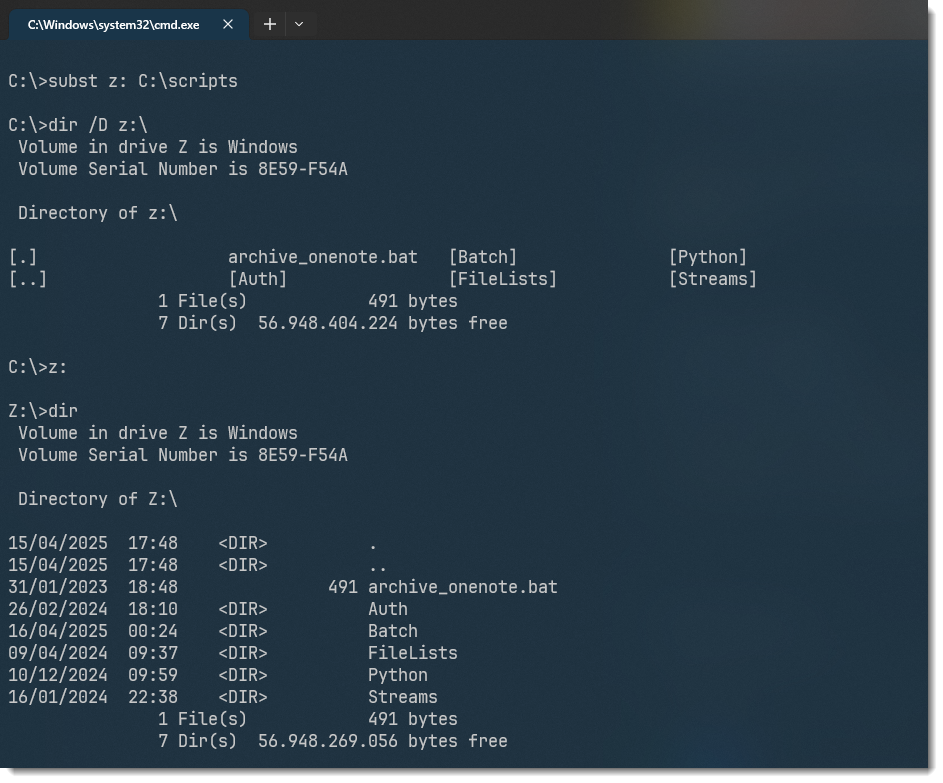
Now you can access Z:\ in Explorer, Command Prompt, or any app — and it will point to that long path.
How to Remove a SUBST Drive
SUBST Z: /D
The drive disappears. No files deleted. Nothing moved. It’s like it never happened.
See All Current Mappings
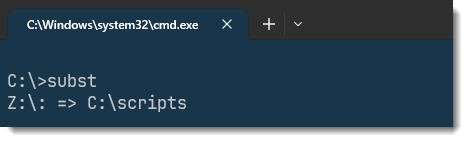
SUBST
This lists all current virtual drives created with SUBST.
Why Use It?
Common Use Cases:
- Shorten long, deep file paths for easier navigation
- Simplify dev environments (e.g. set
W:\for your web root) - Help legacy apps that expect to run from a drive root
- Create throwaway drives for testing installs, scripts, or tools
Caveats to Know
- Mappings made with
SUBSTdo not persist after reboot unless added via script or registry SUBSTdrives behave like local drives in Explorer, but some software (especially older ones) might not fully support them- Doesn’t work with network shares — only local paths
Pro Tip: Make It Persistent
To keep your SUBST drive alive after reboot:
Option 1: Add it to a startup script (Task Scheduler or Startup folder)
SUBST Z: "C:\Path\To\Folder"
Option 2: Use the Registry (manual but reliable)
Add under:
HKEY_LOCAL_MACHINE\SYSTEM\CurrentControlSet\Control\Session Manager\DOS Devices
Add a new String Value:
- Name:
Z: - Data:
\??\C:\Path\To\Folder
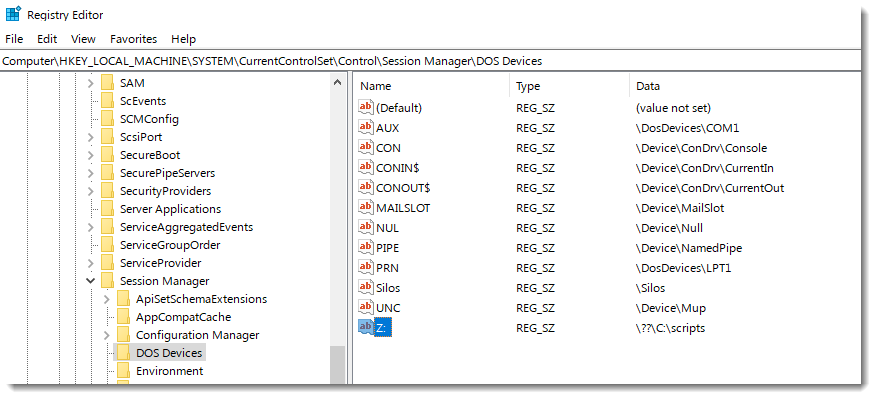
Note: The \??\ prefix is important — it tells Windows this is a symbolic path.
To Remove the Mapping
- Go back to the same registry key
- Delete the string value (e.g.
Z:) - Reboot
Extra Notes
| Thing | Detail |
|---|---|
| Drives created this way | Show up like real drives |
| Still point to folders | No duplication — just a redirected path |
| Affects all users | Since it’s under HKLM |
| Requires admin rights | Yes — it’s editing system-wide settings |
Summary
| Command | What it does |
|---|---|
SUBST Z: C:\Folder | Maps folder to a virtual drive |
SUBST | Lists all current mappings |
SUBST Z: /D | Deletes the mapping |
| Registry + DOS Devices | Makes the mapping persistent on reboot |
Final Thoughts
SUBST might not be flashy, but it’s a lightweight tool that can seriously declutter your daily workflow. Whether you’re coding, scripting, or just sick of typing long paths, it’s a shortcut worth remembering.
Got a favorite SUBST trick or using it in your workflow? Drop a comment — or stay tuned for a post on net use and mapping network drives the smart way.
Related guides
- pushd and popd: CMD Directory Stack Explained — moving between those directories without retyping paths
- mklink in Windows: symlinks, junctions, and when to use each — how the links are created in the first place