
Syncing two folders with Robocopy is one of the most common tasks sysadmins use it for – but it is also where the most mistakes happen. The difference between “copy everything” and “mirror exactly” is a single flag, and using the wrong one can delete files you intended to keep. This guide covers the practical sync patterns, the behavioral differences between them, and when each one is the right choice.
Unlike a backup job where the destination only grows, a sync implies the destination should match the source – including removals. Understanding exactly what Robocopy does in each mode before running it on a production share is the difference between a clean sync and an accidental data loss.
Applies to: Windows 7 / Windows Server 2008 R2 and later (Robocopy as a built-in command; /MT threading requires this version minimum)
Quick answer
Mirror source to destination – destination becomes an exact copy of source, including deletions:
robocopy C:\Source D:\Destination /MIR /R:3 /W:5Always run a preview first with /L before syncing for the first time. The examples below walk through the full range of sync scenarios with a consistent server environment.
/MIR vs /E – choosing the right mode
This is the most important decision when syncing with Robocopy. The two flags look similar but behave very differently.
| Flag | Copies new files | Copies changed files | Deletes from destination | Includes empty dirs |
|---|---|---|---|---|
/E | Yes | Yes | No | Yes |
/MIR | Yes | Yes | Yes | Yes |
Use /E when the destination is a backup or staging area and you want to accumulate files over time – deletions in the source should not remove files from the destination.
Use /MIR when the destination must be an exact replica of the source at all times – a file share kept in sync with a primary server, a deployment folder, or a replicated config directory.
/MIR when you meant /E. If files were deleted from the source by accident and Robocopy runs before anyone notices, /MIR will remove those files from the destination too – leaving no copy anywhere. For anything that requires a safety net, use /E and clean the destination manually on a schedule.
Sync scenarios
All four examples below use the same production environment: a scripts share on SRV-PROD-01 being kept in sync with a secondary server SRV-PROD-02. Each example adds one capability to the baseline job – starting from the simplest mirror and ending with exclusions for a web deployment folder.
1. One-way sync – source to destination
The problem: You maintain a folder of scripts and configuration files on SRV-PROD-01 and need the secondary server SRV-PROD-02 to always match. Any change on the primary should appear on the secondary. Files removed from the primary should disappear from the secondary.
The solution: /MIR with retry flags and a log. Run it on a schedule via Task Scheduler and the secondary stays in lockstep with the primary.
rem One-way sync: primary server scripts to secondary server
rem /MIR      - mirror: copy new/changed files, delete files removed from source
rem /R:3      - retry 3 times on locked files before skipping
rem /W:5      - wait 5 seconds between retries
rem /LOG+:    - append result to log file (does not overwrite previous runs)
rem /NP       - suppress per-file progress output (keeps log readable)

robocopy \\SRV-PROD-01\Scripts$ \\SRV-PROD-02\Scripts$ /MIR /R:3 /W:5 /LOG+:C:\bat\sync-log.txt /NPThat covers the core mirror case. The next question is what to do when you want changes to flow to the destination but you cannot afford to lose anything the destination already has.
2. Sync without deleting – safe accumulation
The problem: Same pair of servers, but the destination on SRV-PROD-02 also holds archived versions of scripts that were removed from the primary. You want new and updated files to arrive, but nothing should ever be deleted from the destination automatically.
The solution: Replace /MIR with /E. New and changed files are copied. Nothing is ever deleted from the destination.
rem Sync without deletion - copy new and changed, keep everything in destination
rem /E        - include all subdirectories including empty ones (no deletion)
rem /XO       - skip files where the destination copy is already newer than the source
rem            (prevents overwriting a newer archive copy with an older source)
rem /R:3 /W:5 - standard retry behavior

robocopy \\SRV-PROD-01\Scripts$ \\SRV-PROD-02\Scripts$ /E /XO /R:3 /W:5 /LOG+:C:\bat\sync-log.txt /NP
That handles the local network case. When the destination is across a WAN link, dropped connections become the main concern – which needs a different approach.
3. Sync to a remote share with resume support
The problem: The same script folder on SRV-PROD-01 needs to reach a remote site server over a WAN link. The connection drops occasionally and you need the job to recover without restarting large file transfers from scratch.
The solution: Add /Z for restartable mode and increase retry counts for the less reliable path.
rem Sync to remote share with resume support for interrupted transfers
rem /MIR      - mirror mode
rem /Z        - restartable mode: resume an interrupted file transfer mid-file
rem            (do NOT combine with /MT - they are incompatible)
rem /R:5      - more retries than a LAN job - WAN links can recover after brief drops
rem /W:15     - longer wait between retries to allow the link to stabilize

robocopy \\SRV-PROD-01\Scripts$ \\SRV-REMOTE-01\Scripts$ /MIR /Z /R:5 /W:15 /LOG+:C:\bat\sync-log.txt /NP/Z (restartable mode) is incompatible with /MT (multi-threading). Do not combine them. For network syncs where drops are a concern, use single-threaded restartable mode. For fast local syncs where speed matters, use /MT without /Z.
The last scenario extends the mirror with exclusions – useful when the source contains files that should never reach the destination.
4. Sync with exclusions – skip noise files
The problem: The scripts folder on SRV-PROD-01 also contains .git metadata, node_modules, and temp files that have no place on SRV-PROD-02. Including them wastes bandwidth and clutters the replica.
The solution: Add /XD to exclude directories and /XF to exclude file patterns before the sync runs.
rem Mirror sync with common exclusions for a deployment folder
rem /MIR          - mirror mode
rem /XD           - exclude these directory names at any depth in the tree
rem /XF           - exclude files matching these patterns
rem /R:3 /W:5     - standard retry behavior

robocopy \\SRV-PROD-01\Scripts$ \\SRV-PROD-02\Scripts$ /MIR /XD .git node_modules Temp obj bin /XF *.log *.tmp *.user /R:3 /W:5 /LOG+:C:\bat\sync-log.txt /NP
Always preview before syncing
Before running any /MIR command on a folder you have not synced before – or after a long gap between runs – use /L to preview exactly what Robocopy would do. No files are copied, created, or deleted. The output shows what would be added, updated, and removed.
rem Dry run - preview the sync without making any changes
rem /MIR      - mirror mode (preview only with /L, nothing actually runs)
rem /L        - list only: show what would happen, do nothing

robocopy \\SRV-PROD-01\Scripts$ \\SRV-PROD-02\Scripts$ /MIR /LBuild the command without memorizing flags
Use the ROBOCOPY Command Builder to generate ready-to-run sync and mirror commands by choosing options from a menu – no flag lookup needed.
Open the ROBOCOPY Command Builder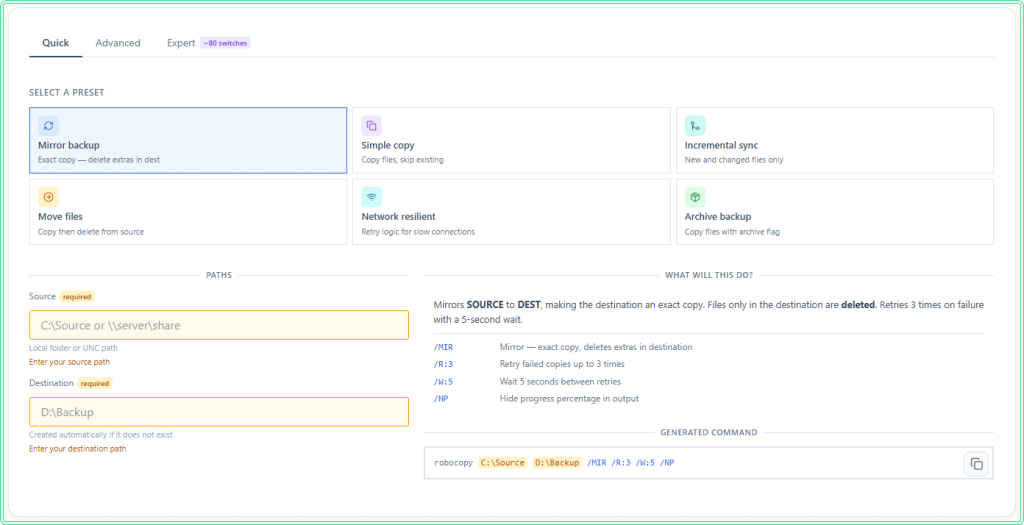
Hidden gems
Exit code 1 is not an error. Robocopy uses exit codes differently from most Windows commands. Exit code 0 means no files were copied (everything was already in sync). Exit code 1 means files were copied successfully. If you call Robocopy from a batch file or Task Scheduler and check %ERRORLEVEL%, a value of 1 looks like a failure to standard error-checking logic – but it is the normal success state. Only codes 8 and above indicate genuine errors. Add this pattern to any scheduled sync job:
robocopy \\SRV-PROD-01\Scripts$ \\SRV-PROD-02\Scripts$ /MIR /R:3 /W:5 /LOG+:C:\bat\sync-log.txt /NP

rem Robocopy exit codes: 0=no change, 1=copied OK, 2=extra files, 4=mismatched, 8+=error
rem Treat 0-7 as success, 8+ as failure

if %ERRORLEVEL% GEQ 8 (
    echo Robocopy failed with exit code %ERRORLEVEL%
    exit /b %ERRORLEVEL%
)
exit /b 0
FAT and NAS timestamp quirk. When syncing to a NAS device or external drive formatted as FAT32 or exFAT, Robocopy may re-copy files it already copied on every run. FAT filesystems store timestamps at 2-second resolution, which Robocopy interprets as a mismatch against the NTFS source. Fix it with /FFT (fat file times), which uses a 2-second tolerance when comparing timestamps:
rem /FFT - use fat file time tolerance (2-second window) when destination is FAT/exFAT
rem       prevents re-copying files on every run when destination is a NAS or USB drive

robocopy \\SRV-PROD-01\Scripts$ \\NAS-BACKUP-01\Scripts /MIR /FFT /R:3 /W:5 /NP
Reusable job files. If you run the same sync regularly with a long set of flags, Robocopy supports saving the command to a job file with /SAVE:jobname and running it later with /JOB:jobname. This is useful for complex exclusion lists you do not want to retype each time. Job files are plain text and live in the working directory.
Where this matters
Config directory replication. Keeping \\SRV-PROD-01\Configs$ in sync with a standby server so failover requires no manual file copy.
Deployment pipelines. Pushing a build output folder to a web or app server share, where old files from previous builds should not accumulate.
Post-migration cleanup. After migrating a file share, running a final /MIR pass to bring the new location fully in sync before cutting over DNS or DFS.
Scheduled offsite copies. Syncing a local folder to a mapped remote share every night, where /E accumulates versions and /Z handles unreliable WAN links.
Limitations
- One-way only. Robocopy has no concept of two-way sync. It copies from source to destination – changes made directly on the destination are overwritten or ignored on the next run. For bidirectional sync, use DFS Replication or a dedicated sync tool.
- No conflict detection. If both source and destination have been modified since the last sync, Robocopy copies the source version over the destination version without warning. Whoever ran last wins. There is no merge, no conflict flag, no notification.
- Open files are skipped. Files locked by another process are skipped after the retry limit. They will not be synced until they are released. Check the FAILED and Skipped counts in the summary output after each run.
- Timestamps must be reliable. Robocopy decides whether to copy a file based on size and last-write timestamp. If an application resets the timestamp on write, Robocopy may skip a modified file. In those cases, add
/ISto force copy of files with matching timestamps but different sizes.
References and related reading
Official documentation
- robocopy – Microsoft Learn – full command reference including all flags, copy options, and exit code table
Related tools
- ROBOCOPY Command Builder – build ready-to-run Robocopy commands for sync and backup jobs without memorizing switches
Related guides
- ROBOCOPY command in Windows – full command reference with all practical flags and examples
- How to backup files with ROBOCOPY – backup patterns, scheduling, and log handling
- DISKPART command guide – prepare destination disks before large sync operations
- ATTRIB command – manage file attributes that affect which files Robocopy includes or skips