
A Windows administrator ends up on a Linux box more often than the job description suggests. A vCenter appliance that needs a certificate replaced, a monitoring appliance that stopped answering, a NAS, a build server somebody left behind. The way in is almost always SSH, and everything after that depends on getting that first connection right.
Windows has its own OpenSSH client, so the answer is a command in PowerShell rather than a download. This walks through the whole path: checking what you have, the first connection and the fingerprint question, moving from passwords to keys, saving the details so you stop retyping them, copying files in both directions, and reading the error when it refuses you.
The SSH cheat sheet is the lookup table for all of this. This article is the path you follow the first time.
Quick answer
If SSH is already set up and you only need the commands, these four cover most of a working day. Everything below explains what they do and what to do when they fail.
# Connect. The first time it asks about the host key - that is expected.
ssh zaur@10.0.0.21

# Create a key once, then never type the password again
ssh-keygen -t ed25519

# Copy the public key to the server (paste it into authorized_keys if ssh-copy-id is missing)
type $env:USERPROFILE\.ssh\id_ed25519.pub | ssh zaur@10.0.0.21 "mkdir -p ~/.ssh && cat >> ~/.ssh/authorized_keys"

# Pull a log file down to the current folder
scp zaur@10.0.0.21:/var/log/syslog .ssh-copy-id. The piped command above does the same job: it creates ~/.ssh on the server if needed and appends your public key to authorized_keys.
Check what you already have
Before installing anything, ask the machine. A supported Windows 10, Windows 11 or Windows Server build ships the OpenSSH client as an optional feature, and on most client installations it is already enabled.
# If this prints a version, you are done - nothing to install
ssh -V
OpenSSH_for_Windows_9.5p1, LibreSSL 3.8.2If the command is not recognised, add the client. This needs an elevated PowerShell session and no reboot.
# Is the capability present, and is it installed?
Get-WindowsCapability -Online -Name OpenSSH.Client*

# Install it
Add-WindowsCapability -Online -Name OpenSSH.Client~~~~0.0.1.0OpenSSH.Client and OpenSSH.Server are two different capabilities. You only need the client to connect out. Installing the server opens an inbound listener on your own workstation, which is not what you want here.
The machine used in this article
Every example below uses one target so you never have to guess which host is meant. Substitute your own values once and the rest follows.
| Item | Value used here |
|---|---|
| Server name | SRV-LNX-01 |
| Address | 10.0.0.21 |
| Login | zaur |
| SSH port | 22, the default |
| Your key files | C:\Users\zaur\.ssh\ |
Before connecting, confirm the port is actually reachable. This separates a network problem from an SSH problem, and it takes two seconds.
# TcpTestSucceeded : True means the port answers. False means firewall or routing,
# and no amount of SSH troubleshooting will help until that is fixed.
Test-NetConnection 10.0.0.21 -Port 22
The first connection
Run the connect command. On a host you have never reached before, SSH stops and asks you to confirm its identity. This prompt is not an error and it appears exactly once per host.
ssh zaur@10.0.0.21The authenticity of host '10.0.0.21 (10.0.0.21)' can't be established.
ED25519 key fingerprint is SHA256:PLsQ22tSOP3463CnAfdTnb1i/h/KWUqoPJDPwJq1Z9M.
Are you sure you want to continue connecting (yes/no/[fingerprint])?Type yes in full, not y. The fingerprint is then written to C:\Users\zaur\.ssh\known_hosts and you will not be asked again for that host.
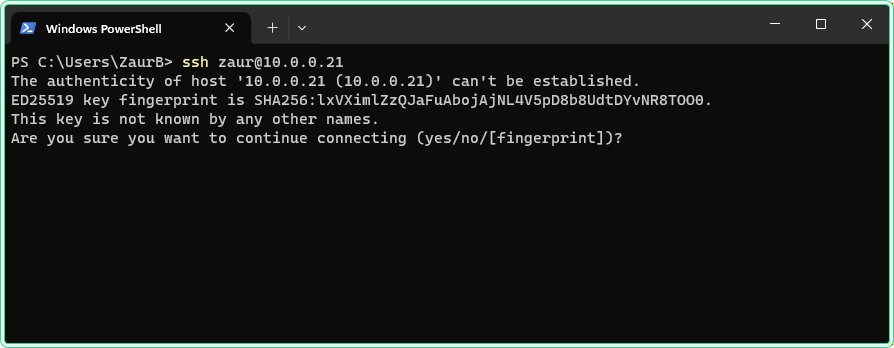
yes, then clear the old entry with ssh-keygen -R 10.0.0.21.
After the password, you land in your home directory on the server. Two commands tell you where you are and who you are, which matters more than it sounds when you have three sessions open.
pwd
whoami
/home/zaur
zaurexit, or press Ctrl+D, to close the session. Closing the PowerShell window works too, but leaves anything you were running to be killed rather than stopped.
Stop typing the password: keys
A key pair replaces the password with a file. The private half stays on your workstation, the public half goes on the server, and from then on the connection is both faster and safer. It also works for scripts, which passwords do not.
Create the pair. The comment at the end is only a label, but it makes the key identifiable when you later find it in someone's authorized_keys.
# ed25519 is short, fast and supported everywhere modern.
# Use -t rsa -b 4096 only for old appliances that reject ed25519.
ssh-keygen -t ed25519 -C "zaur@ws-01"
Press Enter to accept the default path. You are asked for a passphrase: it encrypts the private key on disk, so choose one for anything that reaches production. The result is two files.
| File | What it is |
|---|---|
C:\Users\zaur\.ssh\id_ed25519 | Private key. Never leaves the machine, never gets emailed. |
C:\Users\zaur\.ssh\id_ed25519.pub | Public key. This is the line you put on servers. |
Now install the public half on the server. Windows has no ssh-copy-id, so pipe it across. This is the last time the password is needed.
# mkdir -p is harmless if ~/.ssh already exists.
# Two >> append, so an existing authorized_keys is not overwritten.
type $env:USERPROFILE\.ssh\id_ed25519.pub | ssh zaur@10.0.0.21 "mkdir -p ~/.ssh && cat >> ~/.ssh/authorized_keys && chmod 700 ~/.ssh && chmod 600 ~/.ssh/authorized_keys"
Reconnect. If the key took, you are in without a password prompt.
ssh zaur@10.0.0.21chmod at the end of the previous command is not decoration: OpenSSH refuses key authentication when ~/.ssh or authorized_keys is readable by other users, and the error it gives says only "permission denied".
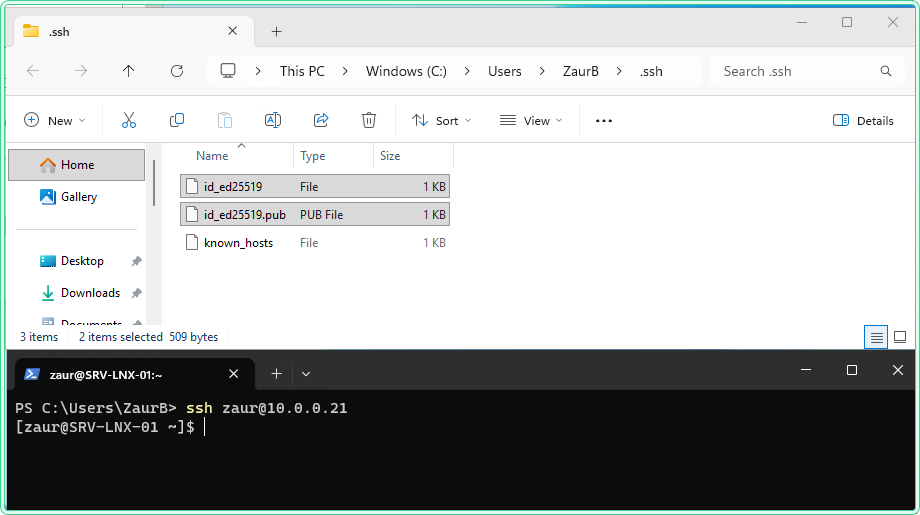
Set-Service ssh-agent -StartupType Automatic, then Start-Service ssh-agent and ssh-add. The key is then held by the Windows service for the session.
Stop retyping the details: the config file
Once there are three or four servers, the address, the login, the port and the key become tedious. The client reads a config file and applies it automatically, including for scp.
The file is C:\Users\zaur\.ssh\config, with no extension. Create it with Notepad, or with the command below so the path is right.
notepad $env:USERPROFILE\.ssh\configHost srv-lnx-01
HostName 10.0.0.21
User zaur
IdentityFile ~/.ssh/id_ed25519
Host bastion
HostName bastion.corp.local
User jump
Host *.dmz
ProxyJump bastion
ServerAliveInterval 60From now on the nickname is enough, and the same nickname works for file copies.
ssh srv-lnx-01
scp report.csv srv-lnx-01:/tmp/Host is the name you type, HostName is the real address. ProxyJump routes through a bastion, and ServerAliveInterval 60 keeps a firewall from silently dropping an idle session, which is the usual cause of a terminal that freezes after a coffee break.
Copying files both ways
Two commands cover almost everything. Note the direction: whatever is on the left goes to whatever is on the right, and the colon marks the remote side.
# Upload a file into /tmp on the server
scp C:\temp\report.csv zaur@10.0.0.21:/tmp/

# Download a log into the current folder - the dot at the end is the destination
scp zaur@10.0.0.21:/var/log/syslog .

# A whole folder, recursively
scp -r C:\temp\configs zaur@10.0.0.21:/opt/app/

# Non-standard port. Note the capital P - lowercase p means something else
scp -P 2222 C:\temp\report.csv zaur@10.0.0.21:/tmp//etc or /opt as a normal user, and scp has no sudo. Copy to /tmp first, then move the file into place from an SSH session with sudo mv.
For interactive browsing, sftp opens a session where ls, cd, get and put work. If you prefer a window with two panes, WinSCP uses the same credentials and the same key file.
sftp zaur@10.0.0.21When it refuses you
Add -v to the connect command and read the output before changing anything. It names the key that was offered, the authentication methods the server allows, and the point where the conversation stopped.
ssh -v zaur@10.0.0.21| What you see | Usual cause | What to check |
|---|---|---|
Connection timed out | Firewall or routing, not SSH | Test-NetConnection host -Port 22 |
Connection refused | Nothing listening on that port | sshd stopped, or a non-standard port |
Permission denied (publickey) | Server accepts keys only | Your key is not in authorized_keys, or its permissions are wrong |
Permission denied, please try again | Password rejected | Wrong password, or the account is not allowed to log in |
Host key verification failed | The server changed | Verify, then ssh-keygen -R host |
Bad permissions on the key | Windows inherited rights on the file | Restrict it, see below |
| Connects, then freezes | Idle timeout on a firewall | ServerAliveInterval 60 |
The permissions case is specific to Windows and catches everyone once. A private key copied from another machine inherits rights that OpenSSH considers too open, and it refuses to use it.
# Remove inheritance, then grant only your own account read access
icacls $env:USERPROFILE\.ssh\id_ed25519 /inheritance:r
icacls $env:USERPROFILE\.ssh\id_ed25519 /grant:r "$($env:USERNAME):R"Where this matters
The vCenter appliance. Certificate replacement, log collection and service restarts on VCSA all happen over SSH, and the appliance shell is where shell drops you into real bash.
An ESXi host that stopped answering. SSH is disabled by default and should go back off afterwards, but when the UI is gone it is the way to read /var/log/vmkernel.log.
Appliances nobody documented. Monitoring, backup and storage appliances are Linux underneath, and the vendor UI rarely exposes what you need during an incident.
Scripted collection. A key plus a config entry turns "log in to twelve servers and grab a file" into a loop that runs unattended.
A jump host you cannot avoid. ProxyJump makes the bastion invisible, so scp and tooling work as if the target were directly reachable.
Tips and limitations
- Port 22 is a convention, not a rule. Check what the server actually listens on before assuming SSH is broken.
- The Windows client stores everything under
C:\Users\<you>\.ssh\. Back upconfig, and treat the private keys as you would a password database. scpcannot elevate. Land files in/tmpand move them withsudofrom a shell session.- A passphrase-less key is a file that grants access to anyone who copies it. Acceptable for a tightly scoped automation account, not for your own login.
- On Windows Server, keys for accounts in the Administrators group are read from
C:\ProgramData\ssh\administrators_authorized_keys, not from the user profile. This catches people who set up an inbound SSH server on Windows. - Long-running jobs die with the session. Start them under
tmuxon the server so a dropped connection does not kill the work. - PuTTY still works and is fine if you already have it. Nothing in this article needs it.
Official documentation
- OpenSSH for Windows overview | Microsoft Learn
- Get started with OpenSSH for Windows | Microsoft Learn
- ssh_config - OpenBSD manual pages
Related tools
- Port Checker - confirm that port 22 answers from outside before blaming SSH.
- Network Diagnostics Tool - check name resolution and reachability when the connection times out.
Related guides
- SSH and OpenSSH cheat sheet - the full lookup table for keys, tunnels, sshd and file transfer.
- Linux cheat sheet for Windows admins - what to do once you are in, mapped from the Windows commands you know.
- Linux commands cheat sheet - which command or tool to reach for, by job.
- vi and vim cheat sheet - because the config file you came to edit will open in
vi. - How to check open ports on Windows - the Windows side of the reachability question.
- The most useful ESXi and vCenter folders, tools and logs - where to go once you are on the appliance.
- vi editor tutorial: a hands-on practice walk-through: twelve exercises on one practice file, for the moment that config file opens in
vi. - nano editor tutorial: a hands-on practice walk-through: the same twelve exercises in
nano, for servers where it is the default editor. - Writing Windows Firewall rules with New-NetFirewallRule: opening a port on the Windows side from PowerShell, and removing the rule again.
Five cheat sheets, one PDF
Subnet masks, PowerShell, Linux commands, HTTP status codes and the ESXi command line - one page each, free to keep. Leave an address and it arrives in a minute.