
After making changes to your storage infrastructure — adding a new LUN, modifying iSCSI or Fibre Channel zoning, connecting a new NAS share, or removing a stale datastore — ESXi hosts do not automatically detect the updated storage state. A storage rescan tells the host to re-examine its adapters and refresh the list of available devices and datastores. Without it, new storage will not appear and removed storage may still show as present.
This guide covers three ways to trigger a storage rescan: through the vCenter UI, via SSH on the ESXi host directly, and using PowerCLI for scripted or multi-host scenarios.
When to run a storage rescan
Run a storage rescan when:
- A new LUN or NFS share has been provisioned but does not appear in the datastore inventory
- Fibre Channel or iSCSI zoning has been changed on the SAN side
- A new HBA has been added to the host
- A datastore was manually unmounted or removed and the inventory has not updated
- After removing a stale datastore entry from the vCenter database
What gets rescanned
The rescan dialog offers two options that serve different purposes:
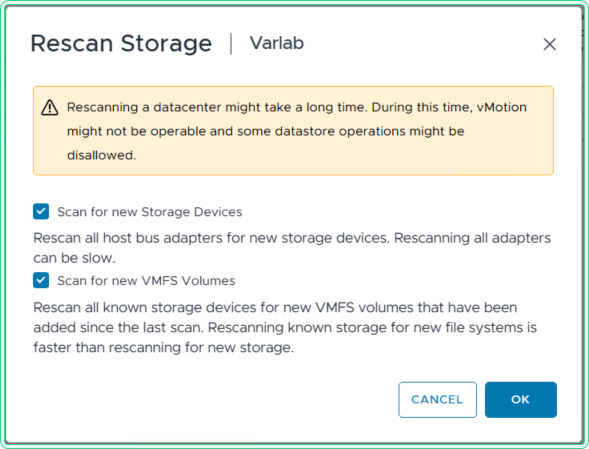
- Scan for new Storage Devices — triggers an HBA-level scan. The host queries all storage adapters for new or removed devices. Use this when a new LUN or iSCSI target has been added at the storage layer.
- Scan for new VMFS Volumes — scans for VMFS datastores on already-known devices. Use this when a device is already visible but a new VMFS volume has been created on it, or after a datastore was resignatured or removed.
In most cases, running both options together is the safest choice.
Method 1 — vCenter UI
The vCenter UI lets you trigger a rescan at the datacenter or cluster level, which runs across all hosts simultaneously. This is the most common approach after SAN-level changes that affect shared storage.
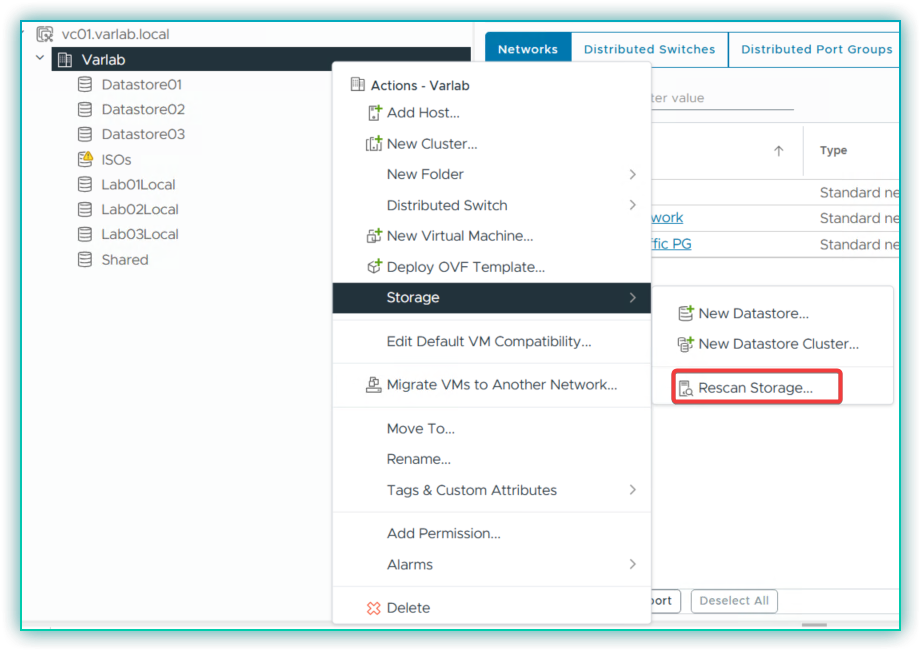
In the vCenter inventory, right-click the datacenter or cluster object, expand Storage, and select Rescan Storage.
The Rescan Storage dialog will appear. Leave both options checked and click OK.
The task will appear in the Recent Tasks panel at the bottom of the vCenter UI. Once completed, the datastore inventory will reflect the updated storage state across all hosts.
To rescan a single host instead, select the host in the inventory, go to Configure → Storage → Storage Adapters, and click the Rescan Storage button in the toolbar.
Method 2 — ESXi CLI (SSH)
When vCenter is unavailable or you are working directly on the host, use the ESXi CLI via SSH. This is also useful after operations that affect the host independently of vCenter, such as force-unmounting a stale datastore.
To rescan all storage adapters at once:
esxcli storage core adapter rescan --allA successful rescan produces no output and returns silently to the prompt.
To list available adapters before targeting a specific one:
esxcli storage core adapter listExample output:
HBA Name  Driver      Link State  UID
--------  ----------  ----------  ----
vmhba0    lsi_mr3     link-up     ...
vmhba1    vmw_ahci    link-up     ...
vmhba64   iscsi_vmk   link-up     ...
To rescan a specific adapter by name:
esxcli storage core adapter rescan -A vmhba0After the rescan completes, verify that new datastores are visible:
esxcli storage vmfs extent listThis lists all VMFS extents currently visible on the host. If a newly provisioned datastore does not appear here after the rescan, verify that the LUN is correctly presented to the host at the storage layer.
Method 3 — PowerCLI
PowerCLI is the most efficient method when you need to rescan multiple hosts at once or want to include the rescan as part of an automated workflow.
Connect-VIServer. See How to install VMware PowerCLI and connect to vSphere for setup instructions.
Rescan all HBAs on a specific host:
Get-VMHost -Name "esxi-host-01.vsphere.local" | Get-VMHostStorage -RescanAllHbaRescan VMFS volumes on a specific host:
Get-VMHost -Name "esxi-host-01.vsphere.local" | Get-VMHostStorage -RescanVmfsRescan all HBAs and VMFS volumes on all hosts in a cluster:
Get-Cluster -Name "CL-PROD-01" | Get-VMHost | Get-VMHostStorage -RescanAllHba
Get-Cluster -Name "CL-PROD-01" | Get-VMHost | Get-VMHostStorage -RescanVmfs
Rescan all hosts connected to vCenter:
Get-VMHost | Get-VMHostStorage -RescanAllHba
Get-VMHost | Get-VMHostStorage -RescanVmfs-RescanAllHba and -RescanVmfs are separate parameters and must be run as two separate commands. There is no combined flag that triggers both in a single call.