
You are on a domain-joined Windows machine, someone asks you to submit a CSR to the CA, and nothing in front of you says which server that is. On a domain you inherited rather than built, there may not be an obvious answer at all.
Active Directory already knows. Enterprise CAs publish themselves into the configuration partition, and there are three ways to read that from a workstation without opening a single console:
- Discover available Enterprise CAs in your domain
- Use PowerShell to list them automatically
- List all published certificate templates from a selected CA
Option 1: Use certutil to Discover CA Servers
certutil -config - -ping
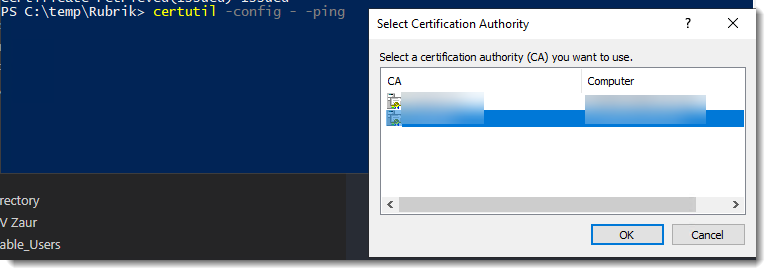
What it does:
- Lists all Enterprise Certificate Authorities published in Active Directory.
- Prompts you to select one if multiple are found.
- Also pings the selected CA to verify connectivity.
Once you select a CA from the Select Certification Authority window you'll get output like this:
FQDN\CAServer
Connecting to FQDN\CAServer ...
Server "<your CA server>" ICertRequest2 interface is alive (125ms)
CertUtil: -ping command completed successfully.
That output confirms the CA name, the server that hosts it, and the templates it will issue.
Option 2: Use PowerShell to Find CA Info Automatically
Here’s a PowerShell script you can run to get the CA name, the server that runs it, and the full config string:
# Discover Enterprise CAs in Active Directory
try {
    $searchBase = ([ADSI]"LDAP://RootDSE").configurationNamingContext
    $caPath = "CN=Enrollment Services,CN=Public Key Services,CN=Services,$searchBase"

    $CAs = Get-ADObject -Filter 'objectClass -eq "pKIEnrollmentService"' -SearchBase $caPath -Properties dNSHostName, Name

    if ($CAs) {
        Write-Host "Found the following Enterprise CA(s):`n"
        foreach ($ca in $CAs) {
            Write-Host "CA Display Name : $($ca.Name)"
            Write-Host "CA Server FQDN  : $($ca.dNSHostName)"
            Write-Host "CA Config String: $($ca.dNSHostName)\$($ca.Name)"
            Write-Host ""
        }
    } else {
        Write-Warning "No Enterprise CA found in Active Directory."
    }
}
catch {
    Write-Error "Failed to query Active Directory for CA information. $_"
}
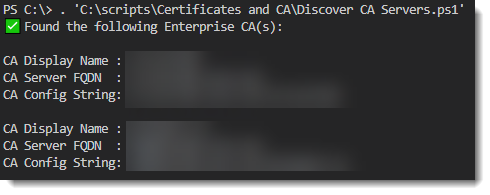
Why this is cool:
- You don’t need to guess or open the CA console.
- You get a clean config string to use in commands like
certreqorcertutil.
How to List Available Certificate Templates from a CA
Once you know the CA, you can list all the published templates it supports using this:
List Templates with certutil:
To view templates available on your domain CA server just run the following command:
certutil -templateYou can pipe the output to findstr to narrow down the search to template names as this:
certutil -template | findstr -i TemplatePropCommonName

'Or

certutil -template | findstr -i TemplatePropFriendlyName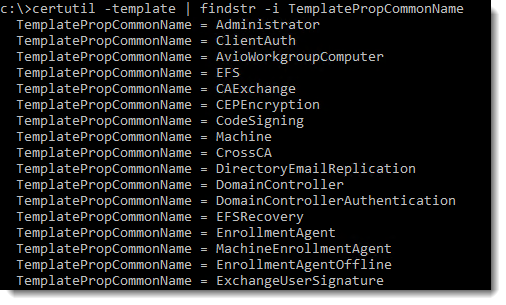
Pro Tip:
Use the internal name (WebServer, User) in your CSR submission:
certreq -attrib "CertificateTemplate:WebServer" -submit myrequest.csr
Where this information actually lives
None of these commands scan the network. An Enterprise CA publishes itself into the configuration partition of Active Directory when it is installed, which is why any domain member can find it without knowing a server name.
CN=Enrollment Services,CN=Public Key Services,CN=Services,CN=Configuration,DC=corp,DC=localThree consequences follow from that, and they explain most of the confusion around this topic.
- A standalone CA does not appear. It never writes itself into the directory, so
certutil -config - -pingwill not offer it and you need the server name from somewhere else. - The information is forest-wide, not domain-wide. A CA in another domain of the same forest shows up in the list.
- An entry can outlive the server. A decommissioned CA that was removed without being unpublished stays in the container and keeps appearing in the picker until someone cleans it up.
The certificates the domain trusts for authentication live in a separate store, and it is worth knowing where when a smart card or an 802.1X deployment misbehaves.
rem CAs trusted for AD authentication, read from the enterprise store
certutil -store -enterprise NTAuth

rem The trusted root store as the domain publishes it
certutil -store -enterprise Root
Confirm it is the CA you actually want
Most forests have at least two: an offline root and one or more issuing CAs. Requests go to an issuing CA, never to the root. -CAInfo answers which is which, along with the distribution points that clients will use to check revocation.
rem Everything the CA will tell you about itself
certutil -config "SRV-CA01\Corp Issuing CA" -CAInfo

rem Just the pieces that usually matter
certutil -config "SRV-CA01\Corp Issuing CA" -CAInfo name
certutil -config "SRV-CA01\Corp Issuing CA" -CAInfo type
certutil -config "SRV-CA01\Corp Issuing CA" -CAInfo dns
certutil -config "SRV-CA01\Corp Issuing CA" -CAInfo templates
certutil -config "SRV-CA01\Corp Issuing CA" -CAInfo cdp
certutil -config "SRV-CA01\Corp Issuing CA" -CAInfo aia-CAInfo type returns Enterprise Subordinate CA for a normal issuing CA and Enterprise Root CA for the root. If the one you found is the root and it is meant to be offline, someone has left it running, which is worth raising separately.
Request a certificate end to end
Knowing the CA and the template name is the hard part. Once you have both, the whole request is three commands and never touches a console.
Start with a request file. This one asks for a server authentication certificate for app.corp.local with an exportable key.
[NewRequest]
Subject = "CN=app.corp.local, O=Contoso, L=Turin, C=IT"
KeyLength = 2048
KeyAlgorithm = RSA
MachineKeySet = TRUE
Exportable = TRUE
RequestType = PKCS10

[RequestAttributes]
CertificateTemplate = WebServer
rem 1. Generate the key pair and the request from the INF
certreq -new C:\bat\app.inf C:\bat\app.req
rem 2. Submit it to the CA you identified earlier
certreq -submit -config "SRV-CA01\Corp Issuing CA" C:\bat\app.req C:\bat\app.cer
rem 3. Install the issued certificate, binding it to the key created in step 1
certreq -accept C:\bat\app.cerWhen it does not work
| What you see | What it usually is |
|---|---|
No CA offered by -config - | The forest has no Enterprise CA, or the CA is standalone and was never published. Standalone CAs have to be named explicitly. |
| The RPC server is unavailable | The CA is published but unreachable. Certificate Services uses RPC over TCP 135 plus a dynamic port, so a firewall between you and the CA blocks it. |
| A template is listed but enrolment is denied | Listing a template needs Read; requesting one needs Enroll. Check the Security tab on the template, and remember that the permission applies to the requesting account, which for a machine certificate is the computer account. |
| Template not found on submission | CertificateTemplate takes the internal name, not the display name. "Web Server" in the console is WebServer in the request. |
| The request is pending | The template requires manager approval. The request sits in the Pending Requests folder until someone issues it, then certreq -retrieve <RequestId> collects it. |
| A CA appears that no longer exists | A decommissioned CA left behind in Enrollment Services. It needs removing from the directory, not from the network. |
See what the CA has issued
This one needs rights on the CA itself, but it answers questions no other tool answers quickly: what has this CA issued, to whom, and what is about to expire.
rem Issued certificates only. Disposition 20 means issued.
certutil -config "SRV-CA01\Corp Issuing CA" -view -restrict "Disposition=20" -out "RequestID,CommonName,NotAfter,CertificateTemplate"

rem Requests that failed, which is where a broken autoenrolment shows up
certutil -config "SRV-CA01\Corp Issuing CA" -view -restrict "Disposition=30" -out "RequestID,CommonName,RequestSubmittedWhen"csv at the end of either command to get comma separated output that opens straight in Excel, which is the usual format for a certificate expiry report.
Optional GUI Way
- Open
certsrv.msc(on a server with CA role) to see published templates. - Open
certtmpl.mscto view all templates - not just published ones.
Final Thoughts
Whether you're setting up HTTPS for an app like Rubrik, deploying SCEP for mobile devices, or just poking around, knowing how to discover your CA and its templates is pure IT wizardry.
Use certutil if you're in a hurry.
Use the PowerShell script if you like automation.
Use certutil -template to find which certificate types you can request.
Related tools
- nltest Command Builder - generate the
nltestqueries for domain and trust checks - DNS Lookup Tool - resolve the records mentioned here
Related guides
- DCDiag: how to diagnose and fix Active Directory problems - the full domain controller health check this fits into
- dsquery and dsget in Windows: command-line Active Directory queries - query the same directory objects from the command line
- How to Generate SSL Certificates with OpenSSL - generating the certificate that the CA then signs
- OpenSSL Cheat Sheet - the same commands as a quick reference, plus the OpenSSL 3.x changes.
- Validating a certificate chain from PowerShell: once you know which CA issued a certificate, this is how to check what it signed and why a chain fails.
Five cheat sheets, one PDF
Subnet masks, PowerShell, Linux commands, HTTP status codes and the ESXi command line - one page each, free to keep. Leave an address and it arrives in a minute.