
Windows Terminal lets you define color schemes once in settings.json and apply them to any profile. For administrators who spend hours reading PowerShell output, event logs, and SSH sessions, a well-configured scheme is not cosmetic — it directly affects how fast you spot warnings, errors, and status changes.
This guide explains how color schemes work in Windows Terminal, how to read and navigate settings.json, how to create and test schemes with PowerShell, and how to assign different schemes to different profiles. All examples run on Windows 10 and Windows 11 without side effects.
Quick answer
Add your scheme to the schemes array in settings.json, then reference it by name in a profile entry inside profiles.list:
"schemes": [
  {
    "name": "Admin Contrast",
    "background": "#101418",
    "foreground": "#d8dee9",
    "cursorColor": "#ffffff",
    "selectionBackground": "#2f3b4d",
    "black": "#1b1f23",
    "red": "#e06c75",
    "green": "#98c379",
    "yellow": "#e5c07b",
    "blue": "#61afef",
    "purple": "#c678dd",
    "cyan": "#56b6c2",
    "white": "#d8dee9",
    "brightBlack": "#5c6370",
    "brightRed": "#ff7b86",
    "brightGreen": "#b8e994",
    "brightYellow": "#ffd98e",
    "brightBlue": "#7cc7ff",
    "brightPurple": "#d499ff",
    "brightCyan": "#7ce7f2",
    "brightWhite": "#ffffff"
  }
],
"profiles": {
  "list": [
    {
      "name": "PowerShell",
      "colorScheme": "Admin Contrast"
    }
  ]
}
Save the file. Windows Terminal applies the change immediately — no restart needed.
How Windows Terminal color schemes work
Windows Terminal handles color output in three layers.
The ANSI 16-color palette is the base layer — standard colors like red, green, cyan, and their bright variants. Most CLI tools and PowerShell’s own Write-Host use this layer. When you change these values in a scheme, you change how the majority of terminal output looks.
The 256-color palette extends the base with indexed colors. Linux tools, prompt frameworks, and package managers often use this range. Windows Terminal maps the first 16 entries to your ANSI palette, so your scheme affects these too.
The TrueColor (24-bit RGB) layer lets applications send precise RGB values directly. Modern tools, rich prompts, and colorized log viewers use this. Windows Terminal supports it fully.
A color scheme in settings.json controls the ANSI layer directly. It also defines background, foreground, cursorColor, and selectionBackground — values that are not part of the ANSI palette but affect every session that uses the scheme.
Understanding settings.json
Before adding a color scheme, it helps to understand what settings.json actually contains. When you open it for the first time, the file can look large and unfamiliar. Here is a breakdown of the main sections using a realistic example.
Open the file by pressing Ctrl+, in Windows Terminal, then clicking Open JSON file in the bottom-left corner of the Settings panel.
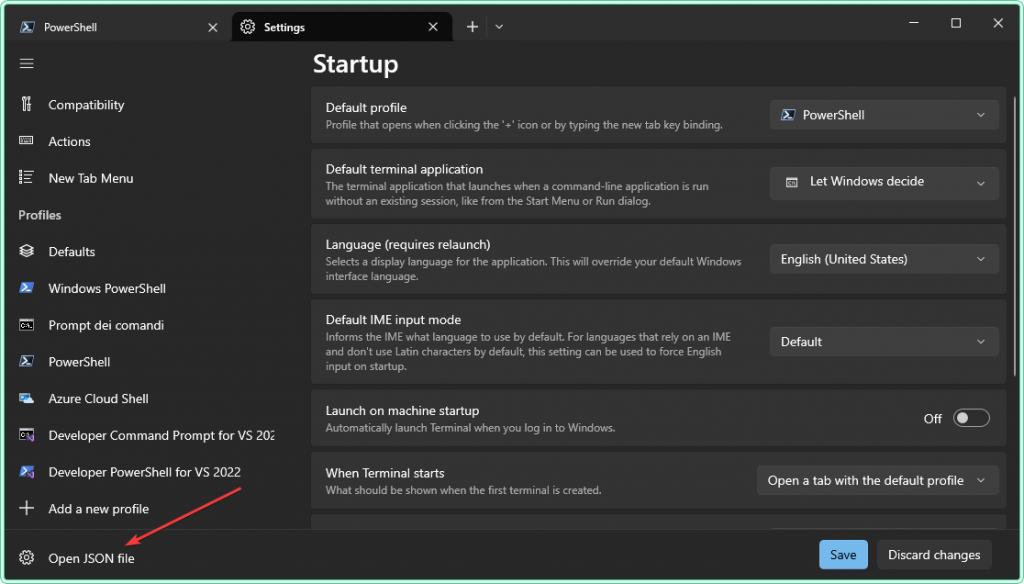
A typical settings.json looks like this:
{
    "$help": "https://aka.ms/terminal-documentation",
    "$schema": "https://aka.ms/terminal-profiles-schema",
    "actions": [],
    "copyFormatting": "none",
    "copyOnSelect": false,
    "defaultProfile": "{574e775e-4f2a-5b96-ac1e-a2962a402336}",
    "keybindings": [
        {
            "id": "Terminal.CopyToClipboard",
            "keys": "ctrl+c"
        }
    ],
    "language": "en-US",
    "profiles": {
        "defaults": {},
        "list": [
            {
                "commandline": "%SystemRoot%\\System32\\WindowsPowerShell\\v1.0\\powershell.exe",
                "guid": "{61c54bbd-c2c6-5271-96e7-009a87ff44bf}",
                "hidden": false,
                "name": "Windows PowerShell"
            },
            {
                "colorScheme": "One Half Dark",
                "guid": "{574e775e-4f2a-5b96-ac1e-a2962a402336}",
                "hidden": false,
                "name": "PowerShell",
                "source": "Windows.Terminal.PowershellCore"
            }
        ]
    },
    "schemes": [],
    "themes": []
}
Here is what each section does.
Top-level settings
$help and $schema are metadata entries pointing to Microsoft’s documentation and JSON schema validator. You do not need to touch them.
defaultProfile contains the GUID of the profile that opens when you launch Windows Terminal or press the new tab button. In the example above, it matches the GUID of the PowerShell 7 profile entry in profiles.list.
copyFormatting, copyOnSelect, and language are global behavior settings that apply to all profiles unless overridden at the profile level. You will not need to change these for color scheme work.
keybindings and actions control keyboard shortcuts. Leave these as they are.
The profiles section
The profiles section contains two keys.
defaults holds settings that apply to every profile unless the profile overrides them. If you add "colorScheme": "Admin Contrast" here, it becomes the fallback scheme for every profile that does not specify its own.
list is an array of individual profile objects. Each object represents one entry in the profile dropdown — one shell, one context, one set of appearance settings. This is where you target a specific profile with a specific scheme.
Each profile can carry its own colorScheme, font, fontSize, commandline, and other settings independently of every other profile.
The schemes section
schemes is an array where you define your own color scheme objects. In a fresh or default installation, this array is empty: "schemes": [].
Built-in schemes like One Half Dark, Campbell, or Solarized Dark are bundled with Windows Terminal and do not appear in this array. They are already available to reference by name in any profile, even when schemes is empty. Your custom schemes sit alongside them once you add them here.
themes array is separate from schemes. Themes control the Windows Terminal application chrome — tab bar, title bar, and pane borders. Schemes control what happens inside the terminal pane. They are independent of each other.
Where to add a color scheme
Adding a color scheme is a two-step edit: define the scheme in schemes, then reference it in a profile.
Step 1 — add the scheme definition
Find the schemes line in your file. In a default installation it looks like this:
"schemes": []Replace the empty array with your scheme object inside square brackets:
"schemes": [
    {
        "name": "Admin Contrast",
        "background": "#101418",
        "foreground": "#d8dee9",
        "cursorColor": "#ffffff",
        "selectionBackground": "#2f3b4d",
        "black": "#1b1f23",
        "red": "#e06c75",
        "green": "#98c379",
        "yellow": "#e5c07b",
        "blue": "#61afef",
        "purple": "#c678dd",
        "cyan": "#56b6c2",
        "white": "#d8dee9",
        "brightBlack": "#5c6370",
        "brightRed": "#ff7b86",
        "brightGreen": "#b8e994",
        "brightYellow": "#ffd98e",
        "brightBlue": "#7cc7ff",
        "brightPurple": "#d499ff",
        "brightCyan": "#7ce7f2",
        "brightWhite": "#ffffff"
    }
]
To add a second scheme, place both objects inside the same array, separated by a comma:
"schemes": [
    {
        "name": "Admin Contrast",
        "background": "#101418",
        "foreground": "#d8dee9"
    },
    {
        "name": "Logs Dark",
        "background": "#111111",
        "foreground": "#d6d6d6"
    }
]
Step 2 — assign the scheme to a profile
Find the profile you want to update inside profiles.list. Add a colorScheme line using the exact name from your scheme definition.
Before:
{
    "guid": "{574e775e-4f2a-5b96-ac1e-a2962a402336}",
    "hidden": false,
    "name": "PowerShell",
    "source": "Windows.Terminal.PowershellCore"
}
After:
{
    "guid": "{574e775e-4f2a-5b96-ac1e-a2962a402336}",
    "hidden": false,
    "name": "PowerShell",
    "source": "Windows.Terminal.PowershellCore",
    "colorScheme": "Admin Contrast"
}
Save the file. The change applies immediately to any open tab using that profile.
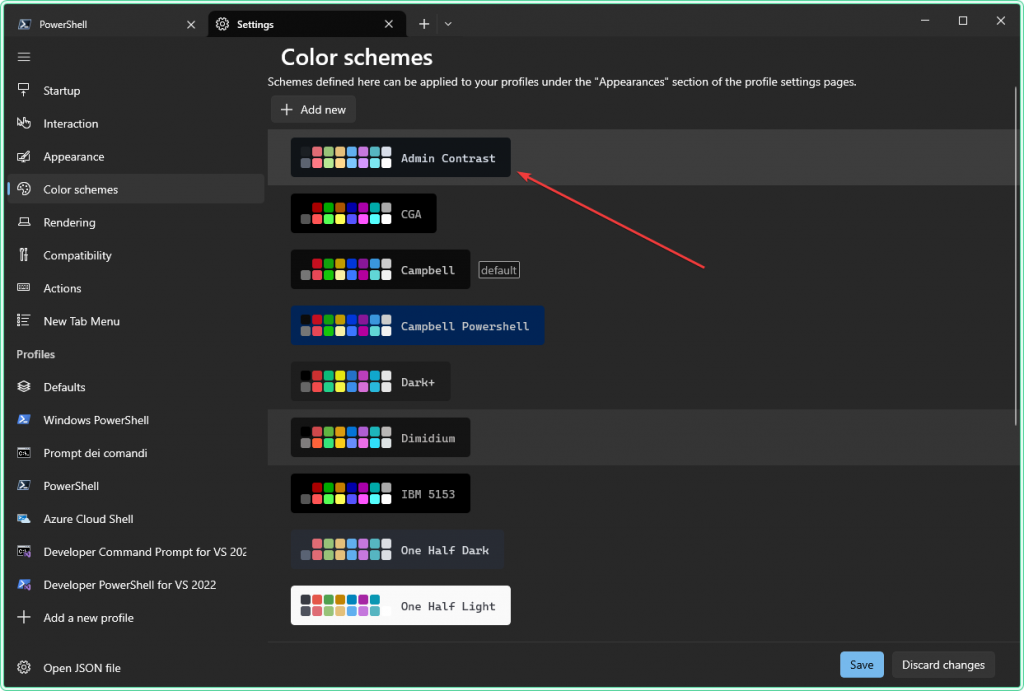
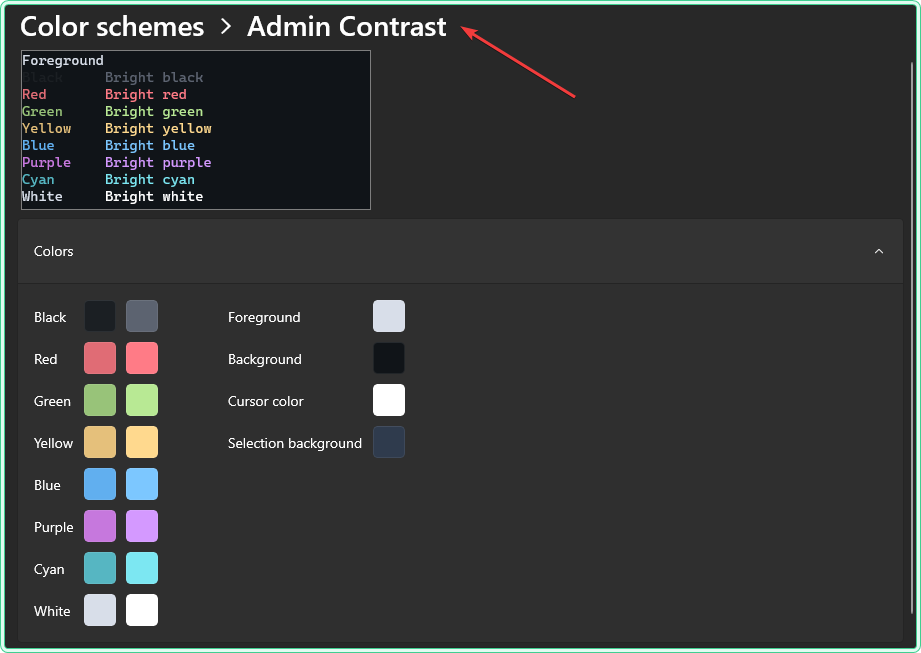
name value in your scheme definition must match the colorScheme value in the profile exactly — including capitalisation and spacing. A mismatch causes Windows Terminal to silently fall back to the default scheme with no error message.
"colorScheme": "Admin Contrast" inside profiles.defaults instead.
Example 1 — preview ANSI colors in your current scheme
Before changing anything, run this script to see how your current scheme renders the standard ANSI foreground and background combinations. This tells you immediately whether your text and background choices produce readable contrast.
# Print ANSI foreground/background color grid
# Foreground codes 30-37, background codes 40-47
$esc = [char]27

foreach ($f in 30..37) {
    foreach ($b in 40..47) {
        # Each cell shows a text color on a background color
        Write-Host "$esc[$f;${b}m  Test  $esc[0m" -NoNewline
    }
    Write-Host ""
}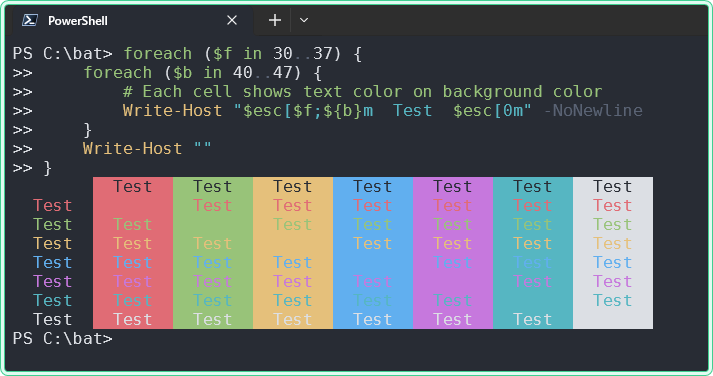
Look at how yellow and red render on your background. If either color is hard to distinguish, your scheme will hide warnings and errors in real output. Run this again after applying a new scheme to compare directly.
foreach loop. Paste from the first line exactly as shown.
Example 2 — preview the 256-color palette
If you use WSL, SSH sessions, or Linux-based tools, they often use extended 256-color output. This script maps all 256 indexed colors so you can see how your terminal renders them.
# Display all 256 indexed terminal colors
# First 16 entries map directly to your ANSI scheme palette
for ($i = 0; $i -lt 256; $i++) {
    $esc = [char]27
    # Show index number next to each color block for reference
    Write-Host (" {0,3} " -f $i) -NoNewline -BackgroundColor ([System.ConsoleColor]($i % 16)) -ForegroundColor ([System.ConsoleColor](($i + 8) % 16))
    Write-Host "$esc[48;5;${i}m   $esc[0m" -NoNewline
    if (($i + 1) % 16 -eq 0) { Write-Host "" }
}
The first 16 entries in the output map directly to your ANSI palette. If those look wrong, your scheme values need adjustment. The remaining entries are fixed by the terminal renderer and are not controlled by your scheme definition.
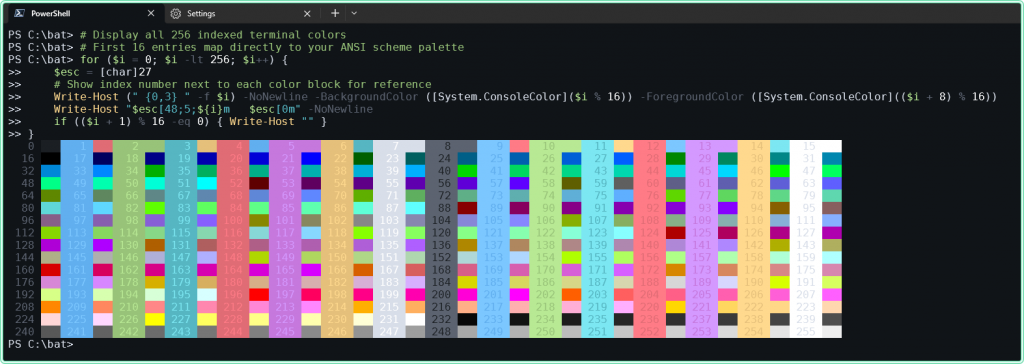
Run this when you are troubleshooting color output from prompt frameworks such as Oh My Posh, or when cross-platform tools produce unexpected colors in your session.
Example 3 — test TrueColor with an RGB gradient
This script outputs a smooth color gradient using RGB escape sequences. It is a direct test of whether your terminal is rendering full 24-bit color correctly.
# RGB TrueColor gradient test
# Smooth output confirms 24-bit color support is active
$esc = [char]27
for ($i = 0; $i -lt 80; $i++) {
    $r = [int](127 + 127 * [Math]::Sin($i / 10))
    $g = [int](127 + 127 * [Math]::Sin($i / 10 + 2))
    $b = [int](127 + 127 * [Math]::Sin($i / 10 + 4))
    Write-Host "$esc[48;2;$r;$g;${b}m $esc[0m" -NoNewline
}
Write-Host ""
If the output is a smooth gradient, TrueColor is working. If it looks like a stepped or flat strip, the application or the remote session is not passing full color data to the terminal.
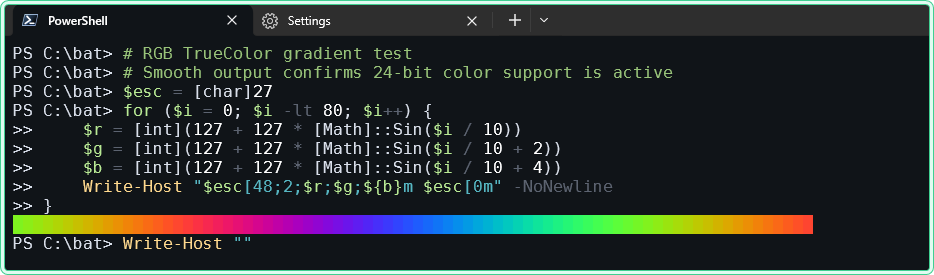
COLORTERM environment variable. If the gradient looks broken over SSH, check whether COLORTERM=truecolor is set on the remote host.
Example 4 — test with real operational output
Palette grids are useful for diagnostics, but the best test of a scheme is how it handles the kind of output you actually read during work. This script simulates standard admin log output with four severity levels.
# Simulate operational message output
# Tests how your scheme handles the four main severity levels
Write-Host "INFO  - Starting system checks on SRV-DC-01" -ForegroundColor Cyan
Write-Host "OK    - DNS resolution responding normally" -ForegroundColor Green
Write-Host "WARN  - Disk space on C: is below 15%" -ForegroundColor Yellow
Write-Host "ERROR - Backup job failed on SRV-FILE-02" -ForegroundColor Red
Run this after applying a new scheme. The four lines should be immediately distinguishable at a glance. If yellow and green look too similar, or red does not stand out clearly from cyan, adjust those values in your scheme before committing to it.
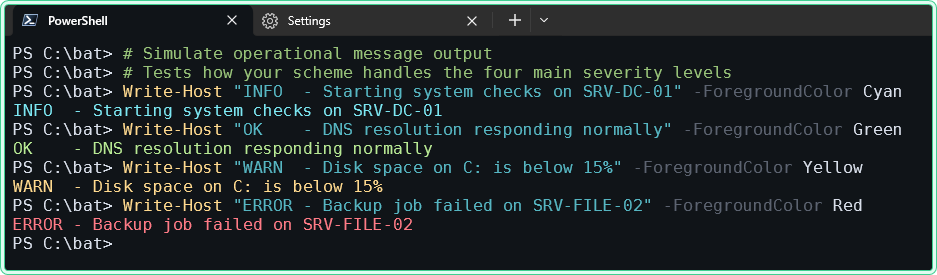
This test matters more than any palette grid because it reflects the pattern you scan during real troubleshooting.
Test the scheme with a sample log file
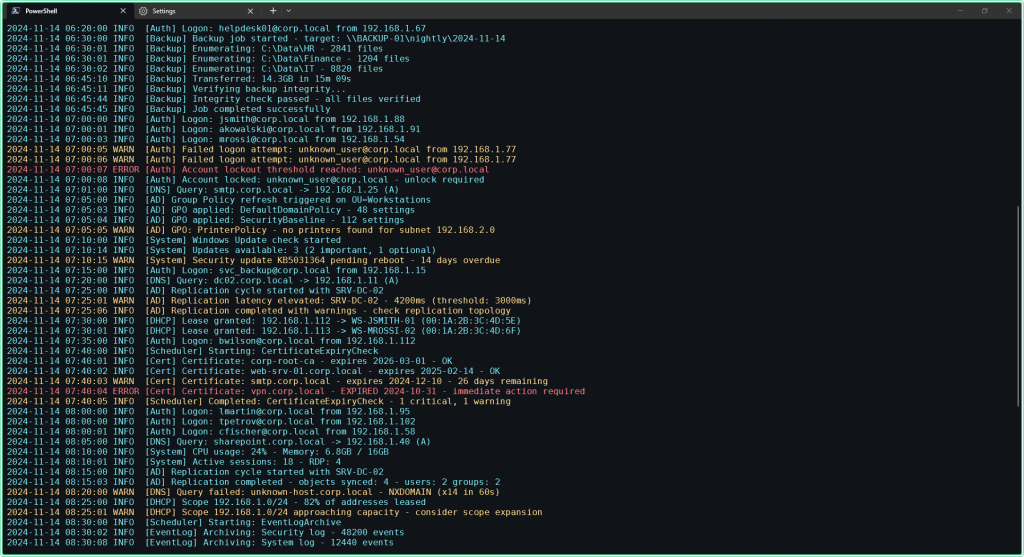
To see how the Logs Dark scheme performs in practice, use the sample log file below. It contains 114 lines of realistic Windows Server output — mixed INFO, WARN, and ERROR entries across DNS, AD replication, DHCP, backup, certificates, and disk quota events.
Download the file, save it to C:\bat\srv-dc-01-sample.log, then run this script to render it with severity-based colors:
# Stream sample log and colorize by severity level
Get-Content "C:\bat\srv-dc-01-sample.log" | ForEach-Object {
    if     ($_ -match "ERROR") { Write-Host $_ -ForegroundColor Red    }
    elseif ($_ -match "WARN")  { Write-Host $_ -ForegroundColor Yellow }
    elseif ($_ -match "INFO")  { Write-Host $_ -ForegroundColor Cyan   }
    else                       { Write-Host $_                         }
}
Example 5 — separate schemes for local and remote profiles
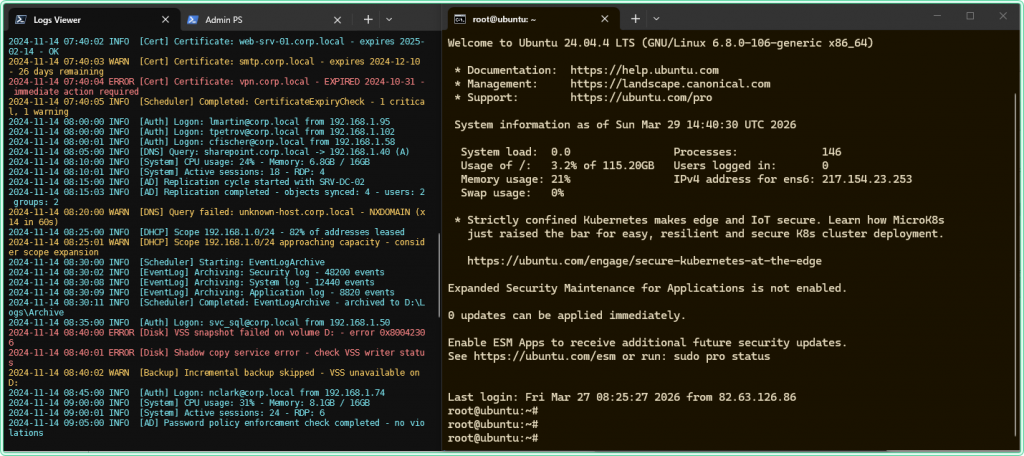
One of the most practical uses of color schemes is assigning a distinct visual identity to each profile. When you have multiple tabs open — local PowerShell, a lab SSH session, and a production connection — a different background color per profile makes it immediately obvious which shell you are typing into.
Here is what the relevant part of settings.json looks like with three profiles using three different schemes. This is a complete working structure you can adapt directly:
"schemes": [
    {
        "name": "Admin Contrast",
        "background": "#101418",
        "foreground": "#d8dee9",
        "cursorColor": "#ffffff",
        "selectionBackground": "#2f3b4d",
        "black": "#1b1f23", "red": "#e06c75", "green": "#98c379",
        "yellow": "#e5c07b", "blue": "#61afef", "purple": "#c678dd",
        "cyan": "#56b6c2", "white": "#d8dee9", "brightBlack": "#5c6370",
        "brightRed": "#ff7b86", "brightGreen": "#b8e994", "brightYellow": "#ffd98e",
        "brightBlue": "#7cc7ff", "brightPurple": "#d499ff",
        "brightCyan": "#7ce7f2", "brightWhite": "#ffffff"
    },
    {
        "name": "Logs Dark",
        "background": "#111111",
        "foreground": "#d6d6d6",
        "cursorColor": "#ffffff",
        "selectionBackground": "#264f78",
        "black": "#111111", "red": "#ff6b6b", "green": "#98c379",
        "yellow": "#e5c07b", "blue": "#61afef", "purple": "#c678dd",
        "cyan": "#56b6c2", "white": "#d6d6d6", "brightBlack": "#5c6370",
        "brightRed": "#ff8787", "brightGreen": "#b5e48c", "brightYellow": "#ffd166",
        "brightBlue": "#7cc7ff", "brightPurple": "#d291ff",
        "brightCyan": "#7ce7f2", "brightWhite": "#ffffff"
    },
    {
        "name": "Prod Warning",
        "background": "#1a1200",
        "foreground": "#e8ddc0",
        "cursorColor": "#ffffff",
        "selectionBackground": "#3d2f00",
        "black": "#1a1200", "red": "#ff6b6b", "green": "#98c379",
        "yellow": "#ffd166", "blue": "#61afef", "purple": "#c678dd",
        "cyan": "#56b6c2", "white": "#e8ddc0", "brightBlack": "#6e6040",
        "brightRed": "#ff8787", "brightGreen": "#b5e48c", "brightYellow": "#ffe08a",
        "brightBlue": "#7cc7ff", "brightPurple": "#d291ff",
        "brightCyan": "#7ce7f2", "brightWhite": "#ffffff"
    }
],
"profiles": {
    "defaults": {},
    "list": [
        {
            "guid": "{574e775e-4f2a-5b96-ac1e-a2962a402336}",
            "name": "PowerShell",
            "source": "Windows.Terminal.PowershellCore",
            "colorScheme": "Admin Contrast"
        },
        {
            "guid": "{b453ae62-4e3d-5e58-b989-0a998ec441b8}",
            "name": "Ubuntu",
            "source": "Windows.Terminal.Wsl",
            "colorScheme": "Logs Dark"
        },
        {
            "commandline": "ssh admin@prod-srv-01",
            "guid": "{a1b2c3d4-0000-0000-0000-000000000001}",
            "name": "SSH Prod",
            "colorScheme": "Prod Warning"
        }
    ]
}
The Prod Warning scheme uses a dark amber-tinted background — #1a1200 instead of a neutral dark grey. The difference is subtle enough not to be distracting, but noticeable enough that you register it when switching tabs. The goal is not a striking color difference but a reliable visual cue.
"commandline": "ssh user@hostname" directly in the profile object. You can generate a valid GUID for a new profile entry with [guid]::NewGuid() in PowerShell.
Creating a custom scheme — full reference
Every scheme in settings.json requires the same set of fields. The table below explains what each field controls.
| Field | What it controls |
|---|---|
name | The identifier used in colorScheme profile assignments. Must be unique across all schemes. |
background | The terminal pane background color. |
foreground | The default text color for output that does not specify its own color. |
cursorColor | The color of the cursor block or line. |
selectionBackground | The highlight color when selecting text. Easy to overlook — can become invisible if set close to the foreground. |
black through white | The 8 standard ANSI colors. Used by most CLI tools and PowerShell Write-Host. |
brightBlack through brightWhite | The 8 bright variants. Used for bold output and high-emphasis display. |
All 16 ANSI color fields are required. Windows Terminal falls back to built-in defaults for any missing entry, which can produce inconsistent results when switching schemes.
A ready-to-use scheme for log reading
This scheme is tuned for long sessions with log-heavy output. The background is dark but not pure black, the foreground is slightly desaturated to reduce eye strain, and the semantic colors — red, yellow, cyan — are bright enough to register immediately without being harsh.
{
    "name": "Logs Dark",
    "background": "#111111",
    "foreground": "#d6d6d6",
    "cursorColor": "#ffffff",
    "selectionBackground": "#264f78",
    "black": "#111111",
    "red": "#ff6b6b",
    "green": "#98c379",
    "yellow": "#e5c07b",
    "blue": "#61afef",
    "purple": "#c678dd",
    "cyan": "#56b6c2",
    "white": "#d6d6d6",
    "brightBlack": "#5c6370",
    "brightRed": "#ff8787",
    "brightGreen": "#b5e48c",
    "brightYellow": "#ffd166",
    "brightBlue": "#7cc7ff",
    "brightPurple": "#d291ff",
    "brightCyan": "#7ce7f2",
    "brightWhite": "#ffffff"
}
Paste this object into your schemes array, add "colorScheme": "Logs Dark" to the profile you want to use it with, then run the operational output test from Example 4 to verify that all four severity levels look correct in your environment.
Tips and pitfalls
- Always test your scheme with real output, not only with palette grids. A scheme can look clean in a grid and still fail to distinguish warnings from normal text in actual script output.
- Do not use pure white (
#ffffff) as your foreground on a pure black background for long sessions. A slightly off-white foreground on a dark grey background reduces eye strain noticeably over time. - Check your
selectionBackgroundvalue separately. It is easy to choose a value that makes selected text invisible, especially if the selection color is close to your foreground. - Do not make
redandyellowtoo similar in brightness. These two colors carry most of the warning and error signal in PowerShell output and log viewers. - Schemes copied from the internet may look good in screenshots but fail contrast requirements in real use. Always run Example 4 before committing to a scheme.
- Remote sessions over SSH do not inherit your Windows Terminal scheme for the remote shell’s own colors — only for the terminal emulator layer. If colors look wrong in a remote session, check the shell configuration on the remote host.
- If Windows Terminal silently reverts your changes on launch, your JSON has a syntax error. Open the file again and look for a missing comma, a mismatched bracket, or a leftover comment line.
Related guides
Browse ready-made Windows Terminal color schemes:
- Windows Terminal Themes — large collection of community schemes with live preview and direct JSON export ready to paste into
settings.json - Terminal Splash — curated schemes with screenshot previews, searchable by style and contrast level
Related content on zaur.it:
- Windows Terminal profiles guide — how to create, configure, and manage profiles for different environments [comming soon]
- Windows Terminal cheat sheet — key shortcuts, settings, and configuration reference [comming soon]