
Windows 11 introduced a redesigned right-click context menu with a simplified layout and hidden advanced options. While it looks cleaner, it often slows down administrative workflows because many common actions are now behind the Show more options layer.
For system administrators and power users, this adds unnecessary friction. This guide shows how to restore the classic Windows 10-style context menu, explains what changed, and provides safe ways to switch between modes.
Quick answer
You can restore the classic context menu by creating a specific registry key and restarting Explorer. The change is fully reversible and affects only the current user.
reg add "HKCU\Software\Classes\CLSID\{86ca1aa0-34aa-4e8b-a509-50c905bae2a2}\InprocServer32" /f /ve
taskkill /f /im explorer.exe
start explorer.exeWhat changed in Windows 11 context menu
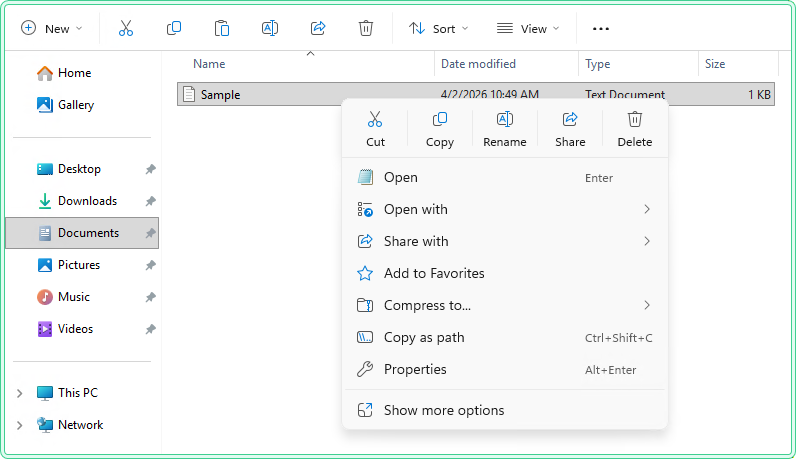
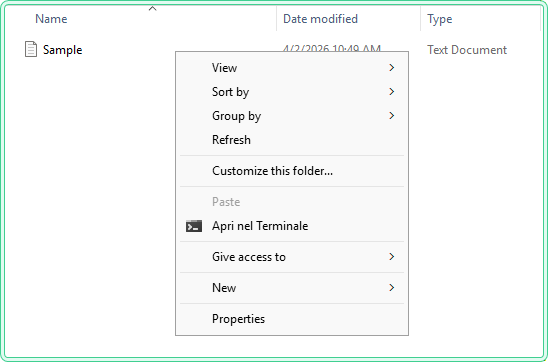
Windows 11 replaced the classic context menu with a compact version designed for modern apps. Many legacy actions are hidden behind Show more options, which opens the old menu.
This redesign prioritizes cleaner UI and touch-friendly interaction, but in real-world admin workflows it adds extra clicks and reduces efficiency.
Under the hood, Windows falls back to legacy shell extensions when this CLSID override is present, effectively restoring the classic menu handler.
Method 1 — restore using registry (recommended)
Step 1 — open Command Prompt or PowerShell
You don’t need to elvate the command prompt since registry change affects currently logged in user (HKCU hive)
Step 2 — apply the registry change
reg add "HKCU\Software\Classes\CLSID\{86ca1aa0-34aa-4e8b-a509-50c905bae2a2}\InprocServer32" /f /veStep 3 — restart Explorer
taskkill /f /im explorer.exe
start explorer.exeMethod 2 — restore using .reg file
This method creates the same registry structure as the command above, but allows reuse and easier deployment across multiple systems.
Windows Registry Editor Version 5.00

[HKEY_CURRENT_USER\Software\Classes\CLSID\{86ca1aa0-34aa-4e8b-a509-50c905bae2a2}]
[HKEY_CURRENT_USER\Software\Classes\CLSID\{86ca1aa0-34aa-4e8b-a509-50c905bae2a2}\InprocServer32]
@=""
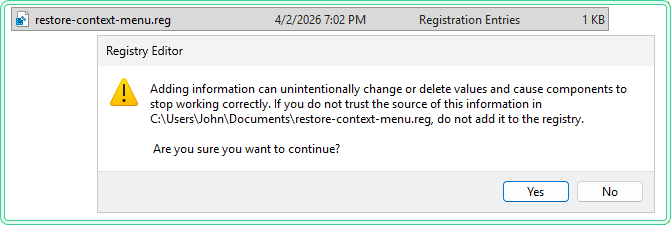
Save as restore-context-menu.reg and run it.
restore-context-menu.reg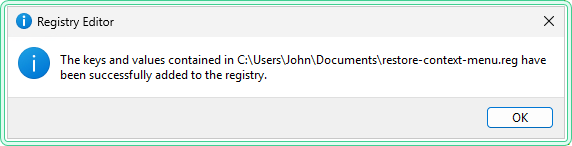
Method 3 — PowerShell alternative
Useful for automation, scripts, or configuration management scenarios.
# Create CLSID key
New-Item -Path "HKCU:\Software\Classes\CLSID" -Name "{86ca1aa0-34aa-4e8b-a509-50c905bae2a2}" -Force

# Create InprocServer32 subkey
New-Item -Path "HKCU:\Software\Classes\CLSID\{86ca1aa0-34aa-4e8b-a509-50c905bae2a2}" -Name "InprocServer32" -Force

# Set default value to empty
Set-ItemProperty -Path "HKCU:\Software\Classes\CLSID\{86ca1aa0-34aa-4e8b-a509-50c905bae2a2}\InprocServer32" -Name "(Default)" -Value ""
Method 4 — batch scripts (advanced)
If you frequently switch between menu modes or want a reusable utility, batch scripts provide a practical approach for automation and toggling.
Option 1 — interactive toggle script (menu + confirmation)
Show interactive batch script
@echo off
title Old Windows Context Menu Toggle

REM Save current color so we can restore it later
for /f "tokens=2 delims==;" %%A in ('"prompt;$H & for %%B in (1) do rem"') do set "BS=%%A"

echo.
echo ================================
echo  Old Windows Context Menu Toggle
echo ================================
echo.
echo 1) Enable old context menu
echo 2) Disable old context menu
echo 3) Exit
echo.

set /p choice=Choose an option (1-3):

if "%choice%"=="1" set "ACTION=Enable" & goto WARN
if "%choice%"=="2" set "ACTION=Disable" & goto WARN
if "%choice%"=="3" goto END

echo.
echo Invalid choice. Exiting...
goto END

:WARN
REM Change console to red background, light gray text
color 4F

cls
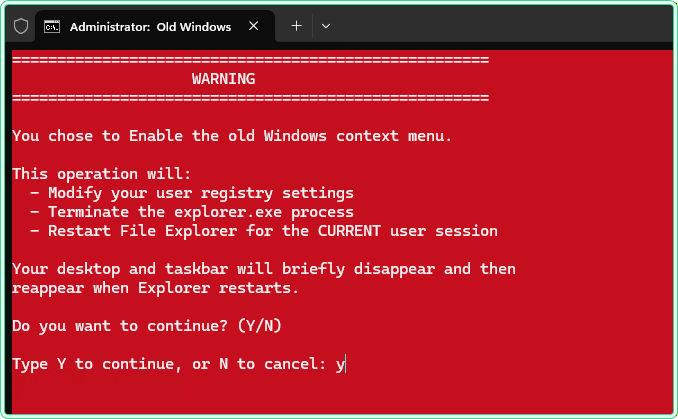
echo =====================================================
echo                     WARNING
echo =====================================================
echo.
echo You chose to %ACTION% the old Windows context menu.
echo.
echo This operation will:
echo   - Modify your user registry settings
echo   - Terminate the explorer.exe process
echo   - Restart File Explorer for the CURRENT user session
echo.
echo Your desktop and taskbar will briefly disappear and then
echo reappear when Explorer restarts.
echo.
echo Do you want to continue? (Y/N)
echo.

set /p confirm=Type Y to continue, or N to cancel:

if /I "%confirm%"=="Y" goto DO_%ACTION%
if /I "%confirm%"=="N" goto CANCEL

echo.
echo Invalid choice. Exiting...
goto RESET_COLOR

:DO_Enable
echo.
echo Applying: Enable old context menu...

reg add "HKCU\Software\Classes\CLSID\{86ca1aa0-34aa-4e8b-a509-50c905bae2a2}\InprocServer32" /f /ve

echo.
echo Restarting Explorer for the current user...
taskkill /F /IM explorer.exe >nul 2>&1
start explorer.exe
echo.
echo Done.
goto RESET_COLOR

:DO_Disable
echo.
echo Applying: Disable old context menu...

reg delete "HKCU\Software\Classes\CLSID\{86ca1aa0-34aa-4e8b-a509-50c905bae2a2}\InprocServer32" /f

echo.
echo Restarting Explorer for the current user...
taskkill /F /IM explorer.exe >nul 2>&1
start explorer.exe
echo.
echo Done.
goto RESET_COLOR

:CANCEL
echo.
echo Operation cancelled by user.
goto RESET_COLOR

:RESET_COLOR
REM Restore default colors (light gray on black)
color 07

:END
echo.
pause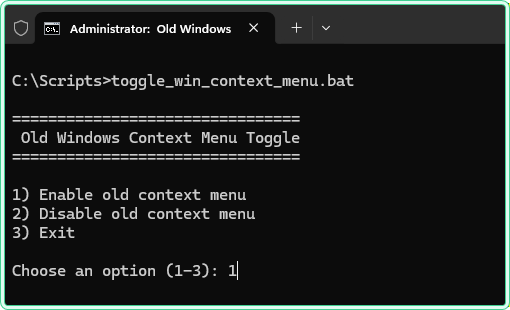
Option 2 — automatic toggle script (no prompts)
This version detects the current state and switches automatically.
Show automatic toggle batch script
@echo off
title Old Windows Context Menu Toggle (Auto)

REM Registry key that controls the old context menu
set "CTX_KEY=HKCU\Software\Classes\CLSID\{86ca1aa0-34aa-4e8b-a509-50c905bae2a2}\InprocServer32"

REM Check whether the key exists (old menu enabled)
reg query "%CTX_KEY%" >nul 2>&1
if %errorlevel%==0 (
    echo Old context menu is currently ENABLED.
    echo Disabling old context menu...
    reg delete "%CTX_KEY%" /f >nul 2>&1
) else (
    echo Old context menu is currently DISABLED.
    echo Enabling old context menu...
    reg add "%CTX_KEY%" /f /ve >nul 2>&1
)

echo.
echo Restarting Explorer for the current user...
taskkill /F /IM explorer.exe >nul 2>&1
start explorer.exe

echo.
echo Done. You may need to log off/on or reboot for changes
echo to fully apply in all scenarios.
echo.
REM Do NOT close the window automatically
pause
How to revert to default
reg delete "HKCU\Software\Classes\CLSID\{86ca1aa0-34aa-4e8b-a509-50c905bae2a2}" /f
taskkill /f /im explorer.exe
start explorer.exeWhen this matters
- Administrative workflows — faster access to advanced file operations
- Legacy tools — many shell extensions only appear in the classic menu
- RDP sessions — fewer clicks improve remote productivity
- Productivity workflows — restores faster right-click usage
Tips and pitfalls
- Explorer restart is required
- Windows updates may revert behavior
- This is a per-user (HKCU) change
- Enterprise policies may override it
Related tools
- Context menu toggle tool (comming soon)
- Windows registry helper tool (comming soon)
Related guides
- Windows Terminal customization (comming soon)
- File Explorer tweaks (comming soon)
- Windows 11 usability tweaks (comming soon)
- PowerShell automation basics (comming soon)