
Some applications write gigabytes of cache, logs, and profile data to C:\Users\John\AppData — with no built-in option to change that location. On systems with a small SSD boot drive, this fills up quickly. The standard solution is to move the target folder to a secondary drive and replace it with a junction that points back to the new location. The application continues to write to the original path and never notices anything changed.
This article uses Firefox as the example. Firefox stores its full profile — bookmarks, extensions, cache, session data — in AppData\Roaming\Mozilla\Firefox\Profiles\ and can easily reach 1–2 GB on an active workstation. The procedure applies to any application that writes to AppData.
Prerequisites
- Windows 10 or Windows 11
- A secondary drive with sufficient free space — this guide uses
D:\, adjust to your drive letter - Administrator access
- Firefox must be fully closed before you start — including any background update processes
Step-by-step procedure
Step 1 — Find your Firefox profile folder
Firefox stores each user profile in a subfolder with a randomly generated name inside AppData\Roaming\Mozilla\Firefox\Profiles\. The subfolder name looks like ab12cd34.default-release — you need to find the exact name on your machine before running any commands.
Press Win + R, type the following path and press Enter:
%AppData%\Mozilla\Firefox\ProfilesFile Explorer opens directly at the Profiles folder. You will see one or more subfolders. The active profile is the one named xxxxxxxx.default-release.
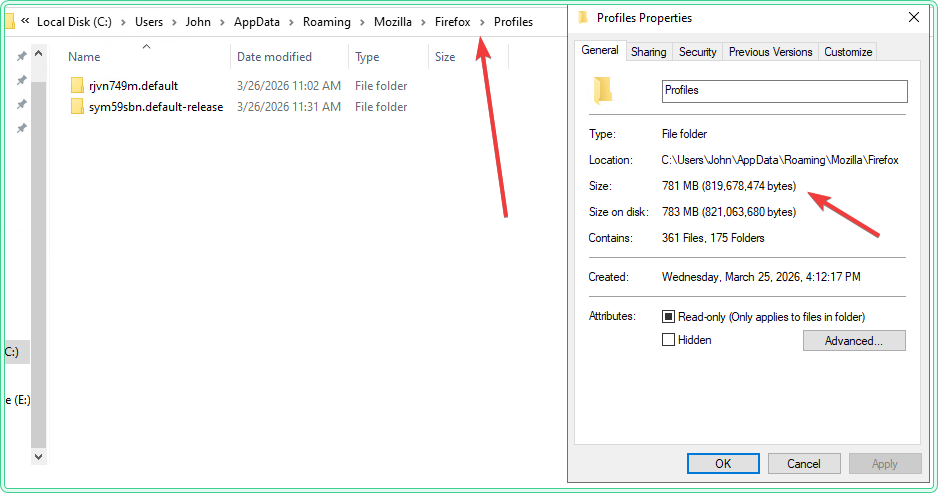
about:profiles in the address bar, and look for the profile marked This is the profile in use. The Root Directory path shown there tells you which folder is active.
Step 2 — Close Firefox completely
Close Firefox. Then open Task Manager (Ctrl + Shift + Esc) and confirm no Firefox processes remain running — look for firefox.exe in the Processes tab. End any remaining processes before continuing.
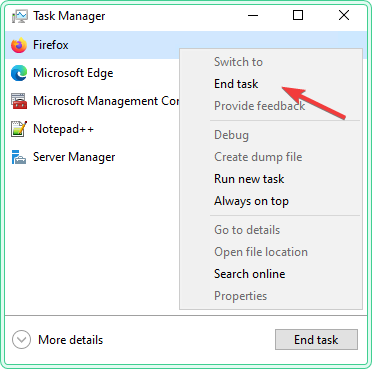
Step 3 — Open an elevated Command Prompt
Press Win, type cmd, right-click Command Prompt and select Run as administrator. All commands in the following steps must be run in this elevated window.
Step 4 — Create the destination folder on D:\
Create the folder structure on the secondary drive where the Firefox profile will be stored.
mkdir "D:\AppData\Mozilla\Firefox"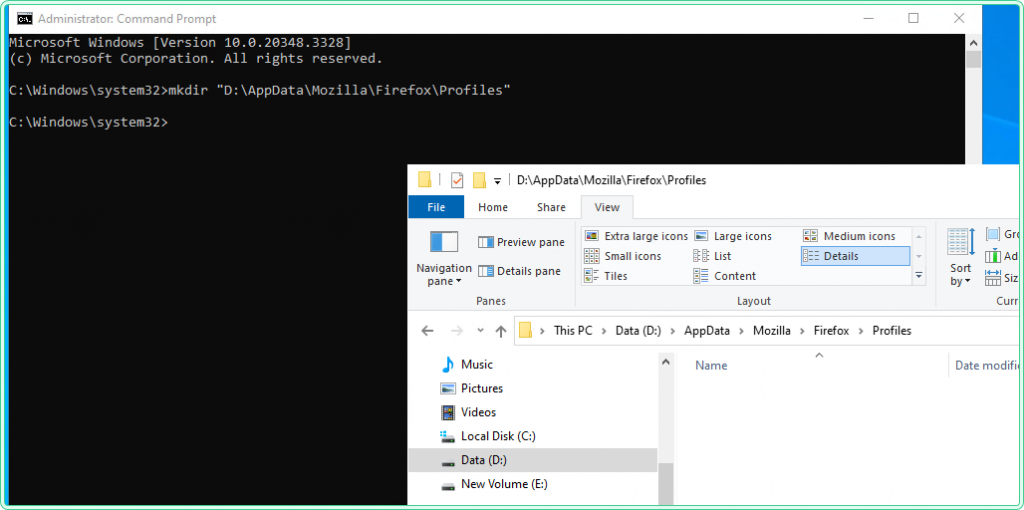
Step 5 — Copy the Profiles folder to D:\ using robocopy
Use robocopy to copy the entire Firefox Profiles folder to the new location. We copy the Firefox parent folder so the destination structure mirrors the source exactly — D:\AppData\Mozilla\Firefox\Profiles\ will contain all profile subfolders.
robocopy "C:\Users\John\AppData\Roaming\Mozilla\Firefox" "D:\AppData\Mozilla\Firefox" /E /COPYALL /R:3 /W:5| Flag | What it does |
|---|---|
/E | Copy all subdirectories, including empty ones |
/COPYALL | Preserve all file attributes, timestamps, and permissions |
/R:3 | Retry failed files up to 3 times |
/W:5 | Wait 5 seconds between retries |
When robocopy finishes it prints a summary table. Wait for it to complete before proceeding.
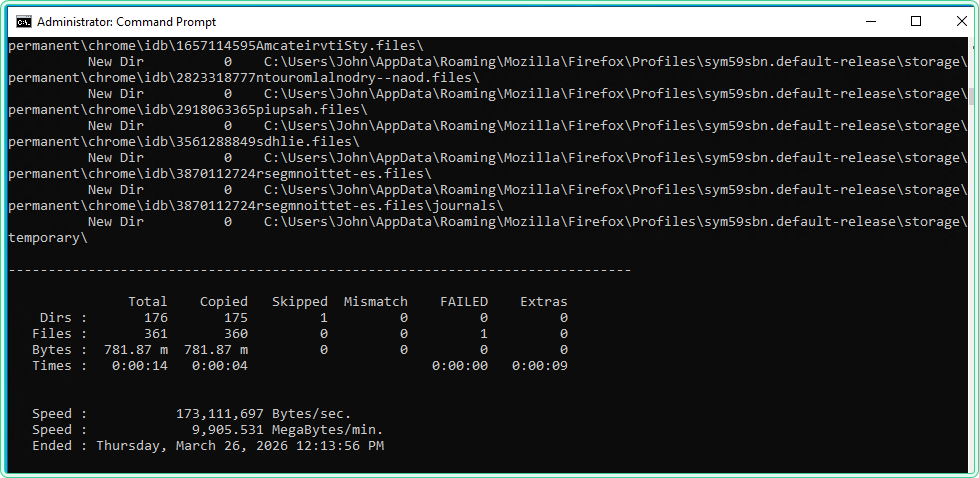
D:\AppData\Mozilla\Firefox\Profiles. The original folder on C:\ still exists — do not delete it yet.
Step 6 — Verify the copy is complete
Before removing the original, confirm that the file count and total size match exactly between source and destination.
:: Check the original Firefox folder
dir "C:\Users\John\AppData\Roaming\Mozilla\Firefox" /S | find "File(s)"

:: Check the new location on D:\
dir "D:\AppData\Mozilla\Firefox" /S | find "File(s)"
Both commands should return identical output. Example:
       3204 File(s)    1,204,847,360 bytes
3204 File(s) 1,204,847,360 bytesStep 7 — Delete the original Profiles folder
Once the copy is confirmed complete, remove only the Profiles subfolder from C:\. We keep the Firefox parent folder intact — it contains profiles.ini, a configuration file that Firefox uses to locate its profiles. Removing it would break Firefox on next launch.
rd /S /Q "C:\Users\John\AppData\Roaming\Mozilla\Firefox\Profiles"Step 8 — Create the junction
Create a junction at the original Profiles path pointing to the new location on D:\. Firefox will follow this path exactly as before — profiles.ini on C:\ remains in place and continues to work normally.
mklink /J "C:\Users\John\AppData\Roaming\Mozilla\Firefox\Profiles" "D:\AppData\Mozilla\Firefox\Profiles"CMD confirms the junction was created:
Junction created for C:\Users\John\AppData\Roaming\Mozilla\Firefox\Profiles <<===>> D:\AppData\Mozilla\Firefox\Profiles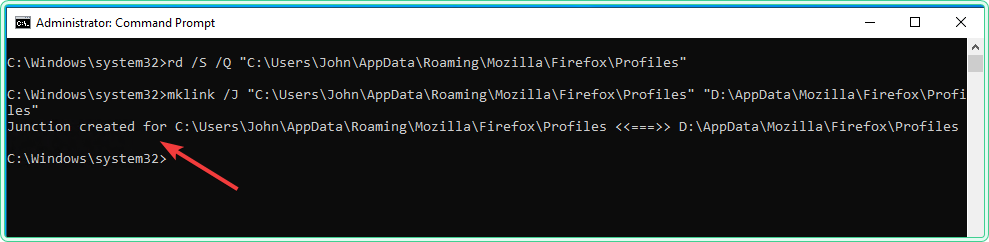
C:\Users\John\AppData\Roaming\Mozilla\Firefox\Profiles now redirects transparently to D:\AppData\Mozilla\Firefox\Profiles.
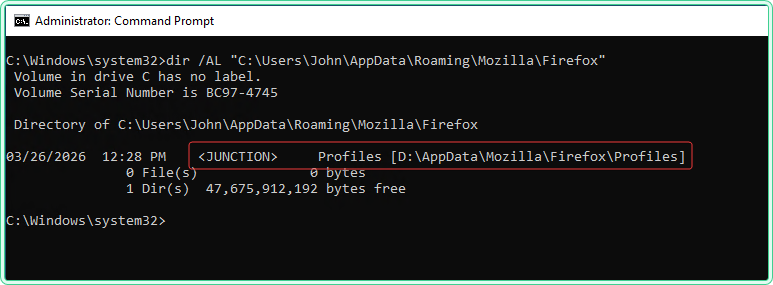
Step 9 — Verify the junction
Confirm the junction is correctly in place and points to the right target.
dir /AL "C:\Users\John\AppData\Roaming\Mozilla\Firefox"Expected output:
25/03/2026 11:30 <JUNCTION> Profiles [D:\AppData\Mozilla\Firefox\Profiles]The <JUNCTION> tag confirms this is a link, not a real folder. The path in brackets is the target — verify it points exactly to D:\AppData\Mozilla\Firefox\Profiles.
Step 10 — Test Firefox
Launch Firefox. It should open normally, load your profile, restore your tabs, and show all bookmarks and extensions as before. If Firefox opens correctly with your profile intact, the junction is working.
To confirm data is writing to the secondary drive, open D:\AppData\Mozilla\Firefox\Profiles in File Explorer after a few minutes of browsing — file timestamps inside should be updating.
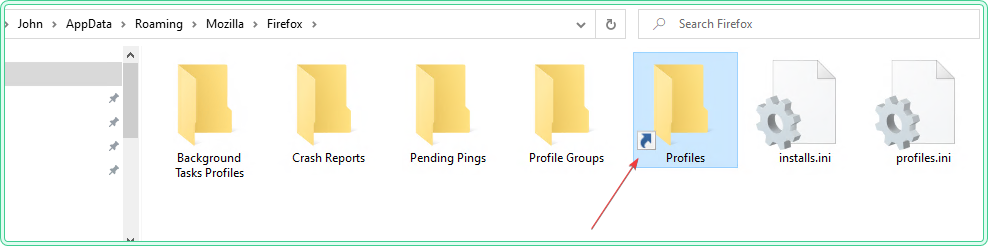
D:\. The C:\ drive no longer accumulates Firefox profile data.
Common problems
| Problem | Cause | Fix |
|---|---|---|
| robocopy reports Access denied on some files | Firefox or a background update process is still running | Open Task Manager, end all firefox.exe and updater.exe processes, then retry |
| mklink fails: Cannot create a file when that file already exists | Step 7 was skipped — the original Profiles folder was not deleted | Run dir "C:\Users\John\AppData\Roaming\Mozilla\Firefox" to confirm Profiles is gone, then re-run mklink |
| Firefox opens with a blank profile after the junction | The junction points to a wrong or empty target path | Run dir /AL "C:\Users\John\AppData\Roaming\Mozilla\Firefox" and verify the Profiles entry shows <JUNCTION> with the correct target |
| Firefox fails to start with a profile error | Folder permissions were not preserved during robocopy | Right-click D:\AppData\Mozilla\Firefox\Profiles → Properties → Security → confirm your user account has Full Control |
Notes
Why junction and not a symbolic link
This procedure uses mklink /J (junction) rather than mklink /D (directory symbolic link). Junctions are more reliable for user profile paths because some Windows components and application installers do not correctly follow symbolic links inside AppData. Junctions use the NTFS mount point mechanism which has broader system-level support.
Moving the cache separately
Firefox also stores a separate cache in AppData\Local\Mozilla\Firefox\Profiles. This folder is often larger than the Roaming profile and regenerates automatically if deleted. You can apply the same procedure to move it to D:\ independently — or simply delete it and let Firefox rebuild it on next launch.
How to revert the change
Close Firefox. Remove the junction with rd "C:\Users\John\AppData\Roaming\Mozilla\Firefox\Profiles" — no /S flag, this removes only the link without touching D:\. Then use robocopy to move the Profiles folder back from D:\AppData\Mozilla\Firefox\Profiles to C:\Users\John\AppData\Roaming\Mozilla\Firefox\Profiles.
Official reference
mklink — Windows Commands | Microsoft Learn
robocopy — Windows Commands | Microsoft Learn
Related guides
- mklink in Windows: symlinks, junctions, and when to use each
- How to delete a symbolic link on Windows without deleting the target
- NTFS links on Windows: symbolic links, junctions, and hard links compared
- How to list all symbolic links on Windows
- How to sync game saves to the cloud on Windows using mklink