
mklink in Windows: symlinks, junctions, and when to use each
mklink is a built-in Windows CMD command that creates symbolic links, hard links, and directory junctions — pointers that let the operating system treat one path as if it were another. It requires no third-party tools and works on every modern Windows installation. Sysadmins use it to redirect application data, sync folders to cloud storage, and solve path conflicts in legacy software — all without moving a single file. This article focuses on practical scenarios where mklink solves real problems, including a few behaviors that the official documentation does not cover.
Quick answer
:: Symbolic link to a folder (most common use case)
mklink /D "C:\LinkedFolder" "D:\RealFolder"

:: Symbolic link to a file
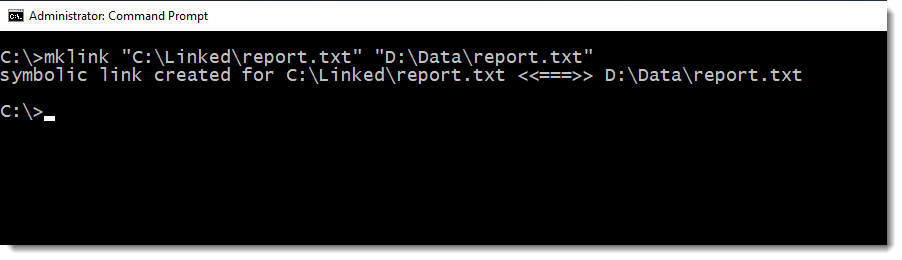
mklink "C:\Linked\report.txt" "D:\Data\report.txt"

:: Hard link to a file (same drive only)
mklink /H "C:\Shared\latest.log" "C:\App\logfile.log"

:: Directory junction (folder, legacy-compatible)
mklink /J "C:\OldApp\Config" "D:\AppData\ConfigFiles"mklink requires an elevated Command Prompt. Right-click CMD and select Run as administrator.
What mklink does
mklink creates a filesystem entry that points to another location. From the application’s perspective, the link and the target are the same object. The OS resolves the pointer transparently — apps, scripts, and the shell never see the redirection.
Full syntax:
mklink [[/D] | [/H] | [/J]] <Link> <Target>| Switch | Link type | Files | Folders | Cross-drive | Admin required |
|---|---|---|---|---|---|
| (none) | File symbolic link | ✓ | — | ✓ | ✓ |
/D | Directory symbolic link | — | ✓ | ✓ | ✓ |
/H | Hard link | ✓ | — | — | ✓ |
/J | Directory junction | — | ✓ | ✓ | ✓ |
mklink is a CMD built-in — it cannot be called directly from PowerShell without prefixing it with cmd /c mklink .... PowerShell has its own equivalent via New-Item.
When and why to use mklink
Before jumping into examples, it helps to understand the three link types and when each one is the right choice.
Symbolic link (/D or no switch)
A symbolic link is a filesystem pointer to a file or folder. The target can be on a different drive or even a network path. The OS resolves the pointer at access time — the application sees the link path and gets the target’s content. Use this when you need flexible redirection across drives, or when syncing with cloud storage like OneDrive or Dropbox.
Directory junction (/J)
A junction works similarly to a directory symlink but uses a different NTFS mechanism (reparse points). It is more compatible with legacy applications and older versions of Windows. Junctions do not require symlink privilege in some configurations. Use this when linking folders for compatibility with older software or installers that may not handle symlinks correctly.
Hard link (/H)
A hard link creates a second directory entry pointing to the same file data on disk. Both paths refer to the exact same content — there is no “original” and no “copy”. Deleting one path leaves the data accessible through the other. Hard links are restricted to files and must remain on the same volume. Use this to reduce duplication when the same file must be accessible from multiple locations on a single drive.
| Situation | Recommended link type | Reason |
|---|---|---|
| Sync app folder to OneDrive/Dropbox | Symbolic link /D | Works across drives, transparent to the app |
| Redirect legacy app to new path | Junction /J | Better compatibility with older software |
| Same file in two script locations | Hard link /H | Same file, two paths, no duplication |
| Move AppData to another drive | Junction /J | More stable for system-managed folders |
| Dev environment: shared dependency folder | Symbolic link /D | Cross-drive, flexible, easy to rebuild |
Practical examples
1. Sync game saves with OneDrive
The problem: A game stores saves in C:\Users\username\AppData\Local\UltraGame\Save. You want them synced to OneDrive automatically without the game knowing anything changed.
The solution: Move the folder to OneDrive and replace the original location with a symbolic link pointing to the new path.
:: Step 1 — move the save folder to OneDrive
move "C:\Users\username\AppData\Local\UltraGame\Save" "C:\Users\username\OneDrive\UltraSave"

:: Step 2 — create a symbolic link at the original location
:: The game will write to this path and not notice anything changed
mklink /D "C:\Users\username\AppData\Local\UltraGame\Save" "C:\Users\username\OneDrive\UltraSave"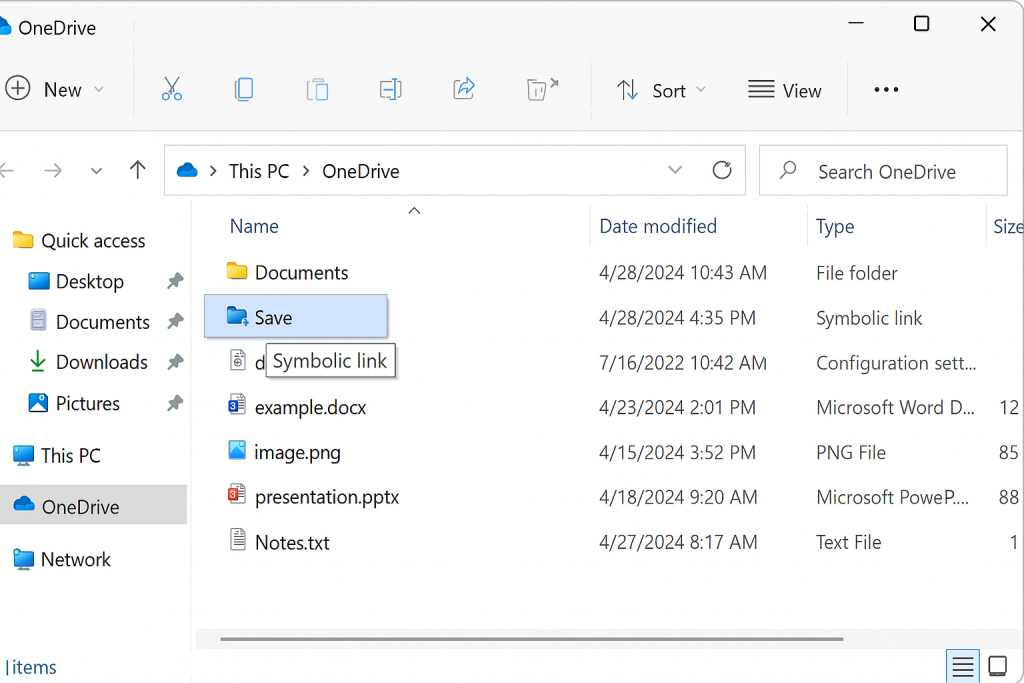
2. Redirect AppData folder to another drive
The problem: An application writes large cache or config files to C:\Users\username\AppData\Roaming\MyBigApp, filling the boot drive. You want to move this to a secondary drive without reconfiguring the application.
The solution: Move the folder to D:\ and replace it with a junction at the original path.
:: Step 1 — move the app data folder to secondary drive
move "C:\Users\username\AppData\Roaming\MyBigApp" "D:\Config\MyBigApp"

:: Step 2 — create a junction at the original location
:: Junction is preferred here for compatibility with system-managed paths
mklink /J "C:\Users\username\AppData\Roaming\MyBigApp" "D:\Config\MyBigApp"3. Force a legacy application to use a new path
The problem: An older application is hardcoded to write to C:\OldReports. You cannot modify the application, but you want the output stored in D:\ModernStorage\Reports.
The solution: Create a symbolic link at the hardcoded path that redirects to the new location.
:: Create a directory symlink that presents D:\ModernStorage\Reports as C:\OldReports
:: The application writes to C:\OldReports — data lands in D:\ModernStorage\Reports
mklink /D "C:\OldReports" "D:\ModernStorage\Reports"C:\OldReports does not already exist before running this command. mklink will fail if the path is taken.
4. Share a log file between two applications
The problem: Two applications on the same drive need to read from the same log file, but each expects it in a different directory.
The solution: Create a hard link so both paths point to the same physical file on disk.
:: Create a hard link — both paths now refer to the same file data
:: Deleting either path does not delete the data until both are removed
mklink /H "C:\App2\Logs\latest.log" "C:\App1\Logs\output.log"5. Create a shared data folder for a dev environment
The problem: A test environment needs to read from the same data directory as the production environment, without duplicating the files.
The solution: Link the test environment’s data path to the production data folder using a symbolic link.
:: TestEnv\Data points to MainEnv\Data — no files are copied
:: Useful when testing against live data sets or shared config trees
mklink /J "C:\TestEnv\Data" "D:\MainEnv\Data"Common errors and how to fix them
| Error message | Cause | Fix |
|---|---|---|
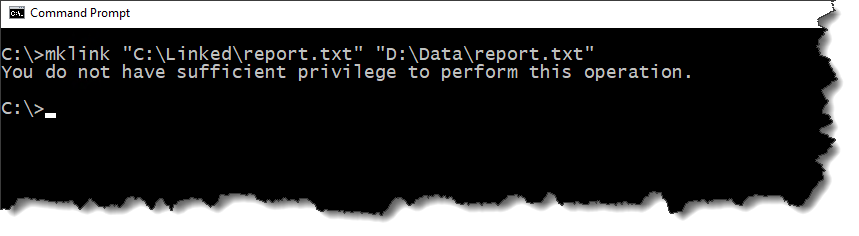
| You do not have sufficient privilege to perform this operation | CMD not running as administrator | Right-click CMD → Run as administrator |
| Cannot create a file when that file already exists | The link path already exists | Delete or rename the existing file or folder at the link path first |
| The system cannot find the path specified | The target path does not exist or contains a typo | Verify the target path exists. Always quote paths that contain spaces. |
| Hard link fails silently or returns an error | Source and target are on different drives | Both paths must be on the same volume for hard links |
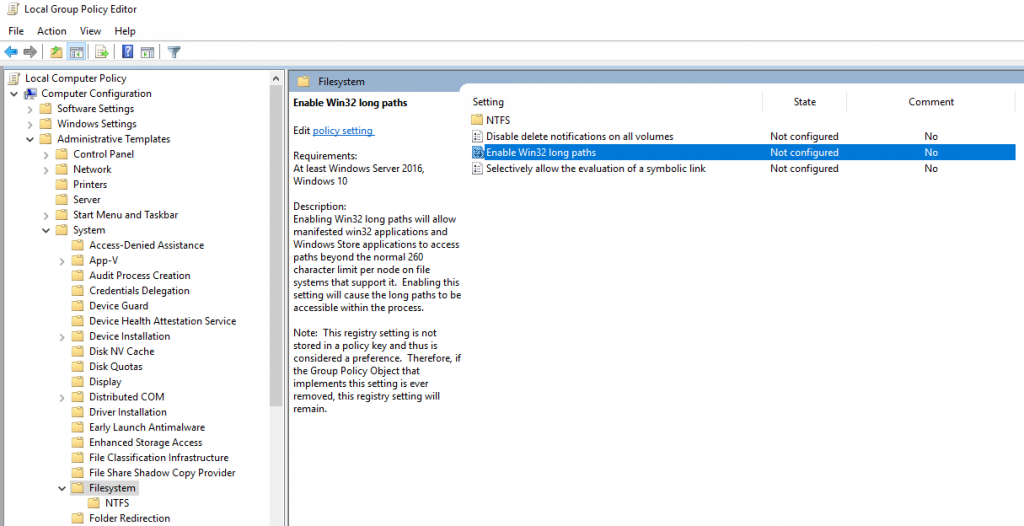
| Symlink to network share does not work | Windows blocks UNC symlinks by default | Use a junction instead, or enable symlink support via Group Policy |
mklink /D C:\Link Folder D:\Real Folder will fail. The correct form is mklink /D "C:\Link Folder" "D:\Real Folder".
Hidden gems
Links survive reboots but not target deletion
Symbolic links and junctions persist across reboots — they are stored in the filesystem, not in memory. However, if the target path is deleted or moved, the link becomes a broken pointer. Applications trying to access the link will receive a “path not found” error with no indication that the link itself is the problem. Always verify target paths before relying on links in production.
Backup software may follow symlinks
Some backup tools treat symlinks as real directories and follow them during backup, copying the target data as if it were at the link location. This can create duplicate backup entries and inflate backup size significantly. Check your backup software’s symlink handling policy before deploying links in paths that are included in scheduled backups.
Symlinks to network shares require Group Policy adjustment
Windows blocks symlinks pointing to UNC paths by default for security reasons. If you need to link to a network share, the most reliable workaround is to use a directory junction instead. If a symlink is required, the setting can be enabled via Group Policy: Computer Configuration → Administrative Templates → System → Filesystem.
Use dir /AL to verify link creation
File Explorer shows symbolic links and junctions as regular folders with a small shortcut icon — easy to miss. To confirm a link was created correctly and see its target, run dir /AL in the parent directory. This lists only reparse points and symlinks, making it the fastest way to audit links in a folder.
:: List all symbolic links and junctions in the current directory
dir /AL

:: List recursively across subdirectories
dir /AL /S C:\
PowerShell equivalent
PowerShell does not call mklink directly. The native equivalent is New-Item with an -ItemType parameter.
# Symbolic link to a folder
New-Item -ItemType SymbolicLink -Path "C:\LinkedFolder" -Target "D:\RealFolder"

# Symbolic link to a file
New-Item -ItemType SymbolicLink -Path "C:\Linked\notes.txt" -Target "D:\Archive\notes.txt"

# Hard link to a file
New-Item -ItemType HardLink -Path "C:\Shared\latest.log" -Target "C:\App\output.log"

# Directory junction
New-Item -ItemType Junction -Path "C:\LegacyApp\Logs" -Target "E:\AppLogs"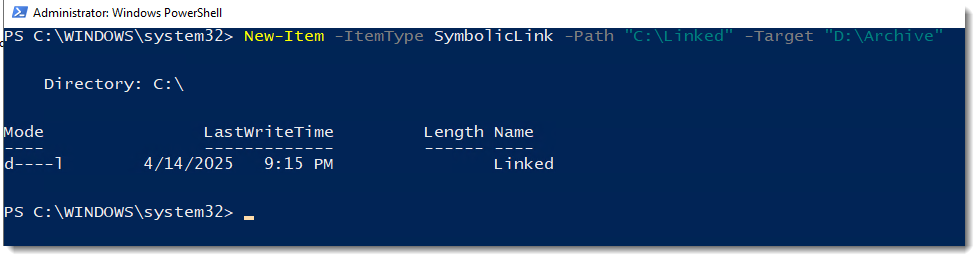
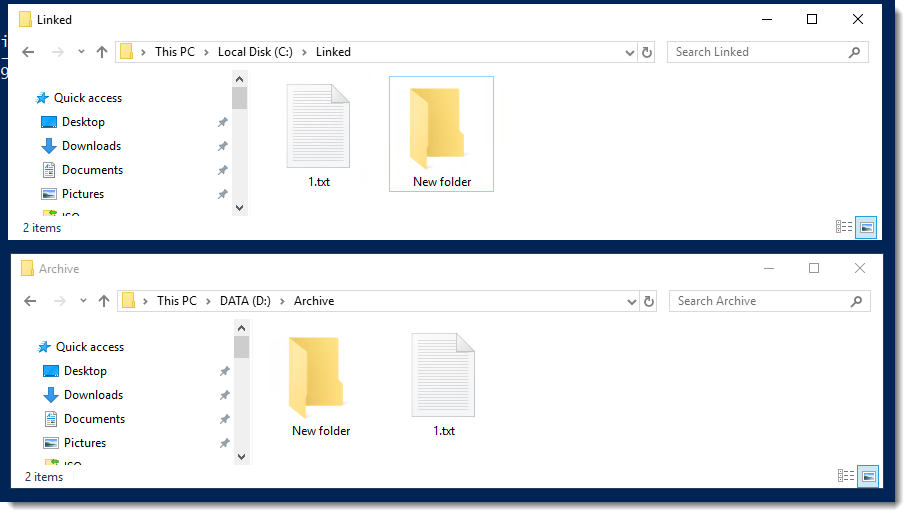

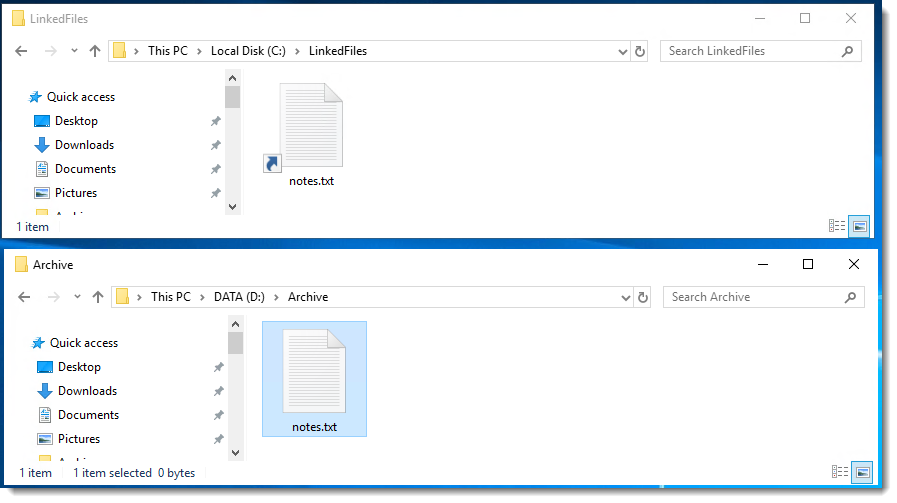
New-Item requires the same administrator privileges as mklink. If you are running PowerShell without elevation, symlink creation will fail with an access denied error.
For scripts and deployment automation, New-Item is generally preferred over cmd /c mklink because it integrates naturally with PowerShell pipeline and error handling.
| Action | CMD (mklink) | PowerShell (New-Item) |
|---|---|---|
| File symlink | mklink <link> <target> | New-Item -ItemType SymbolicLink |
| Directory symlink | mklink /D <link> <target> | New-Item -ItemType SymbolicLink |
| Hard link | mklink /H <link> <target> | New-Item -ItemType HardLink |
| Junction | mklink /J <link> <target> | New-Item -ItemType Junction |
| Admin required | Yes | Yes |
GUI alternatives
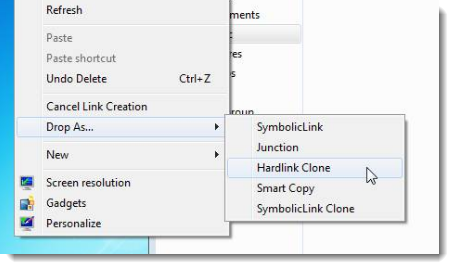
If command-line is not an option, two third-party tools provide symlink creation via File Explorer right-click context menu.
Link Shell Extension — adds drag-and-drop symlink and junction creation to Explorer. Widely used and actively maintained.
Symlink Creator — simpler interface, suitable for one-off link creation without drag-and-drop complexity.
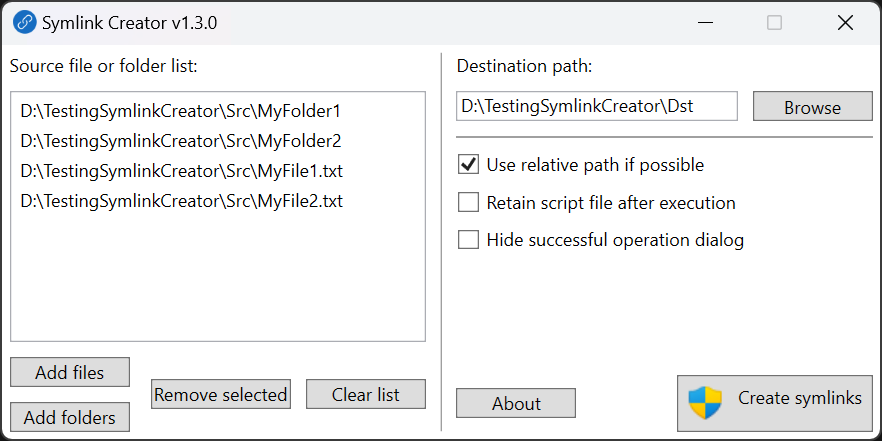
Where this matters
Cloud storage sync — applications that do not support custom save paths can be redirected to a OneDrive or Dropbox folder using a symlink, enabling automatic sync without changing the application.
Boot drive space management — developer tools, Electron apps, and game clients frequently write gigabytes of cache to the C:\ drive. Redirecting these folders to a secondary drive with a junction frees space without reconfiguring the application.
Legacy application compatibility — older software with hardcoded paths can be kept running on modern systems by linking the expected path to the actual storage location.
Development environments — shared libraries, test data, or config trees can be linked into multiple project directories without duplication, keeping each environment lightweight and consistent.
Deployment scripts — symlinks can be created as part of an installation or provisioning script to set up expected folder structures dynamically at runtime.
Audit and cleanup — environments inherited from previous admins often contain undocumented junctions or symlinks. Knowing how to find and inspect them with dir /AL /S is an essential part of system review.
Tips and limitations
- Administrator privileges are required for all link types on standard Windows configurations
- Hard links are restricted to files and must remain on the same NTFS volume
- Junctions are folder-only and work across volumes but not across network paths
- Symbolic links can point to network paths but require Group Policy configuration to enable
- Paths containing spaces must be quoted — both the link path and the target path
- The target path must exist before creating a symlink or junction
- Do not delete a symlink or junction using
rmdir /S— this deletes the target directory. Userdwithout/Sto remove only the link
rmdir /S "C:\LinkedFolder" on a junction or symlink that points to a real folder will delete the target data, not just the link. Use rd "C:\LinkedFolder" (without /S) to remove only the link entry.
Official reference
mklink — Windows Commands | Microsoft Learn
Related guides
- Base64 encoding in PowerShell: encode and decode files and strings
- CI/CD pipelines: what they are and why you should care
- How to list all symbolic links on Windows — coming soon
- How to delete a symbolic link without deleting the target — coming soon
- NTFS hard links vs symbolic links vs junctions — coming soon