
VMware PowerCLI is a collection of PowerShell modules that lets you manage vSphere infrastructure through the command line. Instead of navigating the vSphere Client manually, you can automate repetitive tasks, pull inventory reports, manage snapshots, and interact with vCenter or ESXi hosts directly from a PowerShell session.
This guide covers the full installation process: installing PowerCLI from the PowerShell Gallery, verifying the module, connecting to vCenter or ESXi, and handling common issues like SSL certificate errors.
Prerequisites
- PowerShell 5.1 (included with Windows 10 and Windows 11) or PowerShell 7.x
- Network access to the PowerShell Gallery (gallery.powershellgallery.com)
- Access to a vCenter Server or ESXi host to test the connection
Quick answer
If you already know what you are doing, here is the full sequence:
# Install PowerCLI for the current user
Install-Module -Name VMware.PowerCLI -Scope CurrentUser

# Disable CEIP prompt
Set-PowerCLIConfiguration -Scope User -ParticipateInCEIP $false

# Connect to vCenter
Connect-VIServer -Server vc01.vsphere.local -User administrator@vsphere.local -Password YourPassword

# List virtual machines
Get-VM

# Disconnect when done
Disconnect-VIServer -Server * -Confirm:$false
Step 1 — Open PowerShell as Administrator
Search for PowerShell in the Start menu, right-click it, and choose Run as Administrator.
-Scope CurrentUser, the module installs into your user profile and does not affect other users on the machine.
Step 2 — Check your PowerShell version
PowerCLI requires PowerShell 5.1 or later. Run the following to check:
$PSVersionTable.PSVersion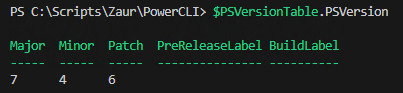
Step 3 — Install the PowerCLI module
PowerCLI is published to the PowerShell Gallery by VMware (now Broadcom). Install it with:
Install-Module -Name VMware.PowerCLI -Scope CurrentUserThe -Scope CurrentUser flag installs the module into your user profile directory. This avoids modifying shared module paths on the machine and does not require system-wide administrator rights beyond the initial session elevation.
Step 4 — Verify the installation
Confirm that the module is available:
Get-Module -Name VMware.PowerCLI -ListAvailable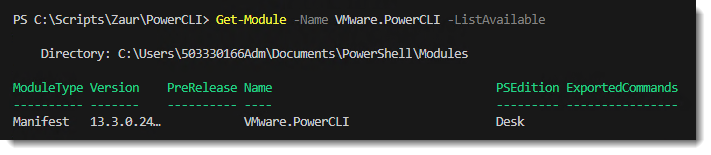
To see all VMware submodules that were installed:
Get-Module -ListAvailable | Where-Object { $_.Name -like "VMware*" }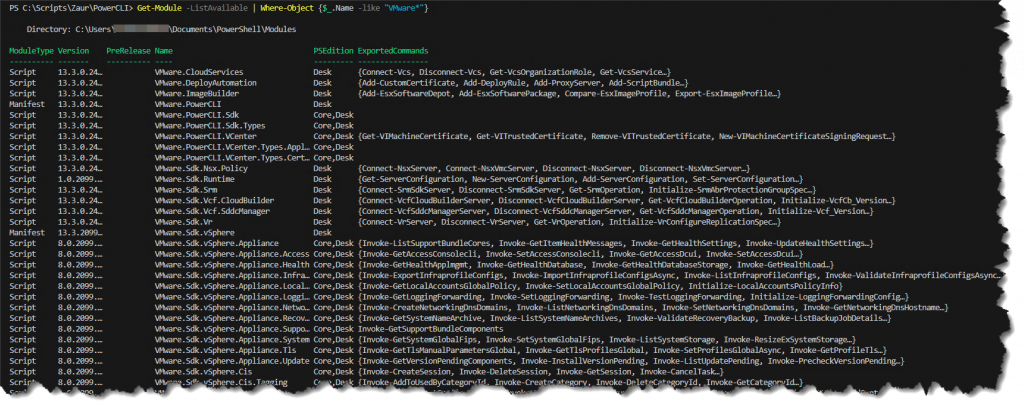
PowerCLI installs as a set of submodules such as VMware.VimAutomation.Core, VMware.VimAutomation.Vds, and others. Each submodule covers a different area of vSphere functionality.
Step 5 — Import the module
Load PowerCLI into the current session:
Import-Module VMware.PowerCLIIn most cases, PowerShell 5.1 and 7.x load installed modules automatically when you call a cmdlet from them. Explicit import is useful when you want to ensure the module is loaded before running a script.
Step 6 — Disable the CEIP prompt (optional)
When you first use PowerCLI, it may display a prompt asking whether you want to join VMware’s Customer Experience Improvement Program.

To dismiss it and opt out:
Set-PowerCLIConfiguration -Scope User -ParticipateInCEIP $falseStep 7 — Connect to vCenter or ESXi
Use Connect-VIServer to establish a session. If you omit the credentials, PowerShell will prompt for them interactively:
# Connect with interactive credential prompt (recommended)
Connect-VIServer -Server vc01.vsphere.local

# Connect with explicit credentials (useful in scripts - see warning below)
Connect-VIServer -Server vc01.vsphere.local -User administrator@vsphere.local -Password YourPasswordGet-Credential for interactive prompts, or a secrets manager such as a PowerShell SecretStore vault for automated workflows. The -Password parameter shown above is for reference only.

Step 8 — Handle SSL certificate errors
If your vCenter uses a self-signed certificate, the connection will fail with:
Connect-VIServer: The SSL connection could not be established, see inner exception.PowerCLI validates SSL certificates by default. To bypass this for the current session only:
# Suppress certificate validation for this session only
Set-PowerCLIConfiguration -Scope Session -InvalidCertificateAction Ignore
To make the setting persistent for your user account:
# Persist the setting for the current user account
Set-PowerCLIConfiguration -Scope User -InvalidCertificateAction IgnoreAfter adjusting the certificate setting, reconnect:
Connect-VIServer -Server vc01.vsphere.local -User administrator@vsphere.local -Password YourPasswordStep 9 — Verify the connection
Once connected, run a basic command to confirm the session is working:
# List all virtual machines visible to the connected vCenter or ESXi host
Get-VM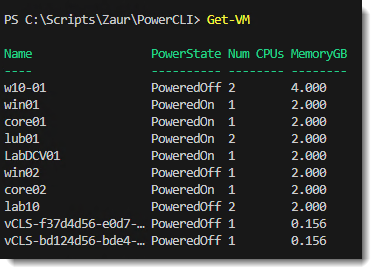
Get-VM returns a list of virtual machines, the module is installed correctly and the session is active.
Step 10 — Disconnect when done
Close the session after you finish. This releases the connection on the server side and is good practice in scripts, particularly when connecting to multiple hosts.
# Disconnect from all connected vSphere servers without a confirmation prompt
Disconnect-VIServer -Server * -Confirm:$false

# Disconnect from a specific server
Disconnect-VIServer -Server vc01.vsphere.local -Confirm:$false
Official reference
VMware PowerCLI — Broadcom Developer Portal