
When you try to delete a local user account on a Windows computer joined to a domain, you may see a warning that stops many administrators in their tracks. The message warns that deleting the account will permanently remove a unique identifier tied to it, and that this cannot be undone — even if you recreate the account with the same username.
This article explains what the warning means, why it matters in a domain environment, how to safely check the impact before proceeding, and how to delete the account using both the GUI and PowerShell.
What the warning says
The full text of the warning reads:
Each user account has a unique identifier in addition to their user name. Deleting a user account deletes this identifier and it cannot be restored, even if you create a new account with an identical user name. This can prevent the user from accessing resources they currently have permission to access.
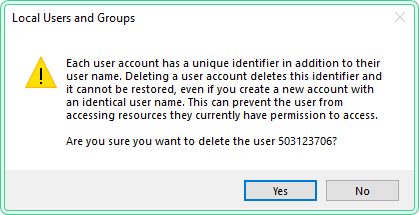
This is not a generic confirmation prompt. Windows is telling you something specific about how user identity works under the hood.
What is a SID and why it cannot be restored
Every user account in Windows — whether local or domain — is assigned a Security Identifier (SID) at the moment of creation. The SID is a unique alphanumeric string that looks like this:
S-1-5-21-3623811015-3361044348-30300820-1013Windows uses the SID — not the username — to track permissions. When you grant a user access to a file, a folder, a registry key, or any other secured resource, Windows stores that SID in the object’s Access Control List (ACL). The username displayed in the UI is just a human-readable label resolved from the SID at display time.
When you delete a user account, the SID is permanently destroyed. If you then create a new account with the exact same username, Windows generates a brand new SID. The new account has no connection to the old one. Any resource that had permissions assigned to the old SID will no longer recognise the new account — the username match is irrelevant.
This is why the warning exists. It is not possible to restore the original SID after deletion.
When it is safe to proceed
You can safely delete the local user account if one of the following is true:
- The account is no longer used and has no permissions assigned to local resources
- You have already audited the account’s permissions and reassigned them where needed
- The account was a temporary or test account with no meaningful access
- The machine is being decommissioned or rebuilt
You should pause and investigate first if:
- You are unsure what local resources the account has access to
- The account may have been used to run scheduled tasks or services
- Other administrators or applications may depend on this account
How to check what resources the user has access to
Before deleting the account, run the following checks. All commands below are read-only and safe to run on any Windows 10/11 machine.
Check local group membership
This shows which local security groups the user belongs to.
# Replace 'USERNAME' with the actual account name
$user = "USERNAME"

# Get all local groups and check if the user is a member of each
Get-LocalGroup | ForEach-Object {
    $group = $_.Name
    $members = Get-LocalGroupMember -Group $group -ErrorAction SilentlyContinue
    if ($members | Where-Object { $_.Name -like "*$user*" }) {
        Write-Output "Member of: $group"
    }
}
Check if the account runs any scheduled tasks
# List all scheduled tasks and filter by the username
schtasks /query /fo LIST /v | findstr /i "USERNAME"
Check if the account runs any services
# List services configured to run under the local account
# Replace 'USERNAME' with the actual account name
Get-CimInstance Win32_Service | Where-Object { $_.StartName -like "*USERNAME*" } |
Select-Object Name, StartName, StateCheck folder permissions
If you want to check whether the account has explicit permissions on a specific folder:
# Check ACL on a specific folder — replace the path as needed
icacls "C:\FolderPath"
Look for the username in the output. If it appears, the account has explicit permissions on that folder. Consider removing or reassigning those permissions before deletion.
How to delete the local user
Using Local Users and Groups (GUI)
- Press
Win + R, typelusrmgr.msc, press Enter - Open the Users folder
- Right-click the account you want to delete
- Select Delete
- Confirm the warning by clicking Yes
Using PowerShell
# Remove a local user account by name
# Replace 'USERNAME' with the actual account name
Remove-LocalUser -Name "USERNAME"
To confirm the account was removed:
# Verify the account no longer exists
Get-LocalUser -Name "USERNAME" -ErrorAction SilentlyContinue
If the command returns nothing, the account has been successfully deleted.
Using Command Prompt
# Delete a local user account from Command Prompt
# Replace 'USERNAME' with the actual account name
net user USERNAME /deleteWhat to do if access to resources is lost after deletion
If the account was deleted and you now need to restore access to resources it previously controlled, creating a new account with the same name will not help. The SID is gone and cannot be recovered.
The correct approach is:
- Identify the resources that need to be accessed
- Create a new account if needed — it will receive a new SID
- Explicitly grant the new account the required permissions on each resource
To grant permissions on a folder using PowerShell:
# Grant a new user full control on a specific folder
# Replace 'NewUsername' and the path as needed
$acl = Get-Acl "C:\FolderPath"
$rule = New-Object System.Security.AccessControl.FileSystemAccessRule(
    "NewUsername", "FullControl", "ContainerInherit,ObjectInherit", "None", "Allow"
)
$acl.SetAccessRule($rule)
Set-Acl "C:\FolderPath" $aclTips and limitations
Disable instead of delete when unsure. If you are not certain about the impact, consider disabling the account first rather than deleting it. A disabled account cannot log in, but its SID and permissions remain intact. You can re-enable it at any time.
# Disable a local user account without deleting it
# Replace 'USERNAME' with the actual account name
Disable-LocalUser -Name "USERNAME"
Local accounts vs domain accounts on domain-joined machines. On a domain-joined computer, most day-to-day user accounts are domain accounts managed by Active Directory. Local accounts on such machines are typically used for local administration, break-glass access, or legacy purposes. Be clear about which type of account you are deleting before proceeding.
The built-in Administrator account cannot be deleted. The built-in Administrator account (SID ending in -500) is protected and cannot be deleted via lusrmgr.msc or Remove-LocalUser. It can only be disabled.
This warning does not appear for domain accounts. The warning shown in this article is specific to Local Users and Groups (lusrmgr.msc). Domain account deletion is managed through Active Directory Users and Computers and follows different procedures.
Official reference
Security identifiers — Microsoft Learn